
Some users report that Intel Graphics Settings crashes when they try to open it, leaving the app unusable. On Windows 11/10, possible causes include outdated or damaged drivers, compatibility problems, and Windows bugs.
Intel Graphics Settings, also called Intel Graphics Command Center and available through the Microsoft Store, lets you adjust graphics options for gaming, connected displays, scaling, video modes, and anti-aliasing.
What can cause Intel Graphics Settings to crash?
- Outdated drivers: Older drivers can cause software to malfunction. Keeping them updated helps them work efficiently.
- Windows bugs or corruption: Glitches in Windows can trigger these problems. Built-in Windows troubleshooting options may help.
- Intel driver problems: Corrupted or incompatible drivers can cause errors. Installing the latest driver and checking compatibility may resolve them.
Fix Intel Graphics Settings crashes on Windows 11/10
The two approaches below require administrator permission:
- Reinstall the Intel Graphics Driver and Intel Display HDMI/Audio Driver.
- Update or reinstall the Intel software.
Reinstall the Intel graphics and display audio drivers
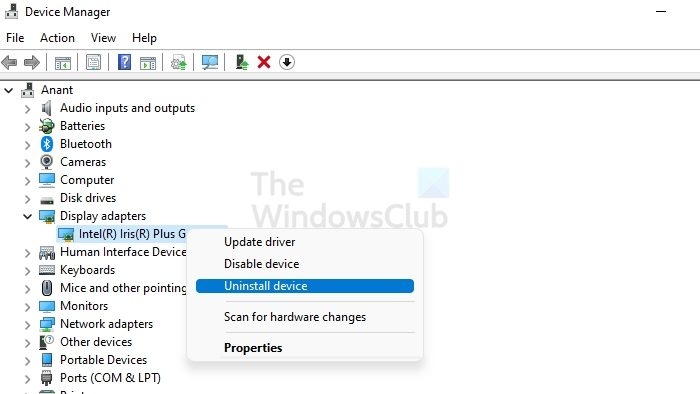
Start by removing the graphics driver:
- Press Windows and X together to open Device Manager.
- Find and expand Display Adapters.
- Locate Intel Graphics Driver or a similarly named entry. Some systems may list Intel Graphics Media Accelerator Driver (Intel GMA Driver).
- Right-click Intel Graphics Driver.
- Choose Uninstall from the context menu.
- Select Delete the driver software for this device.
- Restart the PC.
Next, uninstall the Intel Display HDMI/Audio Driver:
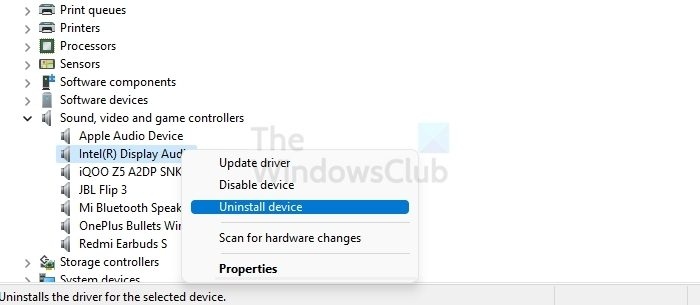
- Press Windows and X together to open Device Manager.
- Find and expand Sound, Video, and Game Controllers.
- Locate Intel HDMI Display Audio or Intel Display Audio.
- Choose Uninstall from the drop-down menu.
- Restart the PC when removal finishes.
Reinstall the drivers
After removing both drivers, reinstall them using either Intel Driver & Support Assistant or the manual download method. Intel Driver & Support Assistant detects and reinstalls the driver automatically, without further action.
To download and install the driver manually:

- Identify your Intel Processor and record its Intel Processor number.
- Open the Download Center, enter the processor number, and press Enter.
- Under Filter By on the left, select Drivers.
- Choose the driver to reinstall, making sure to select the latest updates.
- Click the driver, then select Download.
- When the download finishes, launch the Exe file.
- When the installer appears, select Begin Installation. Follow its instructions and wait for installation to finish.
- Run the Exe file, then verify that the driver is installed.
- Press Windows and X, followed by M, to open Device Manager.
- Double-click Display Adapters, then click the Intel Graphics device.
- Open the Driver tab and check that Driver Date and Driver Version show the correct information.
Update or reinstall the Intel software
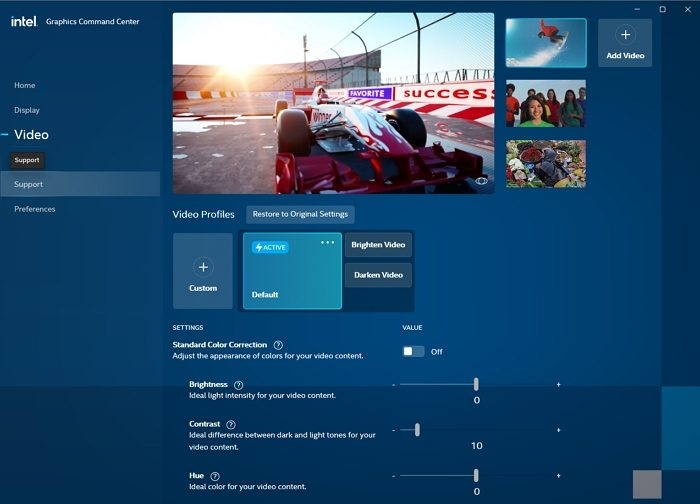
Use the Microsoft Store to install Intel Graphics Command Center:
- Open Microsoft Store.
- Select the Get button on the right.
- Sign in if necessary. When the Open Microsoft Store prompt appears, click it to continue.
- In the Microsoft Store application, select Get to begin installing Intel Graphics Command Center.
If these fixes do not resolve the crashes, seek help from a professional.
Other Intel graphics issues
Intel Graphics Control Panel disappears after a driver update
Updating the DCH graphics driver can remove Intel Graphics Control Panel because Intel Graphics Command Center has replaced it. The replacement is primarily intended for systems with 6th Generation Intel processors or later.
Intel graphics options are missing
Missing registry values or outdated Intel HD Graphics card software can cause missing options. An incorrect software installation is another possibility, or the menu may need to be enabled in the software settings.
A corrupted or incompatible graphics driver
Although graphics problems can have several causes, a corrupted or incompatible driver is a primary possibility. One suggested approach is to uninstall the graphics driver and let Windows find and install the latest compatible driver.

