
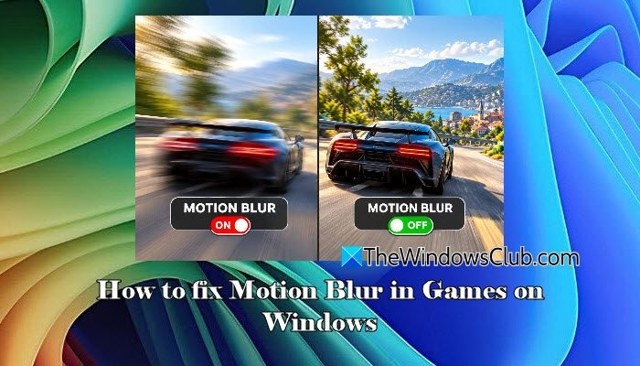
Motion blur helps games convey speed and give camera movements a cinematic, natural appearance. However, it can also smear details, making enemies, objects, and on-screen information harder to distinguish. The adjustments below can reduce unwanted blur in games on Windows 11.
Understand the source of the blur
Games commonly use two forms of motion blur:
- Camera motion blur (full-screen blur): Rapid camera movement or rotation blurs the scene. Depending on the engine, this may affect the whole image or mainly areas that appear to move relative to the camera.
- Object motion blur (per-object/per-pixel blur): Moving elements, such as wheels, vehicles, or weapons, are blurred to communicate speed and direction, while the surrounding scene can remain relatively sharp.
These effects can suit cinematic adventures and racing games but may interfere with target tracking in competitive shooters. Similar-looking trails can also come from slow monitor pixel transitions rather than a game effect.
Turn off motion blur in the game
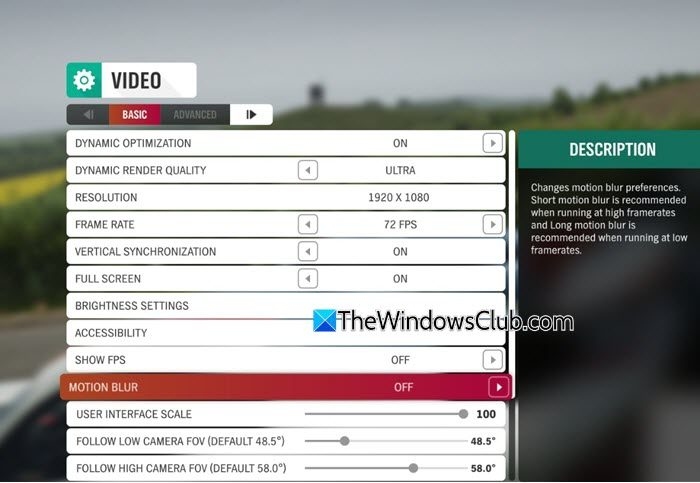
Disabling the game's motion blur option is the most direct way to remove blur generated by its engine.
- Launch the game and open Settings or Options.
- Look in Graphics, Video, or Display for Motion Blur, then set it to Off. If there is a Blur Intensity slider, move it to zero. Menu locations differ between games.
- Apply the changes, then move the camera quickly to check the result.
The image above shows the option in Forza Horizon 5’s Video settings. Alongside the on/off control, the menu explains which frame rates suit short and long motion blur.
Adjust the monitor’s response time
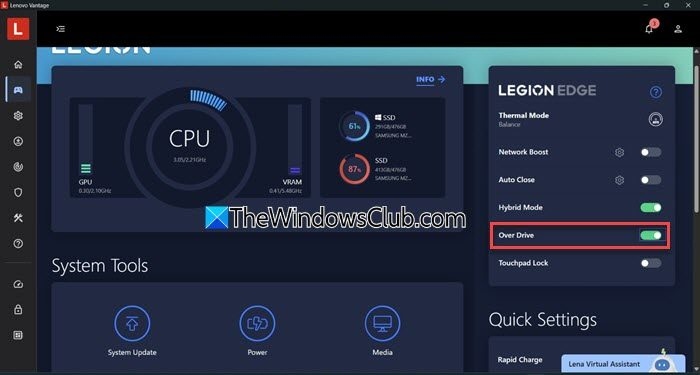
If moving objects still leave blurry trails, check the monitor’s response time: the time a pixel needs to change color, measured in milliseconds (ms). This differs from refresh rate, which is measured in hertz (Hz).
A 60Hz monitor updates approximately every 16.67 milliseconds. When a pixel transition takes longer, it may continue into the next frame and produce ghosting or smearing.
- Open the monitor’s on-screen display (OSD) menu and find Response Time.
- Try Normal or Medium and check whether trailing becomes less noticeable.
- If the monitor has no OSD menu, check its manufacturer’s utility app for the setting.
Other monitor options may also help:
- Overdrive: This speeds up pixel transitions to reduce ghosting. Available controls vary: presets may include Low, Medium, and High or Level 1, Level 2, Fast, and Ultra Fast. Other monitors use a numerical scale or allow Overdrive to be disabled. Compare levels for a balance between clearer motion and fewer trails. Excessive Overdrive can produce inverse ghosting—bright or dark outlines behind moving objects.
- Black Frame Insertion (BFI): Supported monitors can insert black frames between displayed frames to reduce perceived motion blur. Try enabling it to assess whether motion looks clearer.
Check the display’s refresh rate
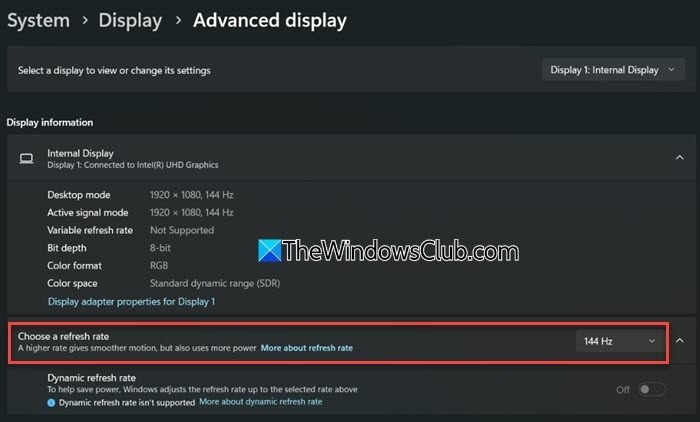
Refresh rate describes how often a display updates each second: 60Hz means 60 updates, while 144Hz means 144. Higher rates can make fast movement smoother and reduce perceived blur, helping with tracking and quick reactions.
- Press Win + I to open Settings.
- Go to System > Display, scroll down, and select Advanced display.
- If multiple displays are connected, select the one you want to adjust.
- Under Choose a refresh rate, choose the highest rate your display supports.
The available rates depend on the display, graphics hardware, connection, and resolution.
Reduce other distracting visual effects
Some effects can soften the image or make camera movement harder to follow. In the game’s Graphics or Display settings, check for:
- Depth of field: Blurs areas outside the camera’s focus. Turn it off if foreground or background blur is unnecessary during gameplay.
- Chromatic aberration: Adds colored fringes around objects, especially toward screen edges. Disabling it can sharpen the appearance of edges.
- Camera shake: Reduce or disable it if movement makes the action difficult to follow. It does not directly create motion blur, but it can reduce the sense of clarity.
Options differ by game. Change one effect at a time and assess the result. These adjustments do not directly remove motion blur; they address other sources of a blurry or distracting image.
Set a sustainable frame-rate limit
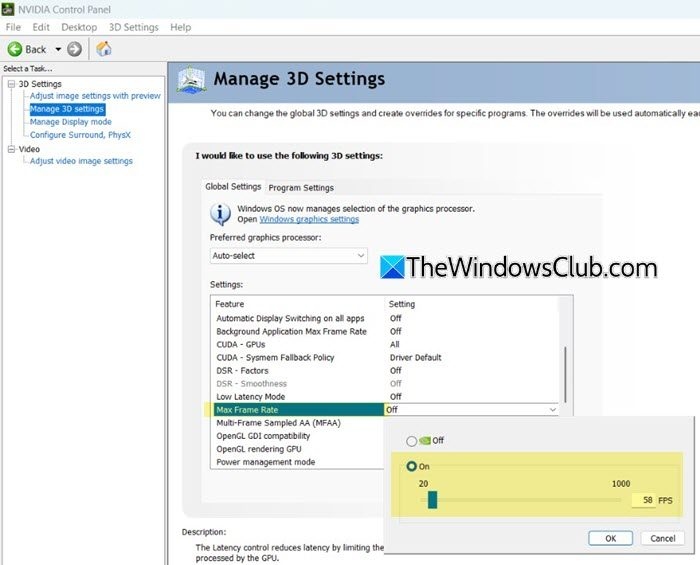
Demanding games, particularly with settings that push the GPU to its limits, can have frequent frame-rate fluctuations. This can make gameplay uneven and camera movement less smooth. A frame-rate cap may improve frame delivery consistency.
- Open the game’s Graphics, Video, or Display settings.
- Find Frame Rate or Max FPS and choose a limit the system can sustain. For example, if performance regularly ranges from 45 to 80 FPS, try a cap of 45 or 60 FPS, depending on system performance.
- If the game has no limiter, check whether your graphics card’s control panel or a supported third-party utility provides one.
- Apply the limit and test the game.
Turning off motion blur can improve clarity when it interferes with spotting enemies or tracking objects. If you prefer its cinematic appearance, whether to keep it enabled depends on the game and your preferences.

