
Screen resolution is the number of pixels arranged horizontally and vertically across a display. It affects how clearly text and graphics appear on your Windows desktop. Although the value marked Recommended is the best choice, Windows 11/10 lets you select another resolution to suit your needs.
Check and change resolution in Settings
Windows 11
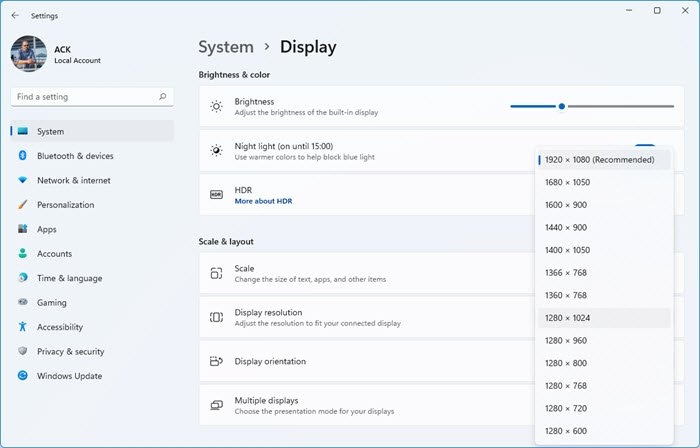
- Right-click the Start button and choose Settings.
- Select System in the left-hand list.
- Click Display in the right pane.
- Scroll to Scale & layout.
- Use Display resolution to change the setting.
Windows 10
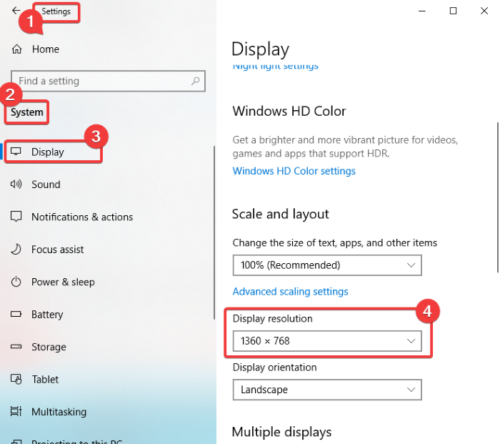
- Press Windows + X and select Settings.
- Open System > Display.
- Scroll to Scale and Layout and locate Display resolution.
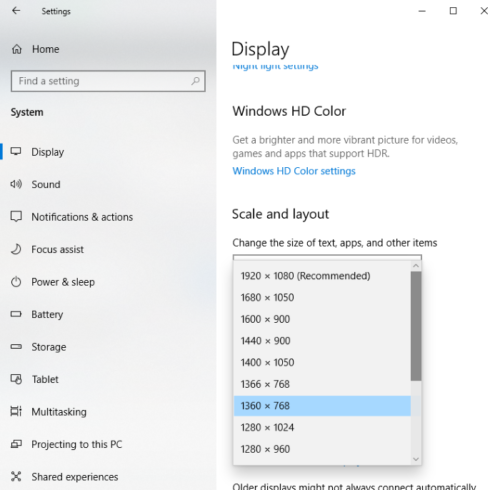
Open the Display resolution drop-down menu and choose one of the available presets.
 Windows previews the selected resolution before you confirm it.
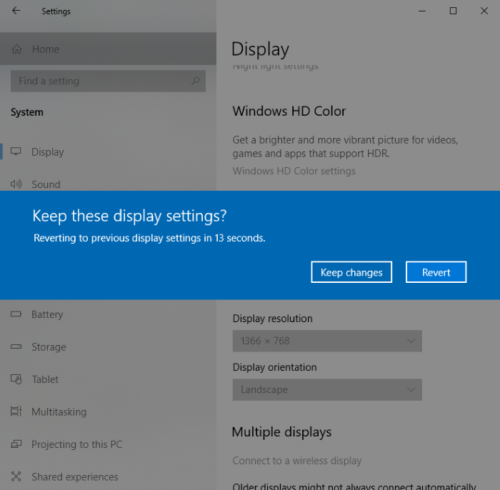
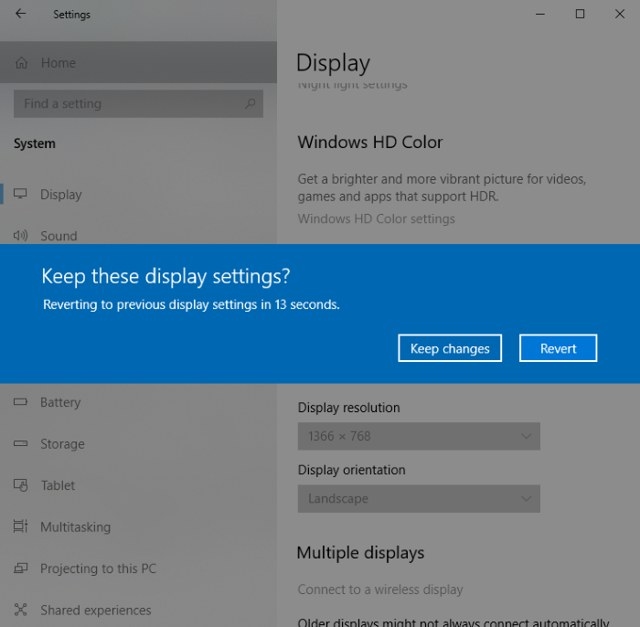
Select Keep Changes to retain the new resolution, or choose Revert to return to the previous setting and try another.
To check the current value without changing it, search for Display Settings from the Start Menu and open the result. Scroll to Scale and Layout and note the value shown in the resolution drop-down box.
Check resolution in Windows Terminal
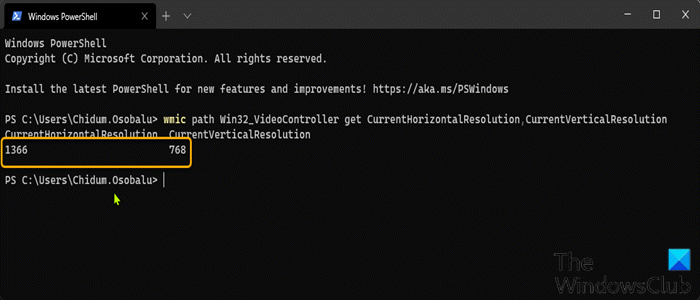
To view the current resolution through Windows Terminal in Windows 11:
- Press Windows key + X to open the Power User Menu.
- Press I to launch Windows Terminal.
- Enter the following command and press Enter.
wmic path Win32_VideoController get CurrentHorizontalResolution,CurrentVerticalResolution
After reading the horizontal and vertical resolution values, exit Windows Terminal.
Change resolution with HRC – HotKey Resolution Changer
HRC – HotKey Resolution Changer is a free, portable utility for Windows 11/10. Along with resolution, it can adjust color depth and refresh rate, support multi-monitor resolution changes, and provide customizable hotkeys for switching resolutions. Once launched, it is accessible from the system tray.
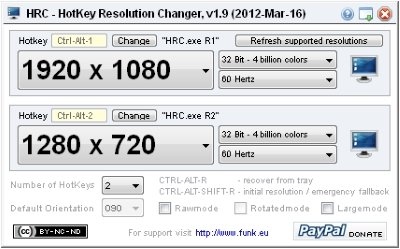
- Download the utility from its official website, funk.eu.
- Unzip the downloaded folder.
- Launch HRC.exe.
- Choose a resolution from the drop-down menu, then select the color depth and refresh rate you need.
- Click the computer icon on the right to apply the selected resolution.
Change resolution from Command Prompt
For this method, download QRes or Windows Screen Mode Changer from sourceforge.net.
- Save the download in a suitable folder and extract its contents.
- Open Command Prompt in the destination folder.
- Run the command below, replacing the numbers with your desired resolution.
qres x=1680 y=1050
This example sets the display to 1680×1050.
Create a QRes script
QRes is a lightweight, free, open-source application that can also change resolution and color depth through a script.
- Open Notepad and enter a command like the following:
"C:\QRes\QRes.exe" /x:1366 /y:768
.This example changes the resolution to 1366×768. Replace
"C:\QRes\QRes.exe"
with the path to the extracted QRes archive, and replace/x:1366 /y:768
with your desired resolution. 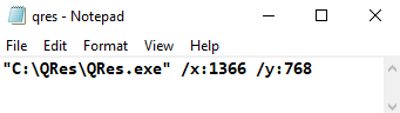 Choose File > Save As.
- Select All File Types and append .bat to the filename.
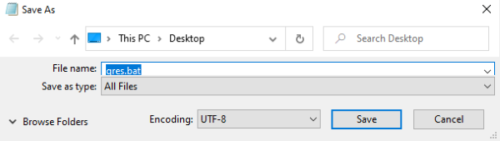
- Double-click the saved script to apply the resolution.
Recommended resolution and scaling
Windows 11 requires a minimum display resolution of 720p or 1280 x 720. Beyond that minimum, there is no single standard: computers and monitors vary in size and brand. Choose a value appropriate to your needs, preferably the one Windows marks as “Recommended.”
The default Display Scale for Windows 11 is 150%, and leaving it unchanged is strongly recommended. If external software alters it, restore the recommended value.
Set a specific resolution
1024×768
- Right-click the desktop, then left-click Properties.
- Open the Settings tab to view display properties.
- Click Advanced.
- Select the Monitor tab.
- Move the slider under Screen resolution to 1024×768 or higher, then click OK.
1920×1080
- Press Win+I to open Settings.
- Open the System category.
- On the Display page, scroll down to Display resolution on the right.
- Select 1920×1080 from the Display resolution drop-down menu.
- Press Keep changes.
Address unexpected resolution changes
Third-party applications and games commonly change resolution while running. Sometimes the change remains after the program closes or the system restarts, requiring you to restore the resolution manually.
To adjust display settings through Personalization:
- Right-click an empty area of the desktop and choose “Personalize.”
- Click “Display Settings” at the bottom of the list.
- Click, hold, and drag the slider under “Resolution” to adjust it. The highest available value is the monitor’s native resolution.
Driver misconfiguration is a primary cause of resolution problems. Incompatible drivers may select a lower resolution as a precaution. If you cannot change the resolution in Windows 11, first update the Graphics driver, or try rolling back to the previous version.

