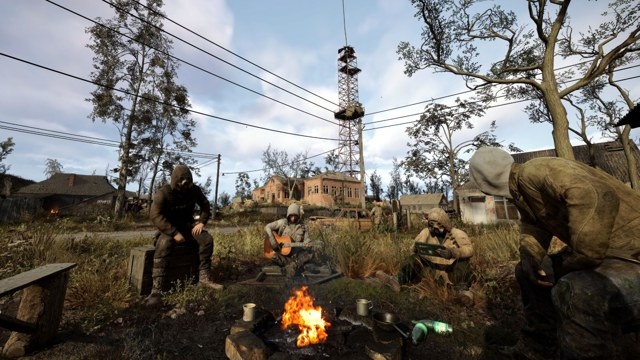
By Nick Evanson
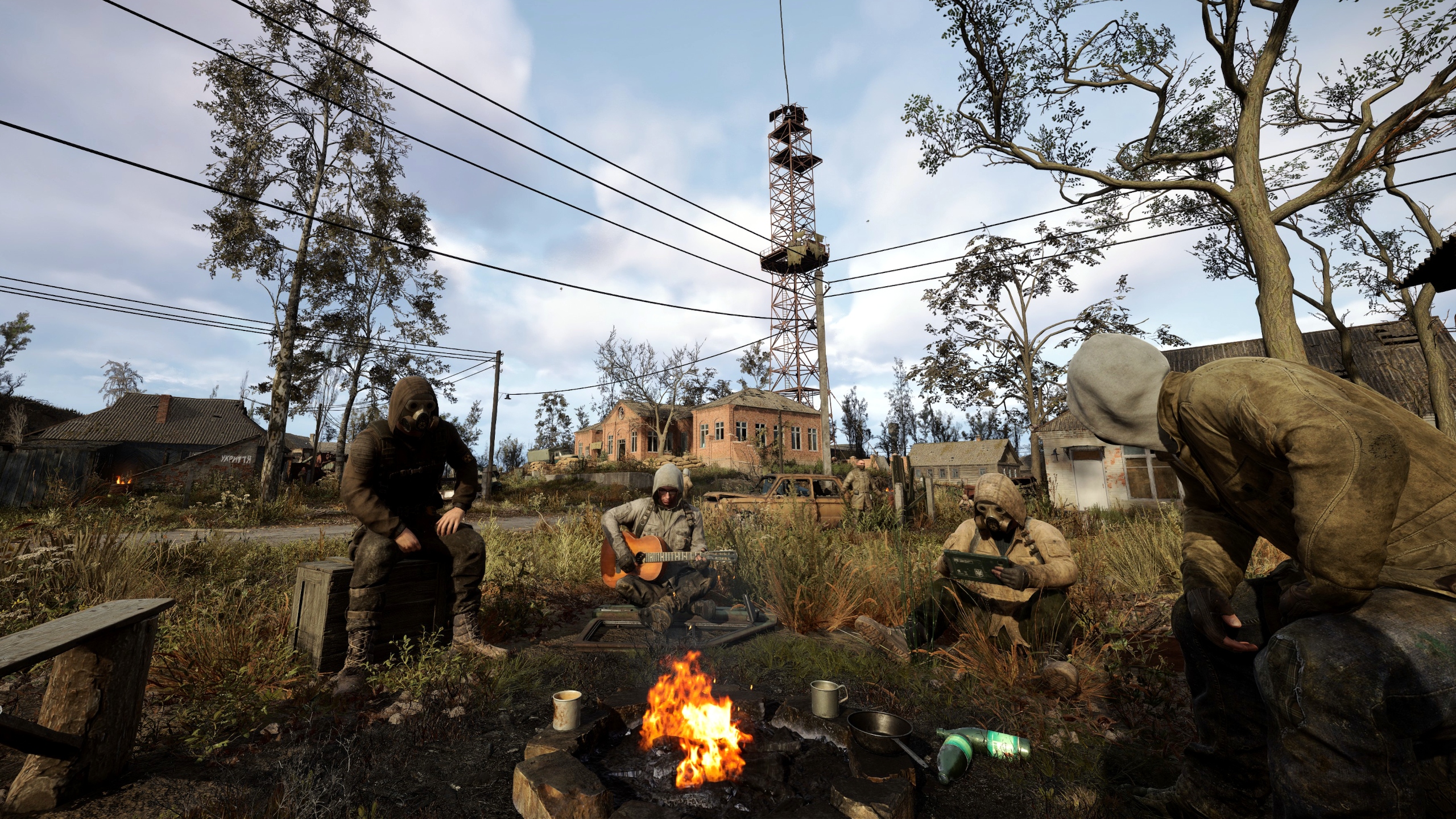
If the Stalker 2 review and performance analysis have helped you decide to buy Stalker 2: Heart of Chornobyl, the next question is how to balance image quality with frame rate. Nick Evanson spent a week testing its graphics options. Hardware remains the main performance constraint, but the right adjustments can help without unnecessarily compromising the visuals.
Recommended starting settings
- Start with a quality preset: Low, Medium, High, or Epic.
- For custom settings, raise texture quality, object detail, and global illumination, then reduce shadow quality, foliage, and environment draw distance as needed.
- Use DLSS, FSR, or XeSS upscaling in Quality mode for the best overall performance.
- Reserve 4K for genuinely powerful PCs with high-end graphics cards, such as the RX 7900 XTX or RTX 4080.
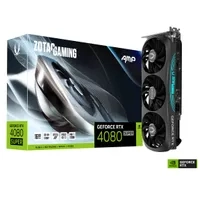
Zotac Gaming GeForce RTX 4080 Super Amp: With 16GB GDDR6X memory and NVIDIA Ada Lovelace architecture, this graphics card offers smooth 4K gameplay and highly realistic detail for the Zone's demanding environments.
Choosing a resolution
Stalker 2 renders lighting, shadows, and reflections through Unreal Engine 5's software Lumen ray tracing. Dedicated ray-tracing hardware is not required, but the extensive asynchronous compute shading can heavily tax graphics cards that are a couple of generations old. Recent high-end GPUs are better equipped, within reason.
Reducing resolution cuts that shading workload. The game still looks good at 1080p, with something of the atmosphere of the original Stalker: Call of Pripyat. Depending on your hardware, 1440p is more demanding but manageable; 4K calls for the latest high-end cards, even with substantial upscaling and frame generation.
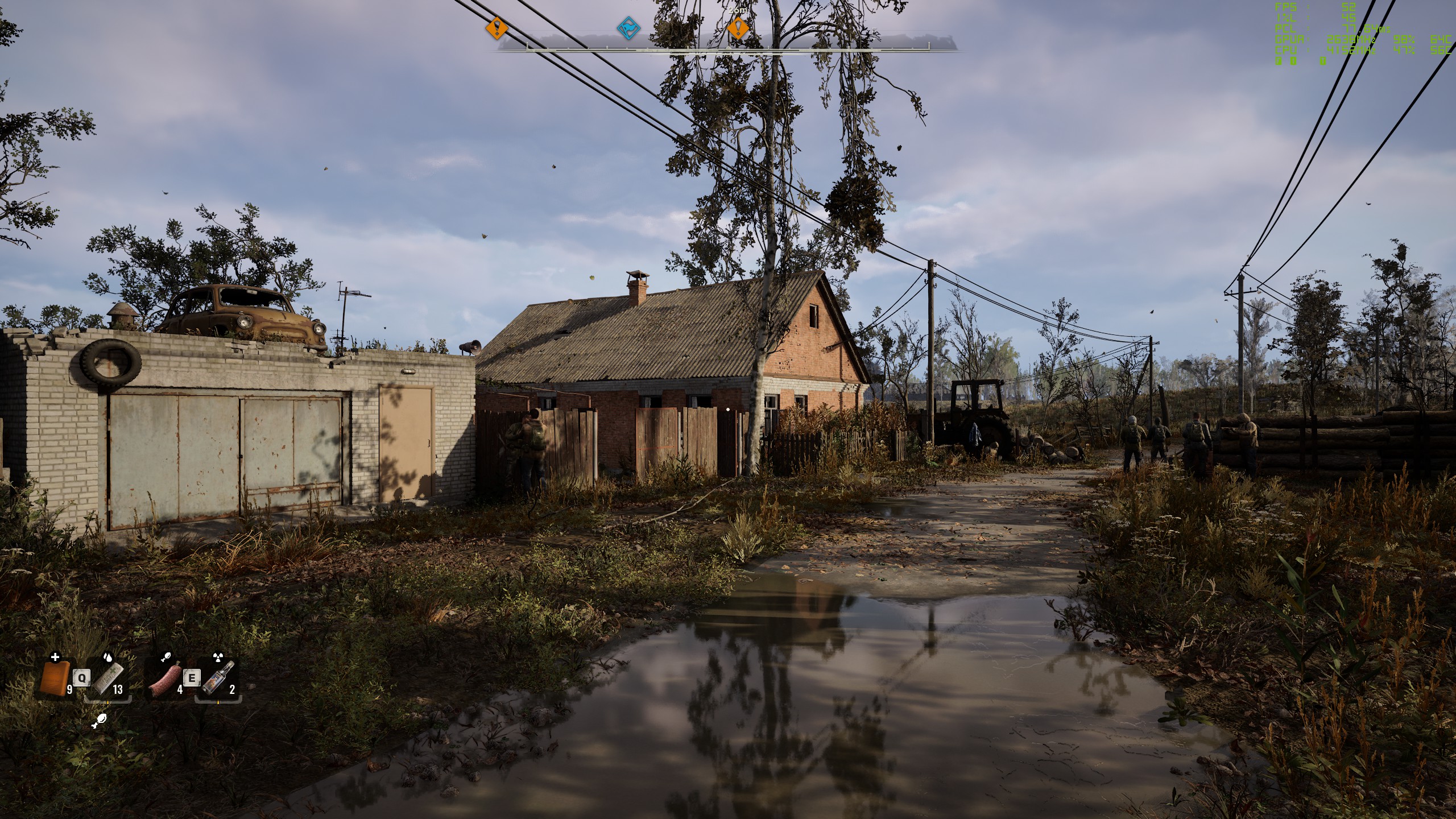
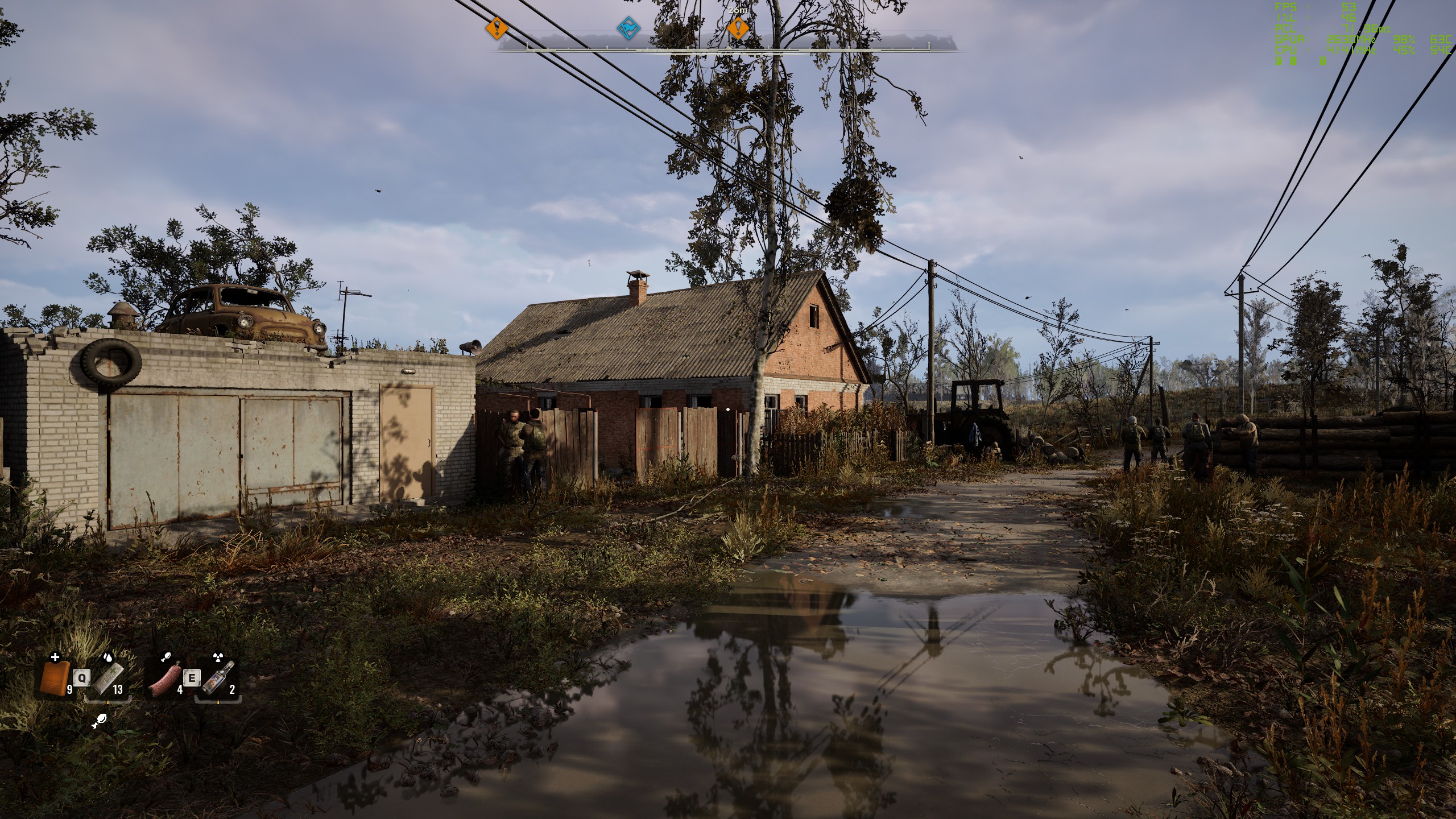
Example footage: Medium preset, 1080p resolution, no upscaling.
Core i7 14700KF, RTX 4080 Super, 32 GB DDR5-6400.
DLSS, FSR, and XeSS render at a lower internal resolution before scaling the image to your display resolution. Native rendering looks best, but Stalker 2 is sensitive enough to pixel count that upscaling is generally the better choice.
The comparisons below used a Ryzen 5 5600X, Radeon RX 6750 XT, and 32 GB of DDR4-3200 CL16 RAM, with the Medium preset as a baseline. They show why some individual settings are worth raising while others deserve restraint.
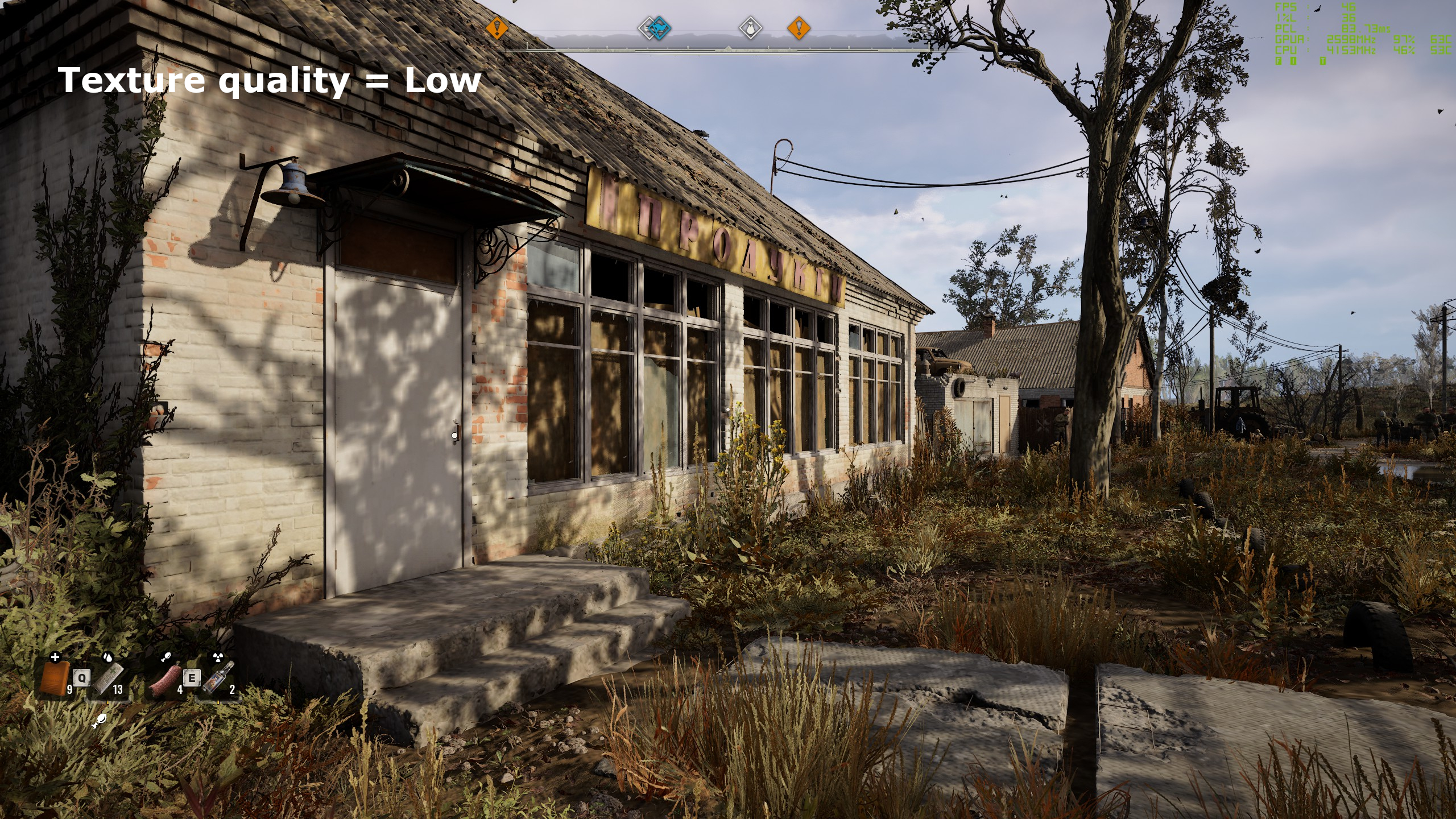
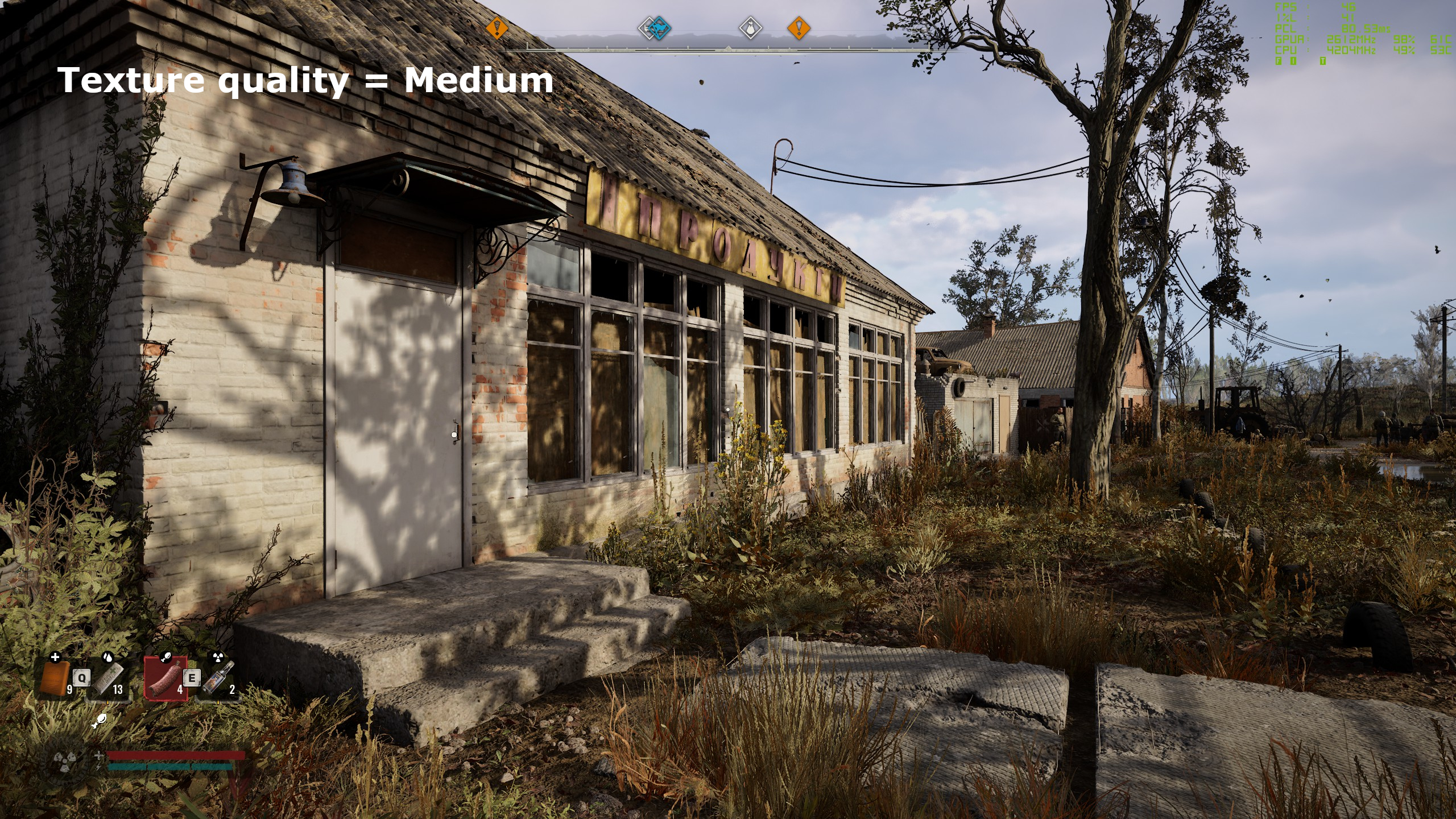
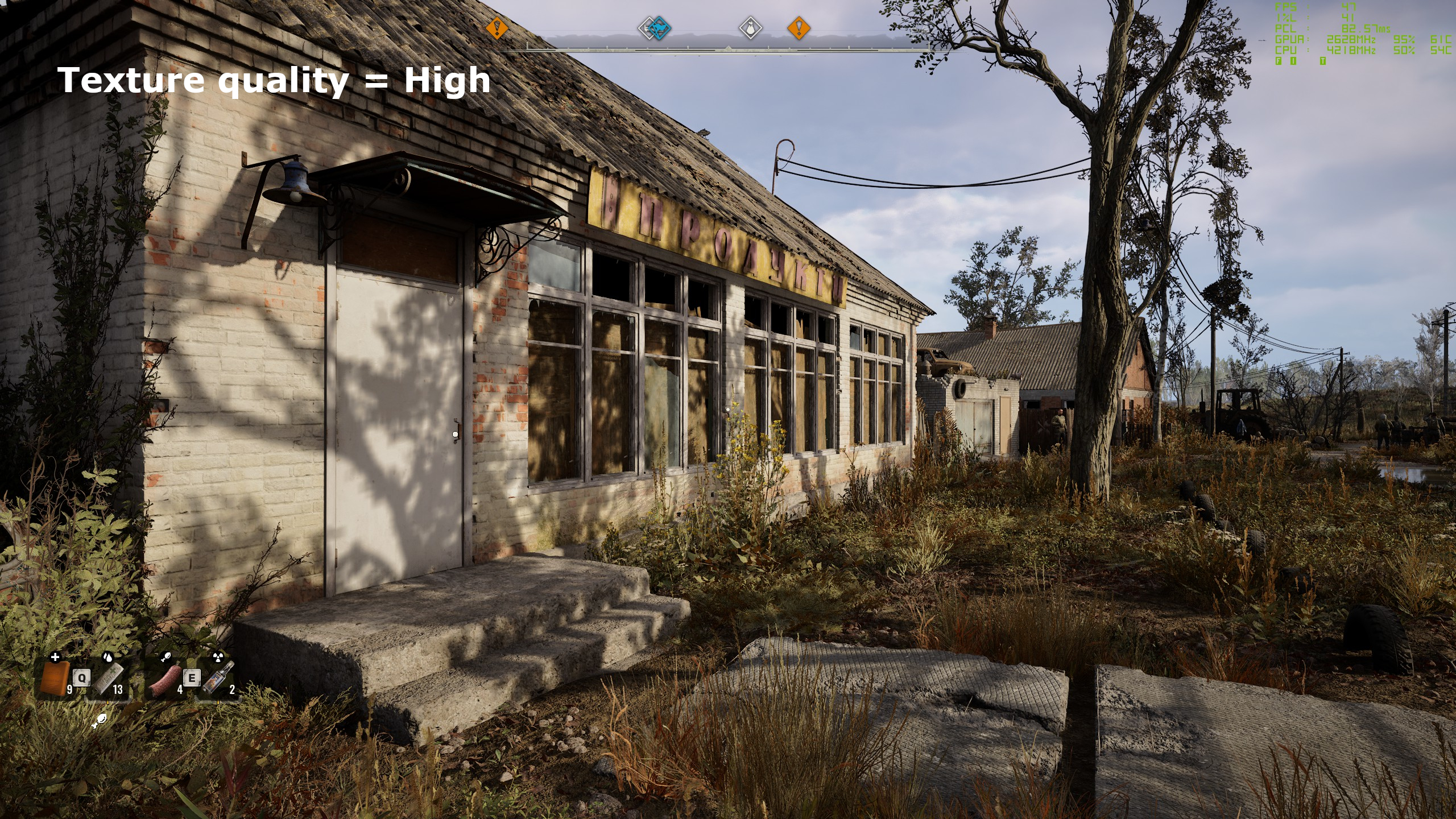
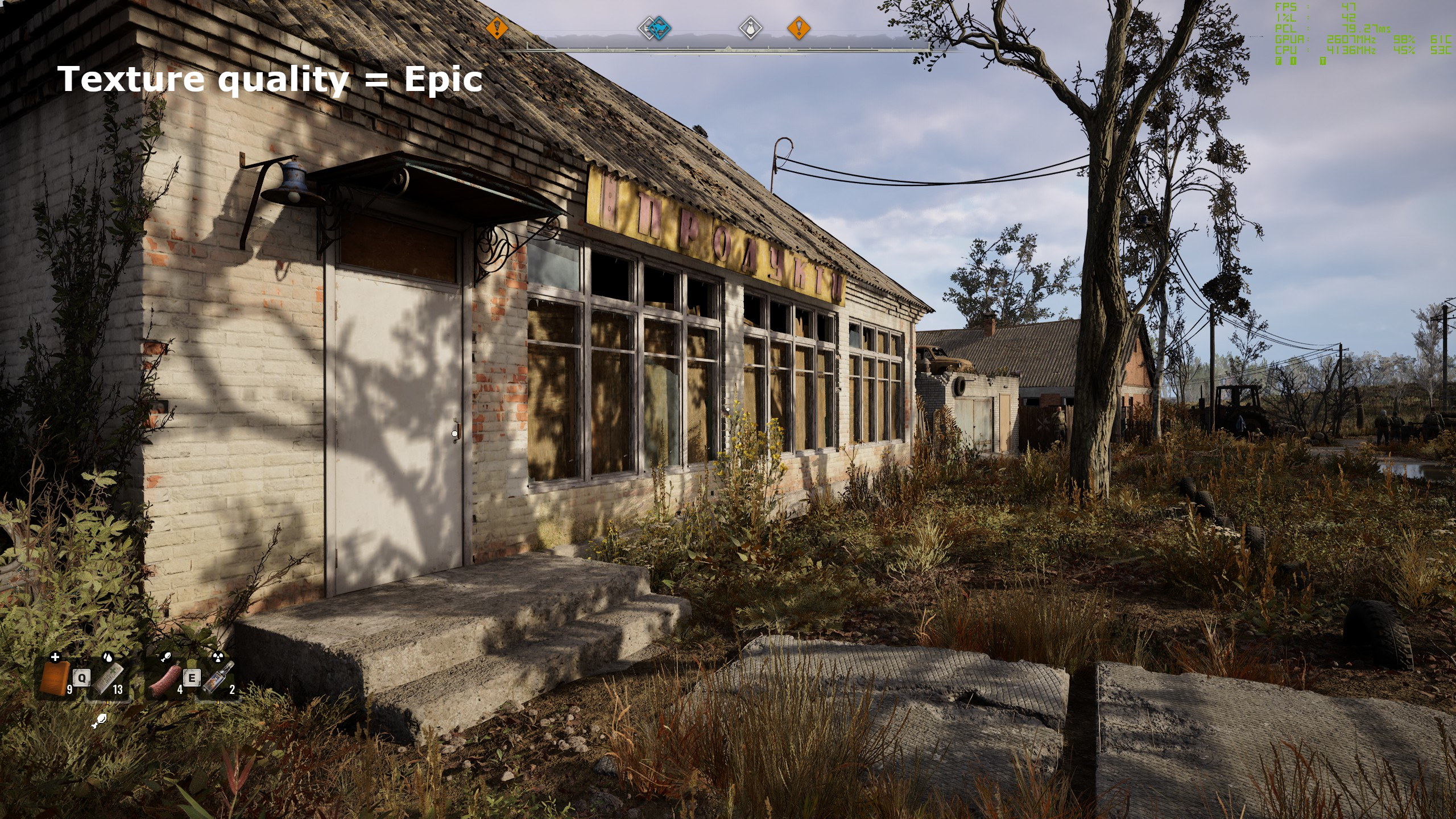
Texture quality
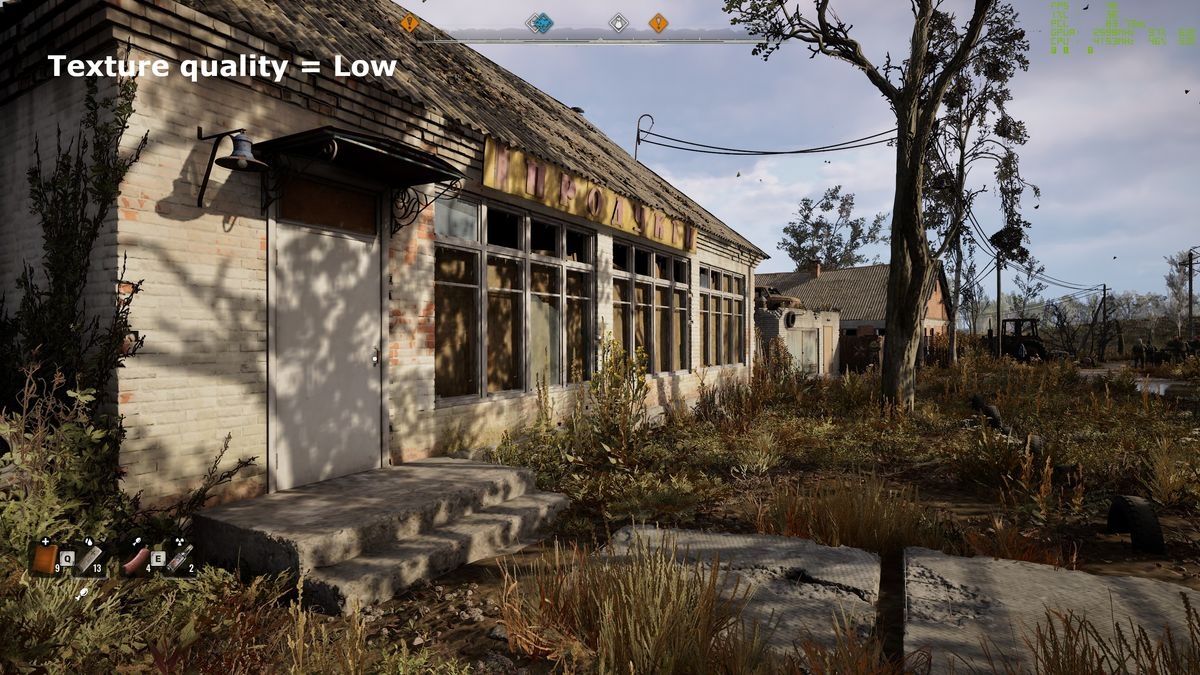
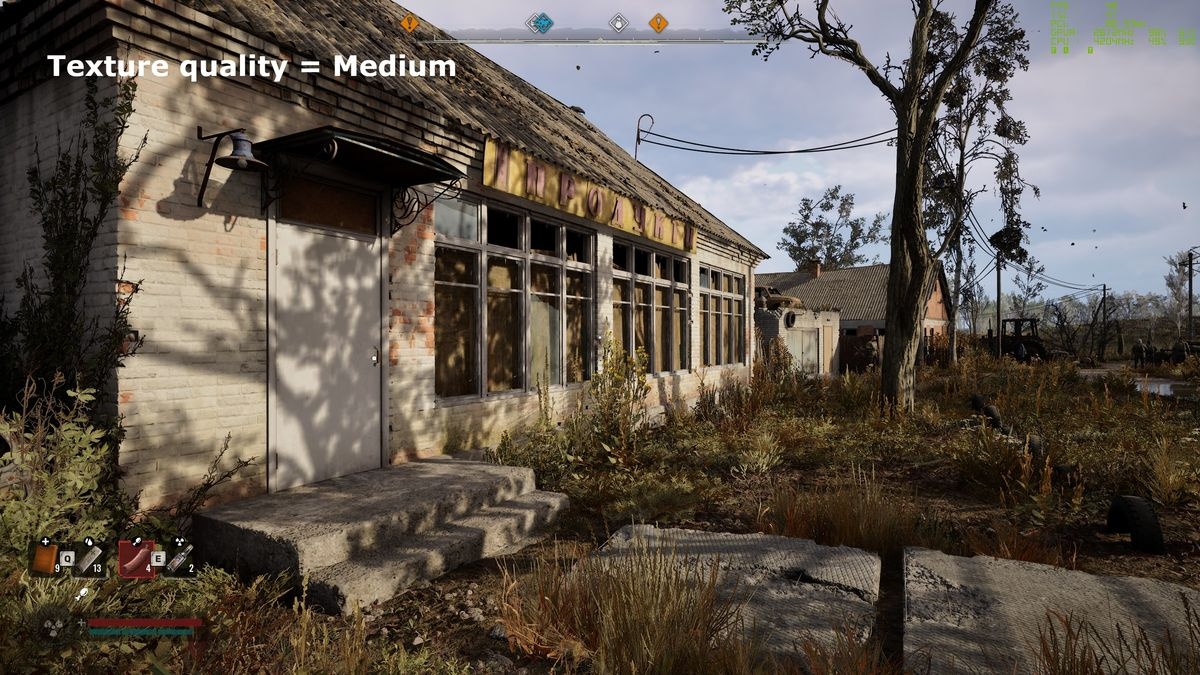
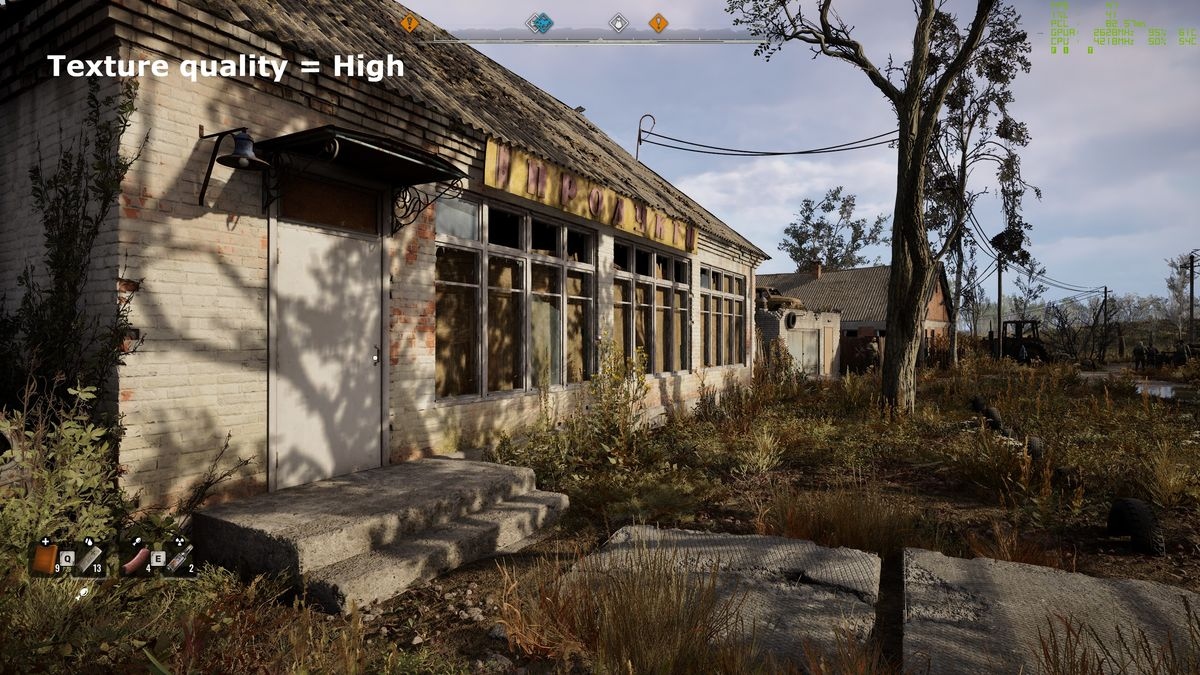
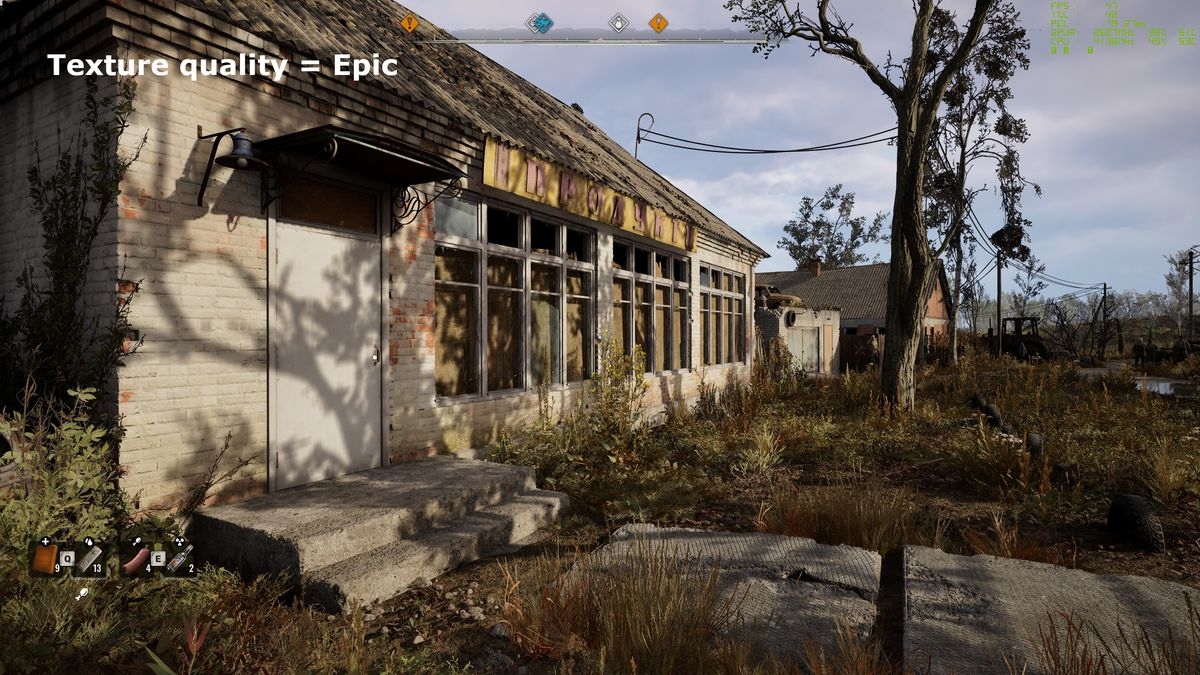
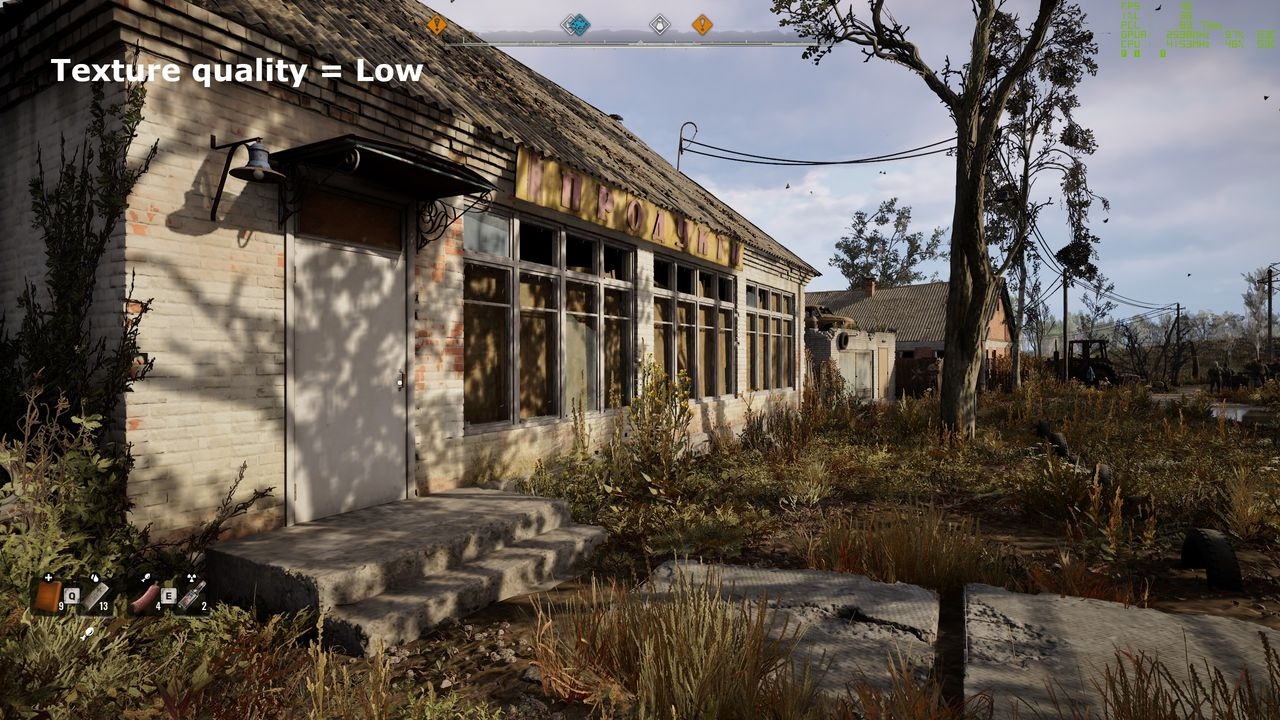
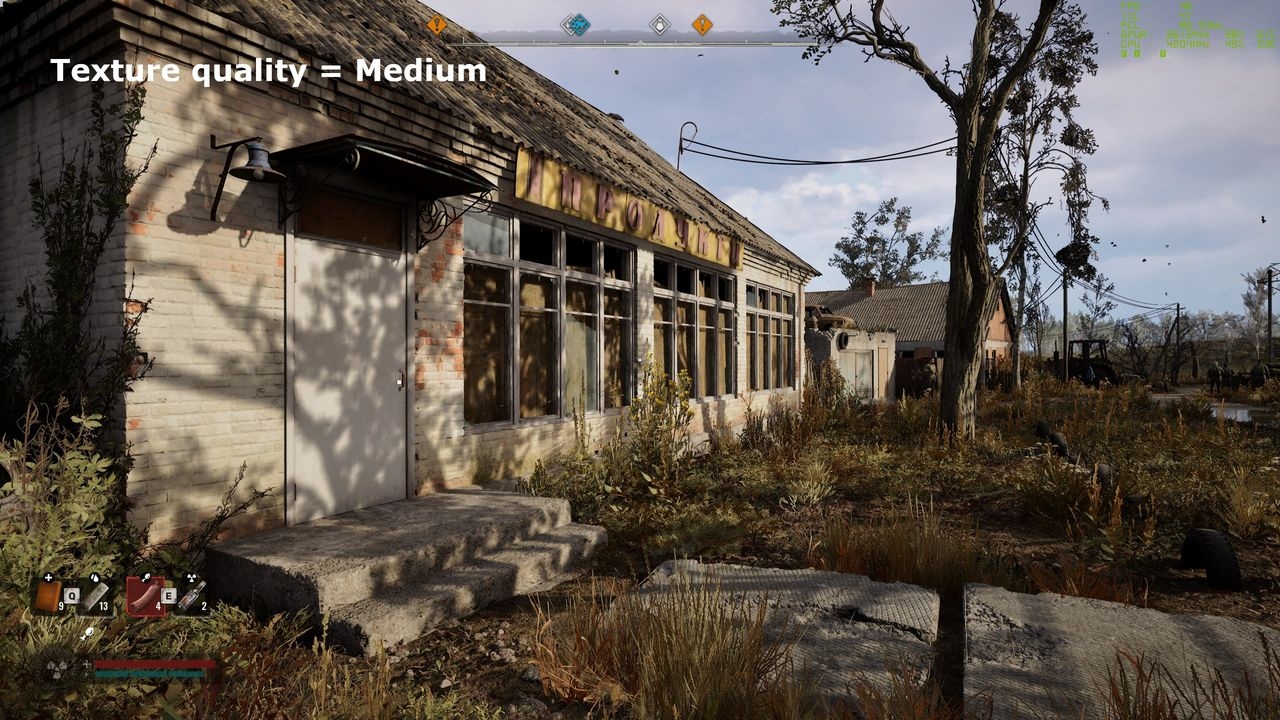
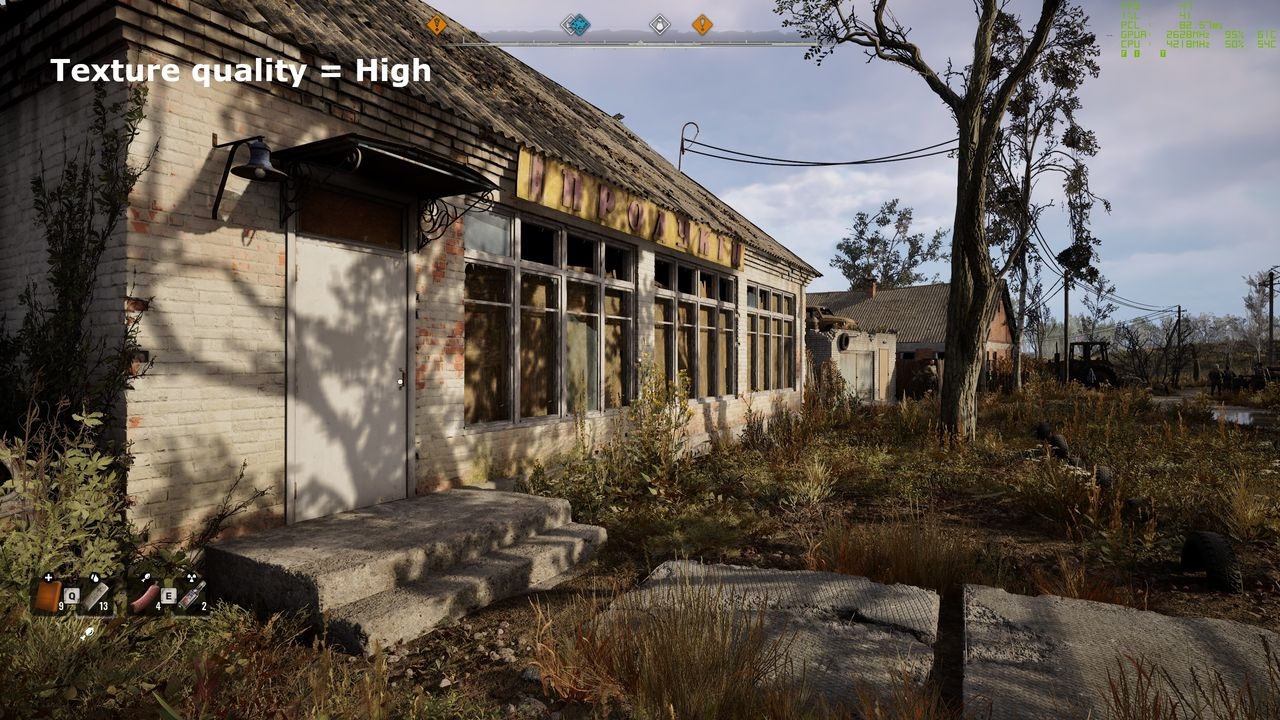
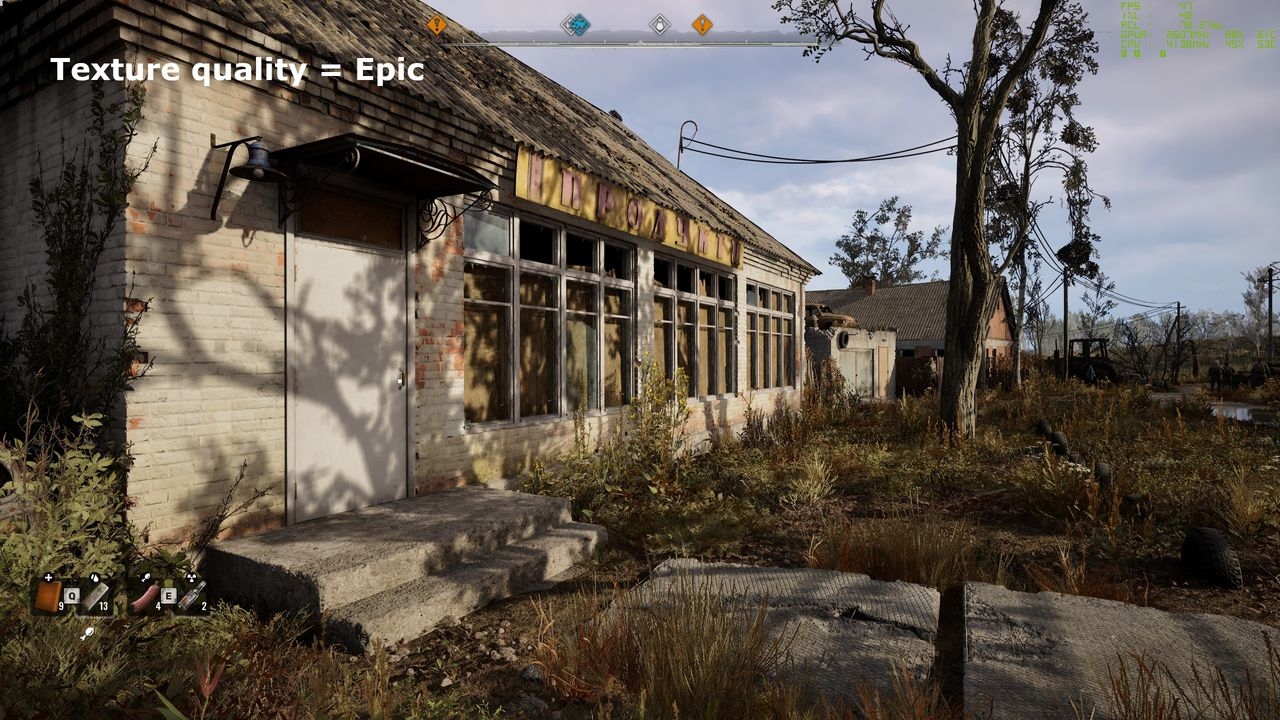
VRAM requirements are relatively modest: 8 GB is enough for the Epic preset at 1080p, High at 1440p, or Medium at 4K. Evanson recorded a maximum of 11 GB in testing, although other parts of the game could require more.
This leaves room to increase texture quality with little or no performance penalty. Low looks fuzzy, while Medium and above are noticeably clearer. High and Epic look similar, and the RX 6750 XT delivered the same frame rate at both, supporting the use of maximum texture quality. If movement through the world causes traversal stutters, however, try reducing textures by one level.
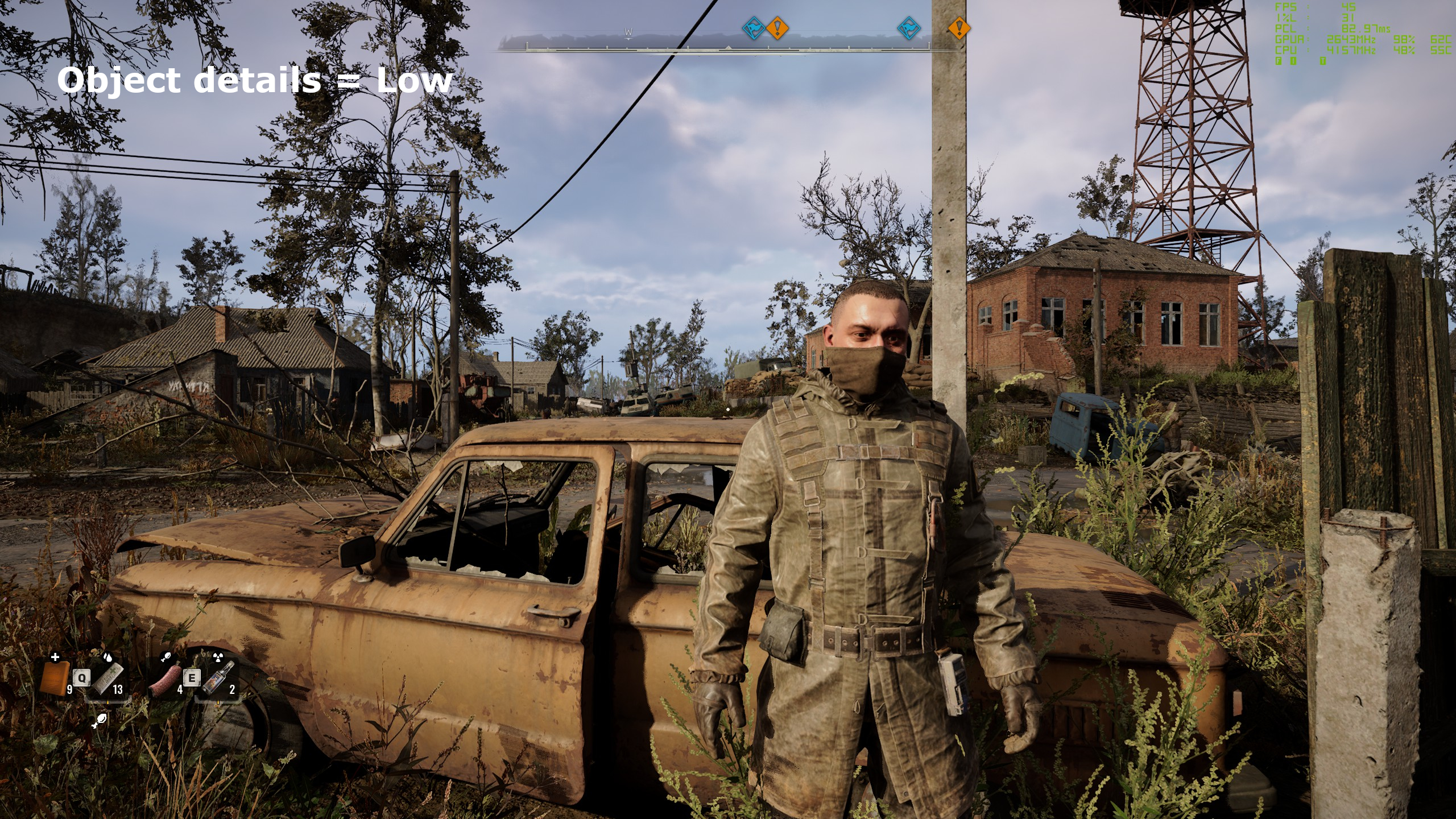
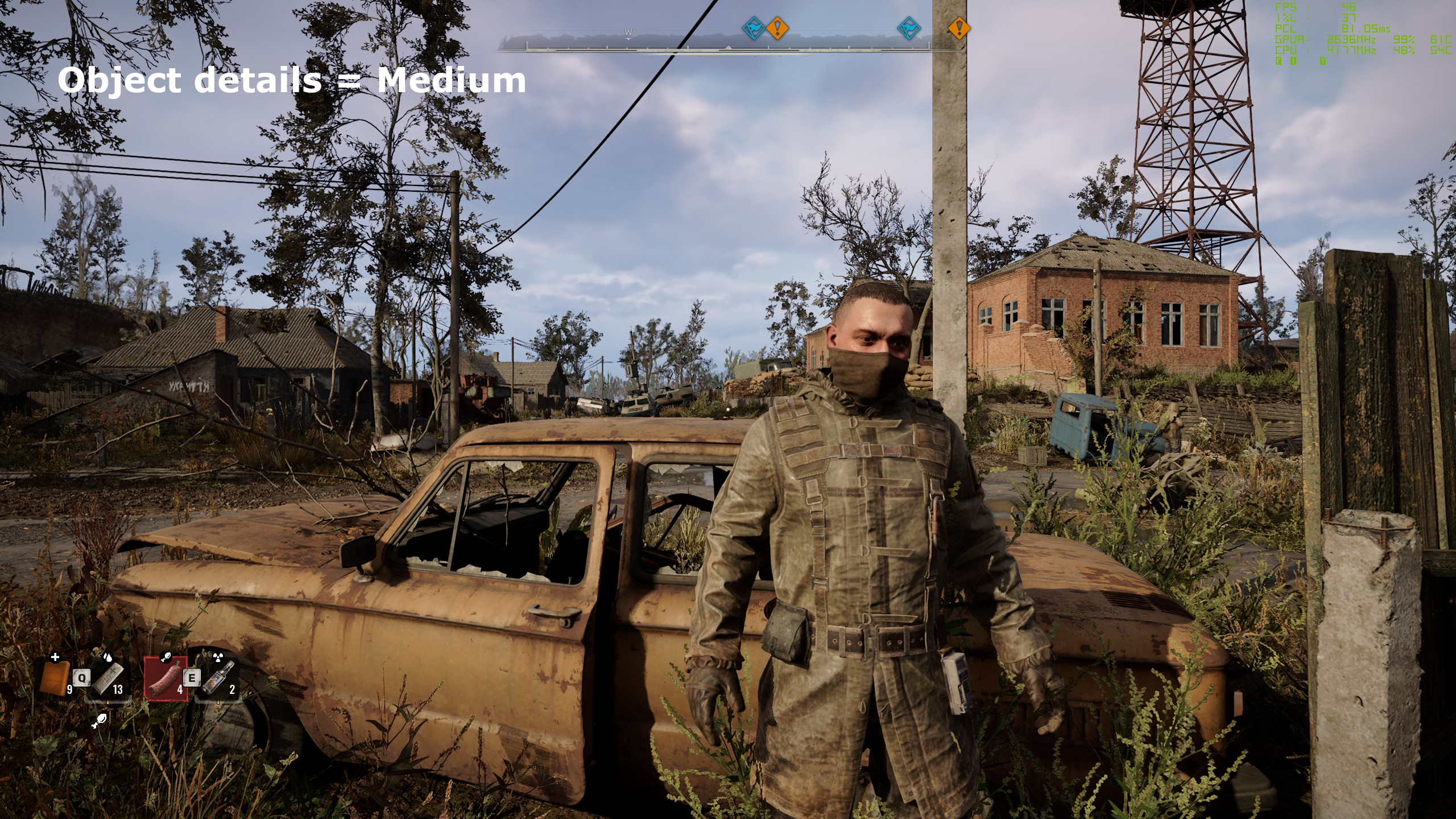
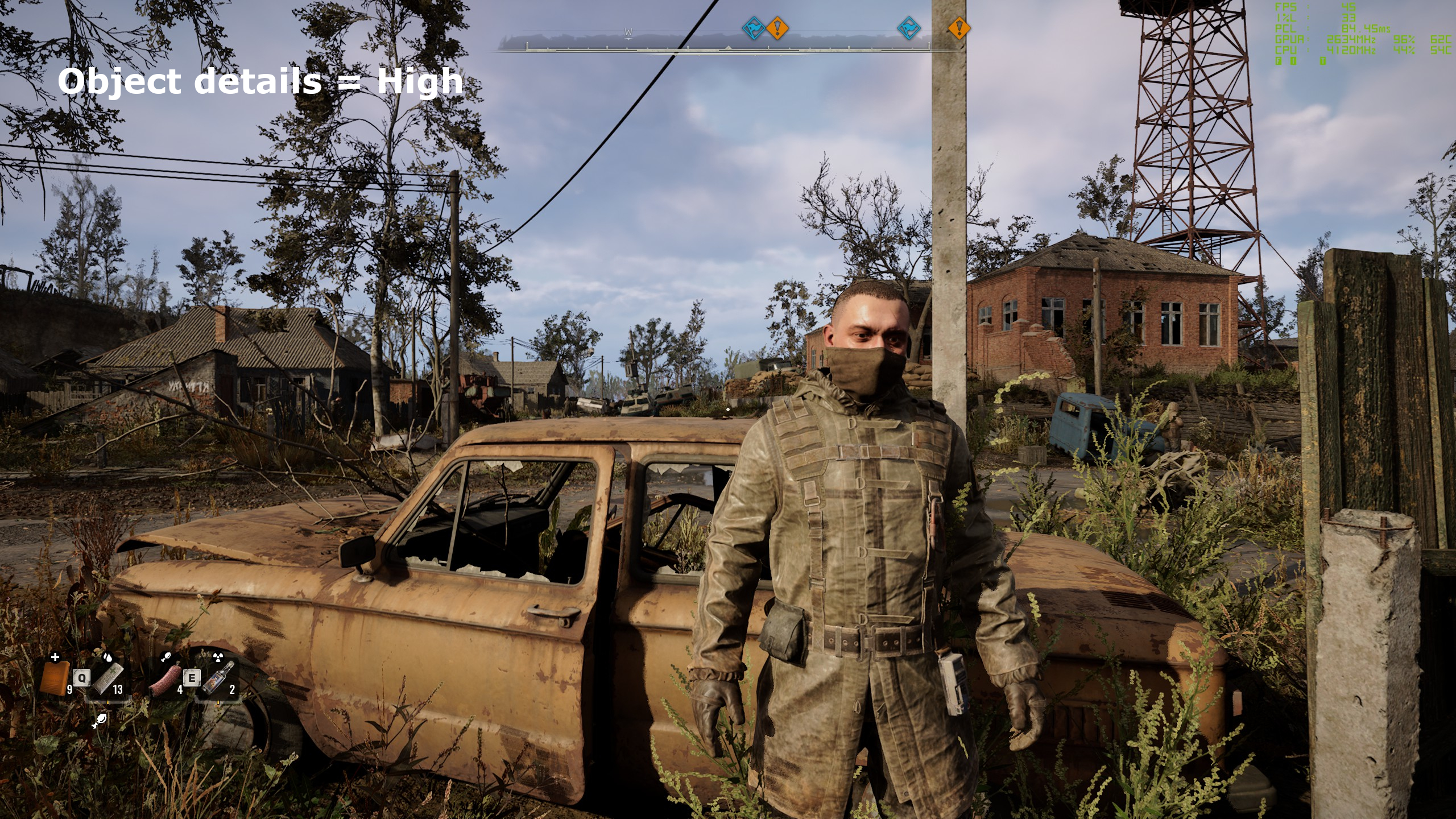
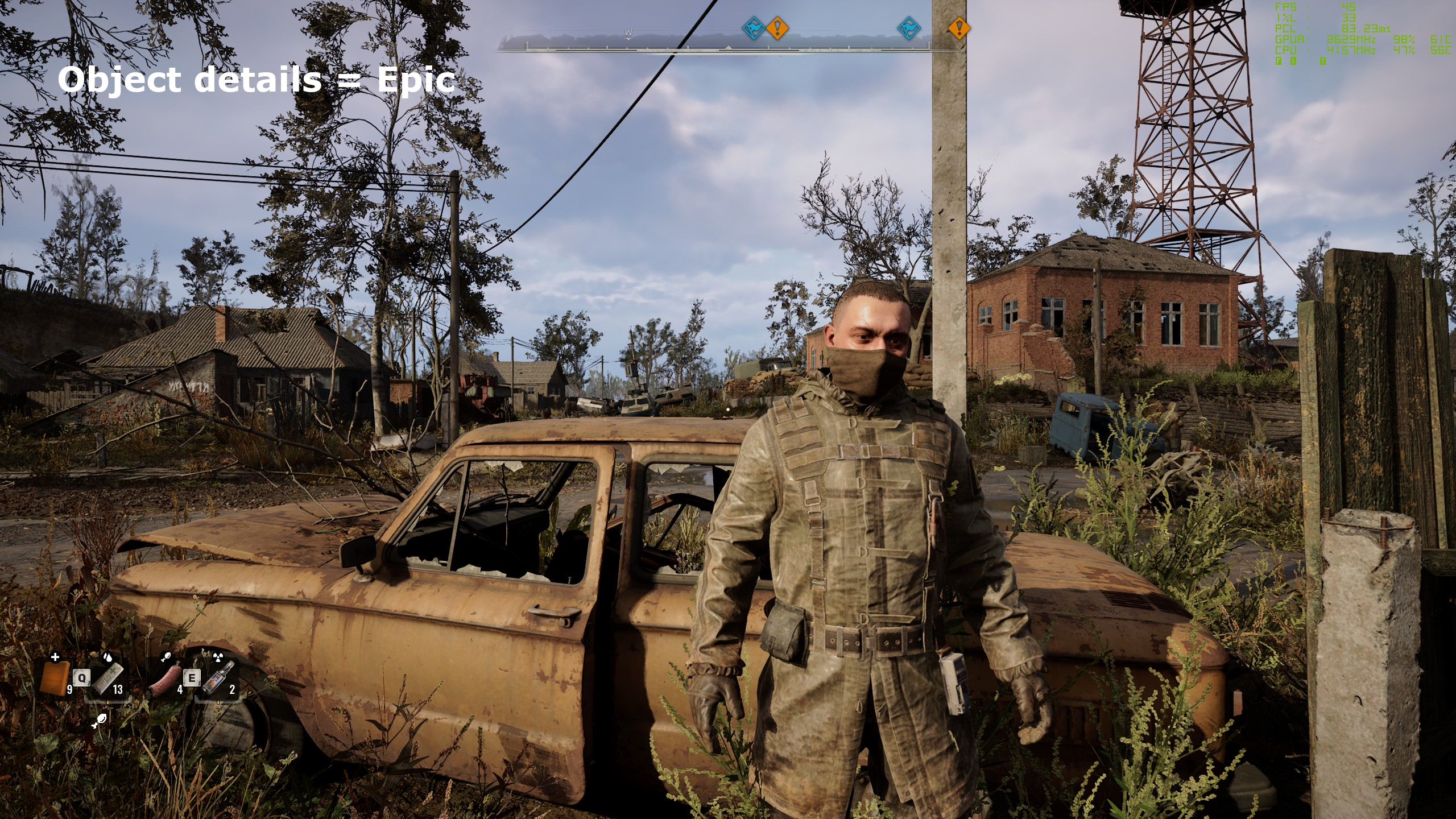
Object detail
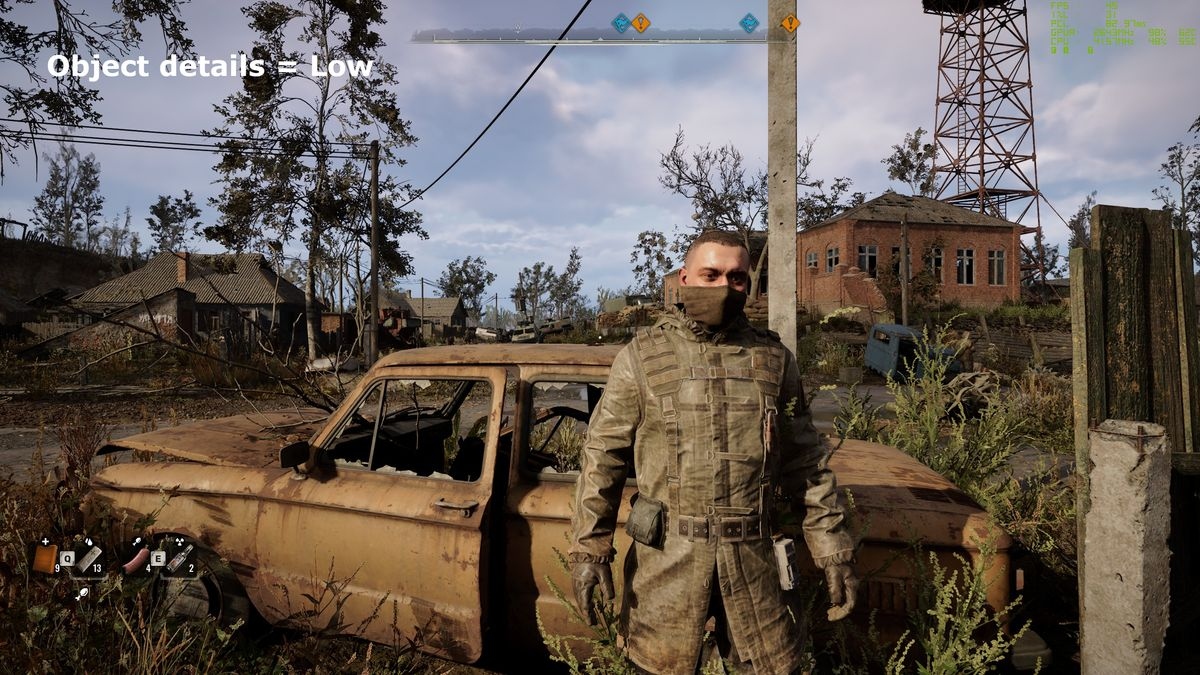
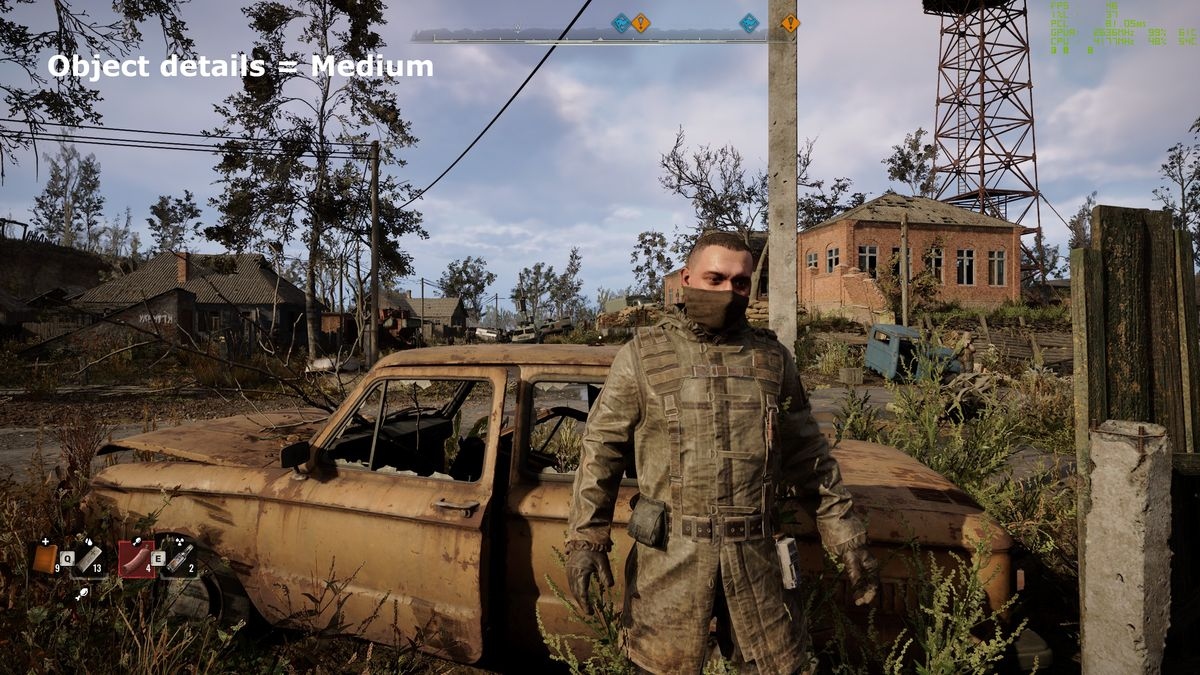
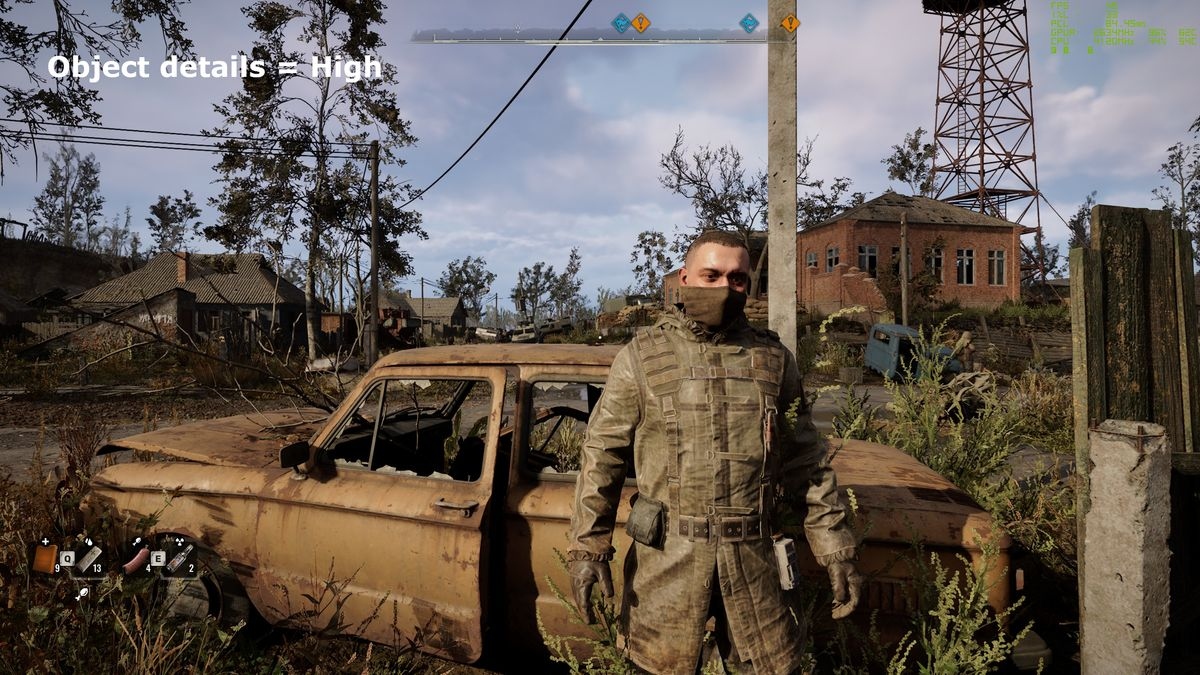
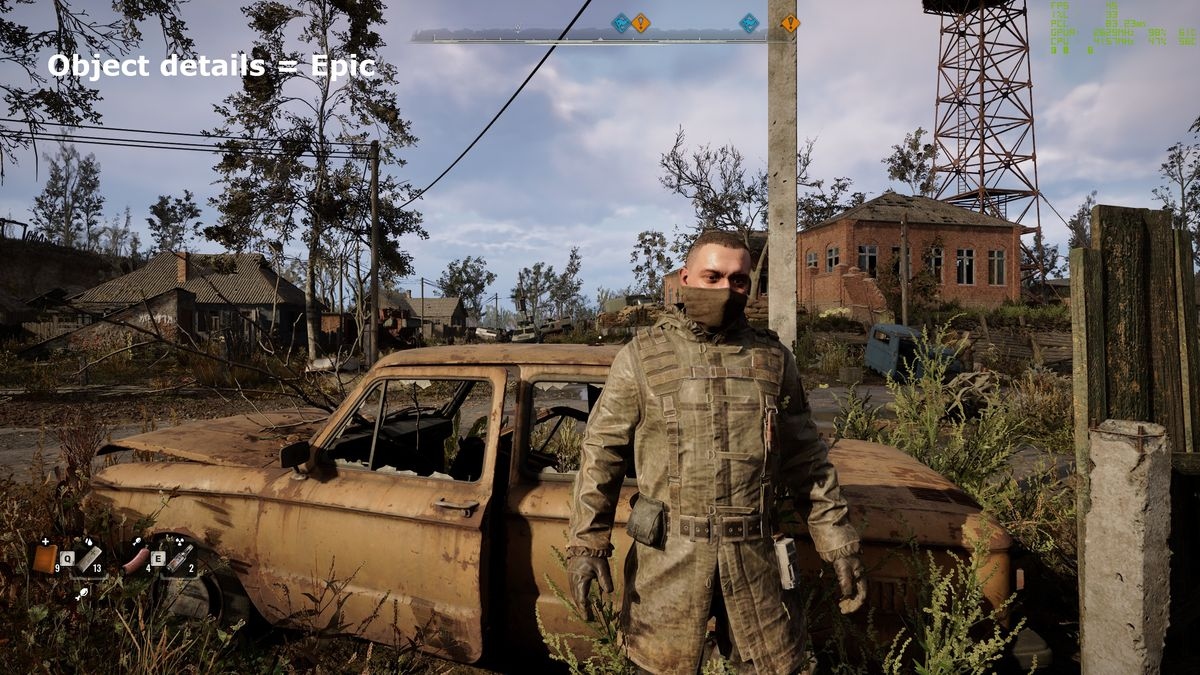
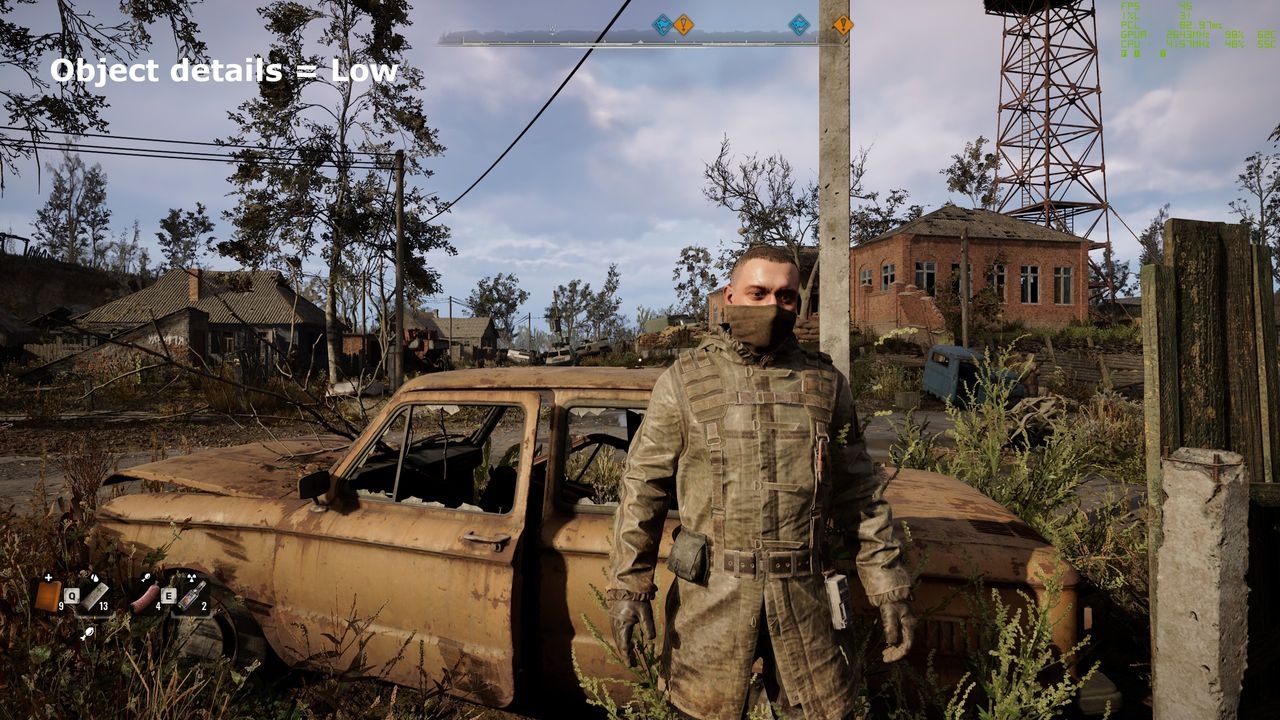
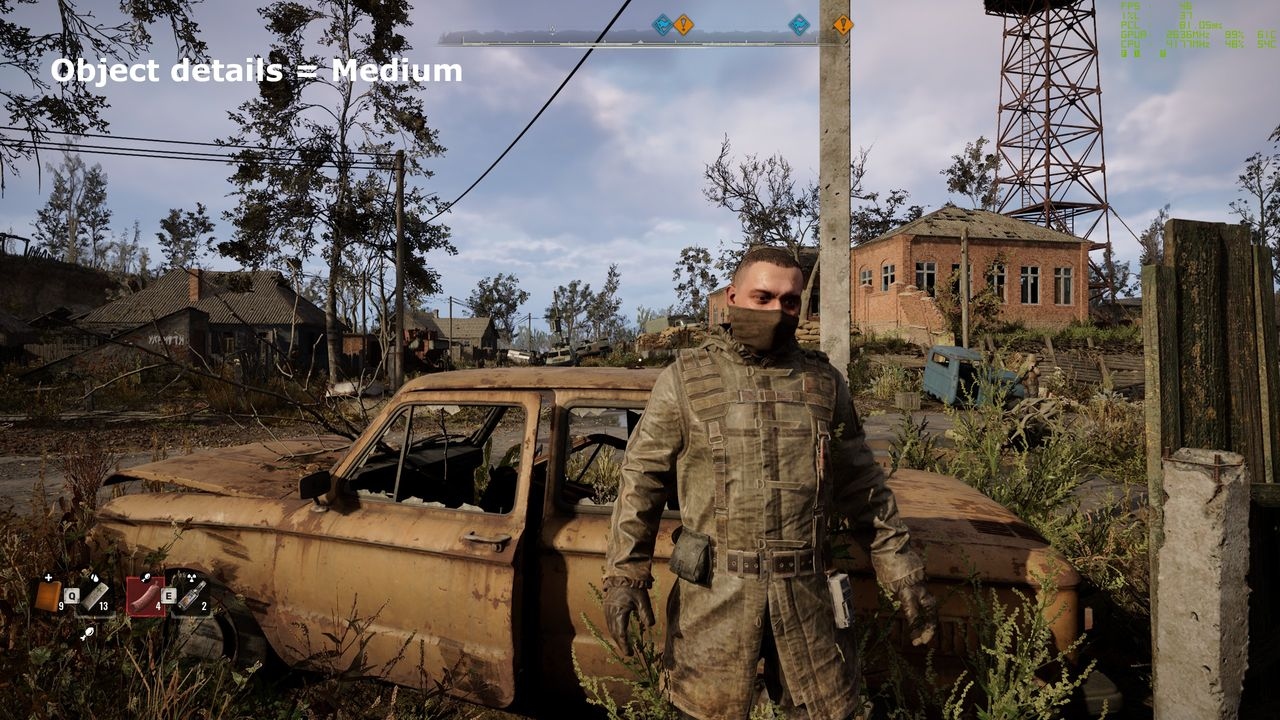
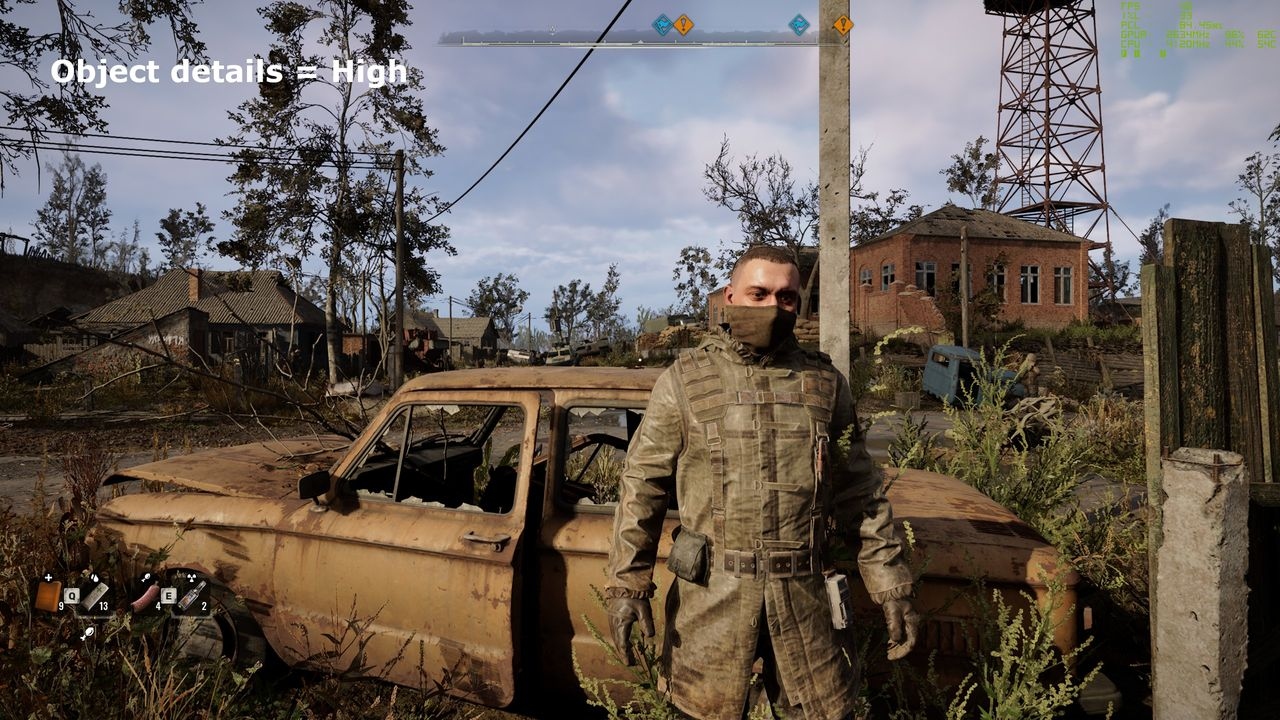
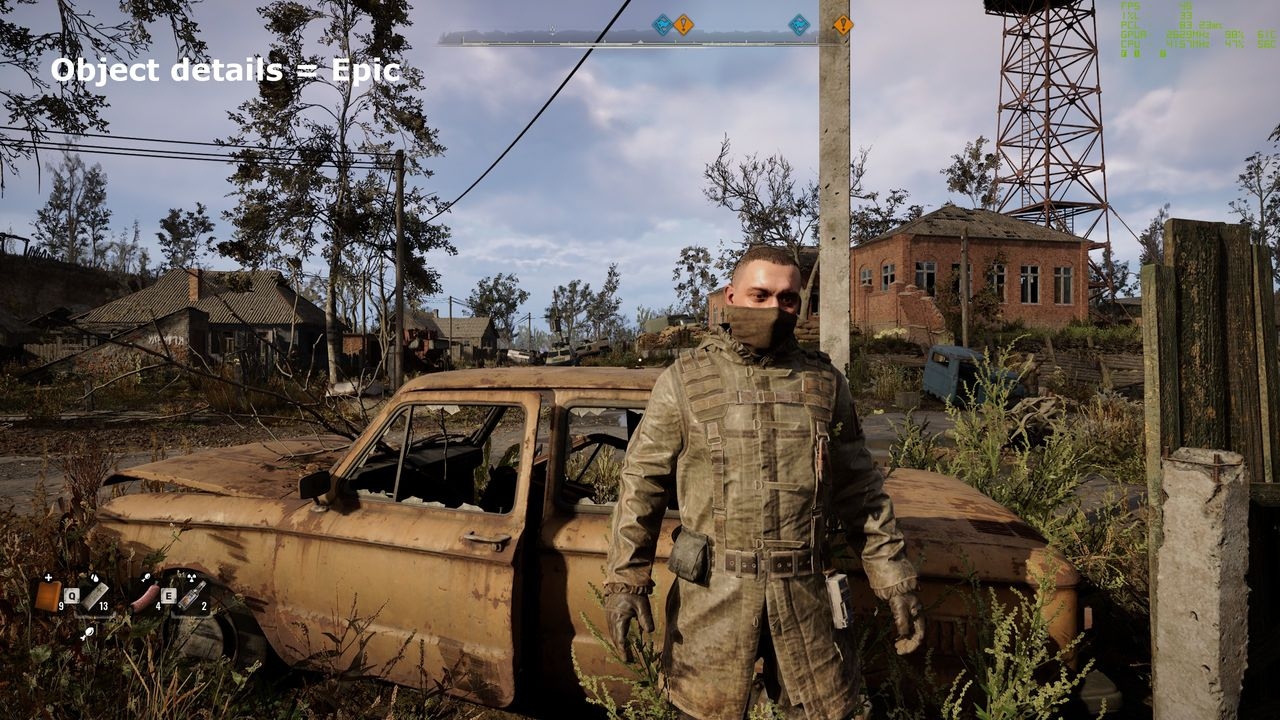
Object detail produced relatively subtle visual and performance changes in Evanson's tests, suggesting it can usually be raised at little cost. The important exception is densely built-up scenery: factories, urban areas, and places crowded with structures or debris can make higher detail more expensive.
Greater object complexity may also increase CPU and GPU load when shading quality is particularly high. That setting appears to influence the quality of objects' self-shadowing.
Global illumination
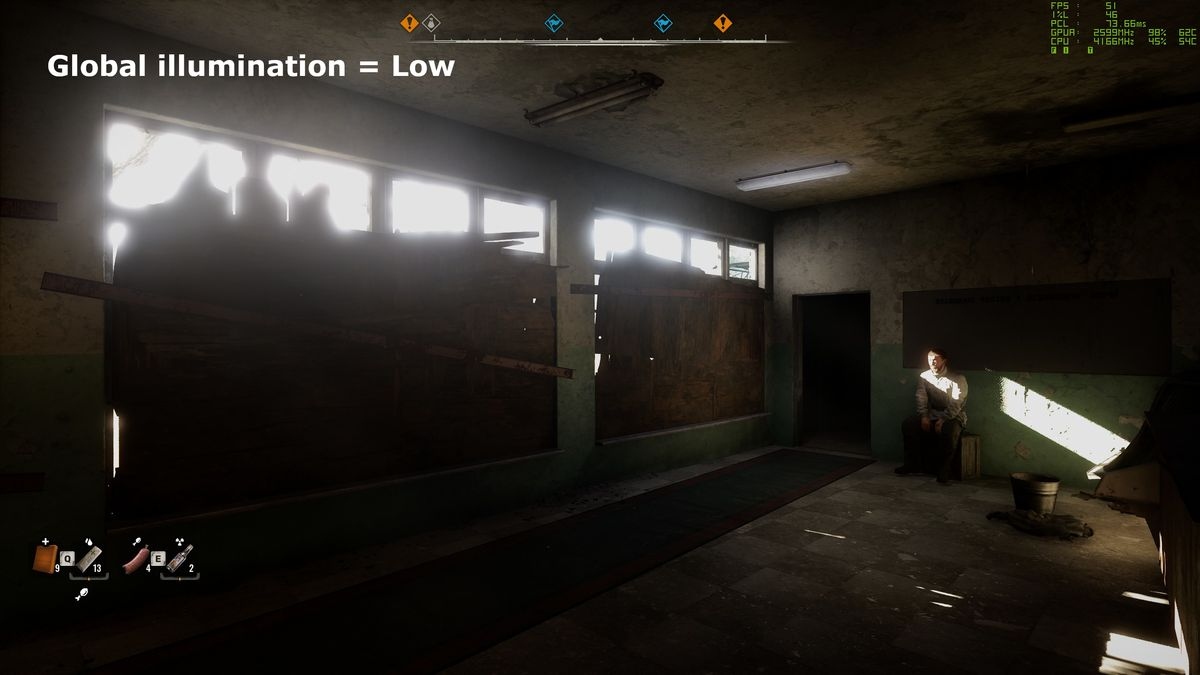
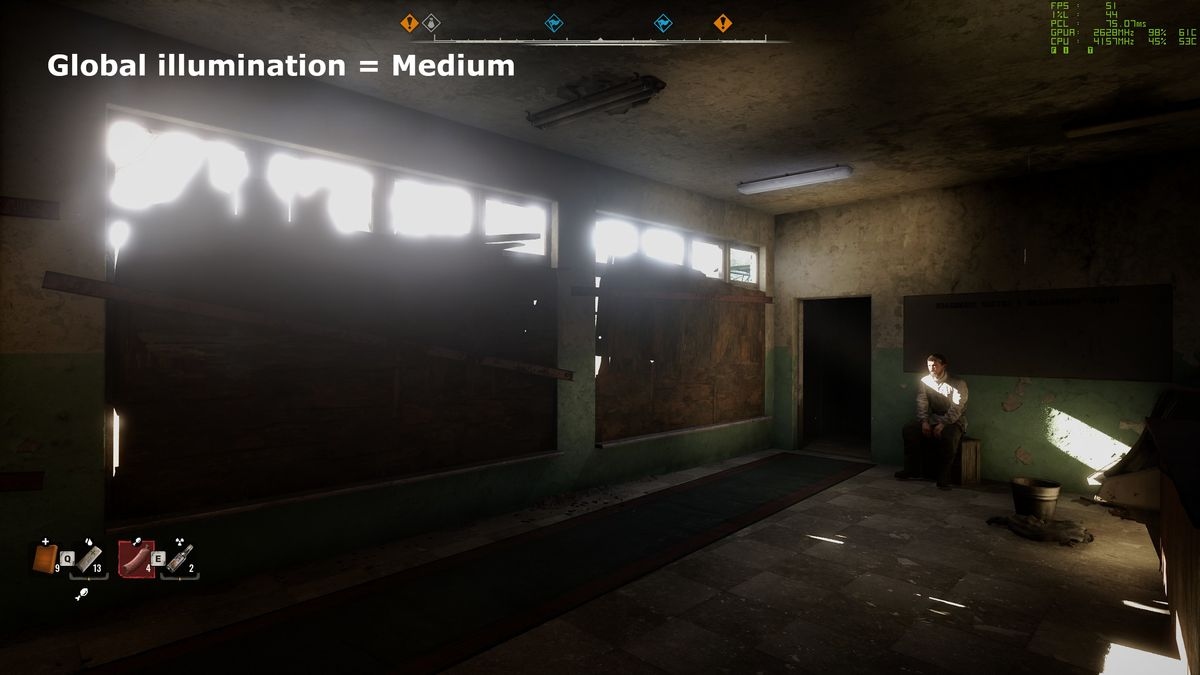
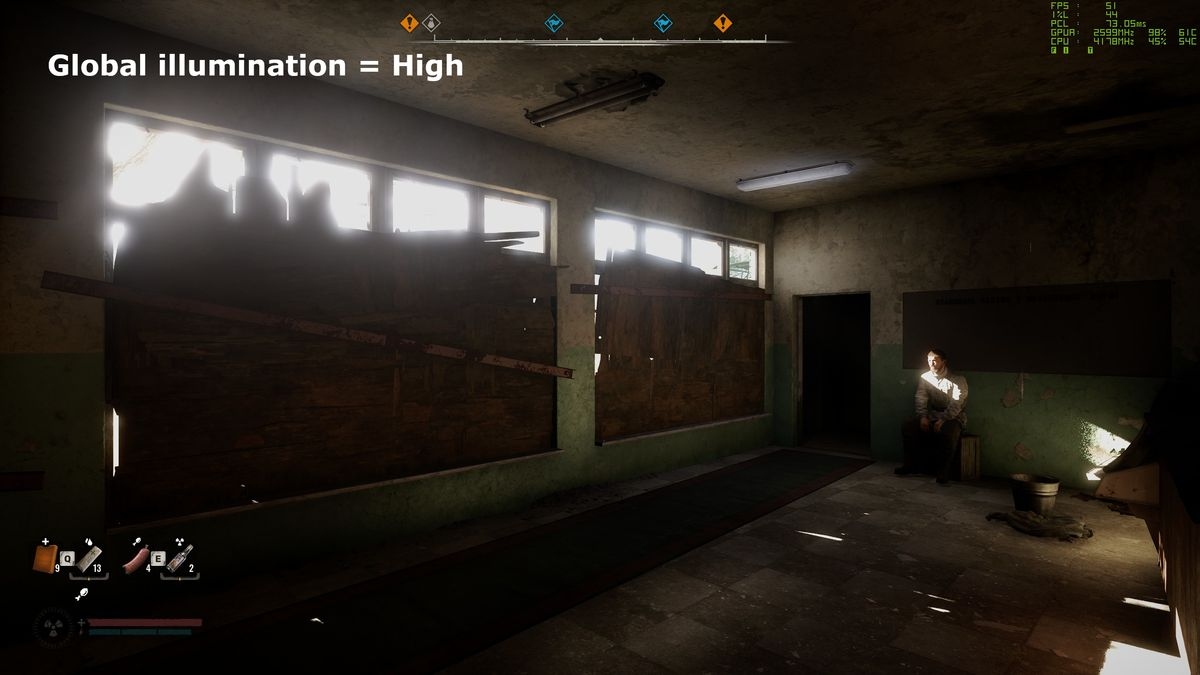
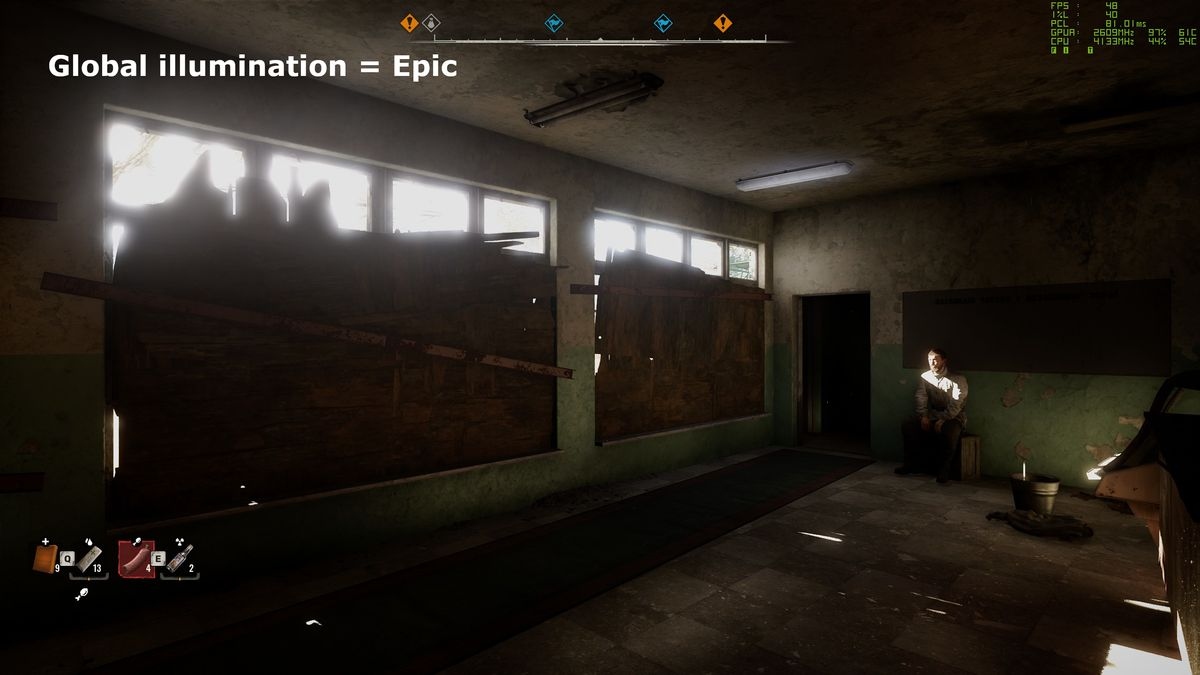
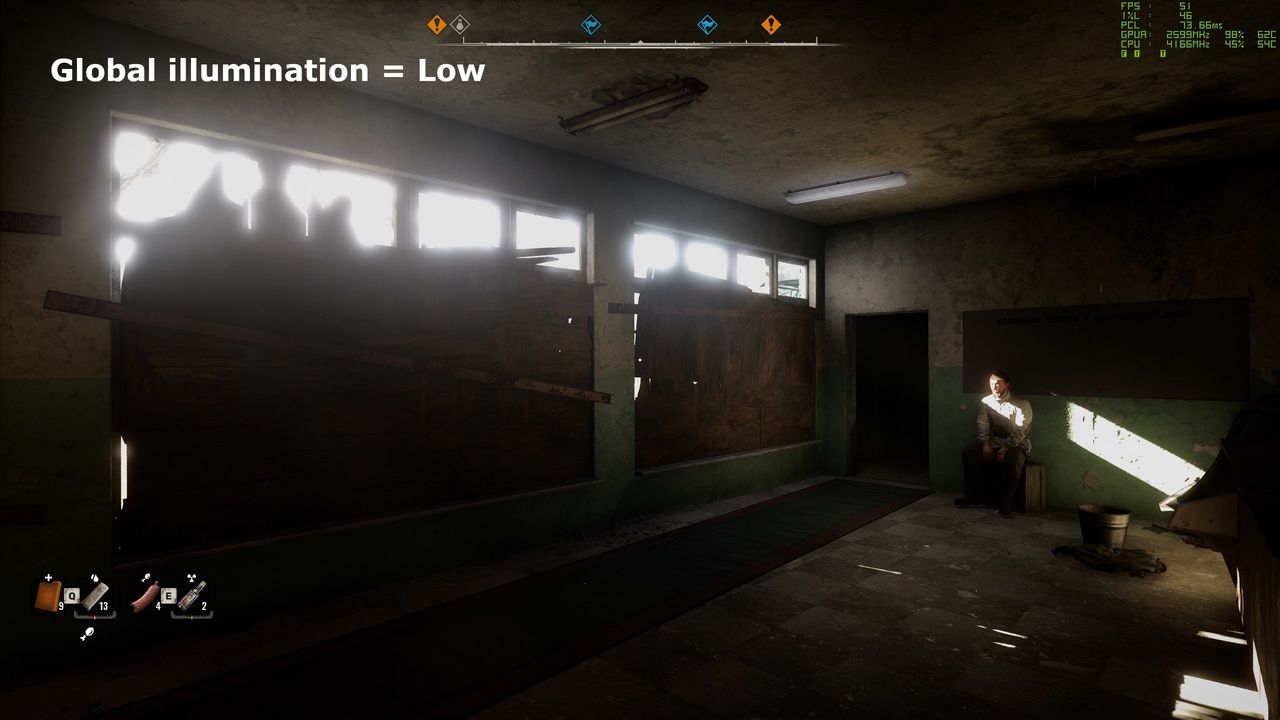
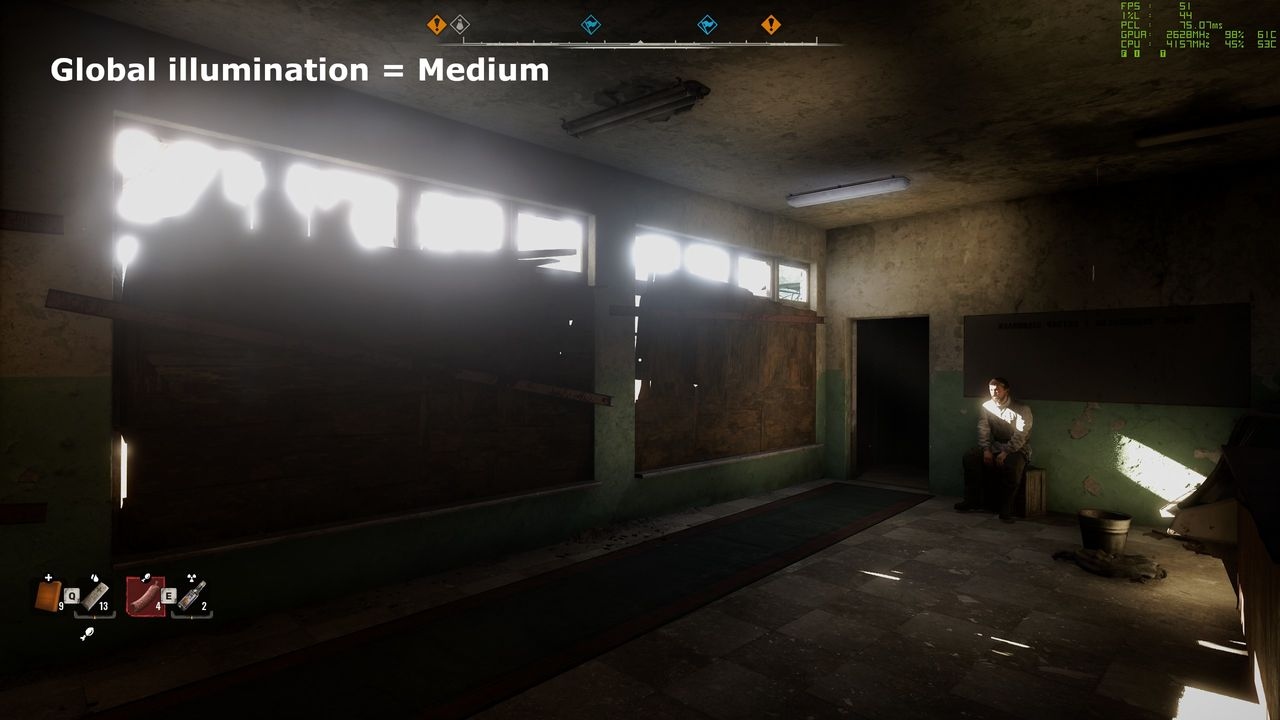
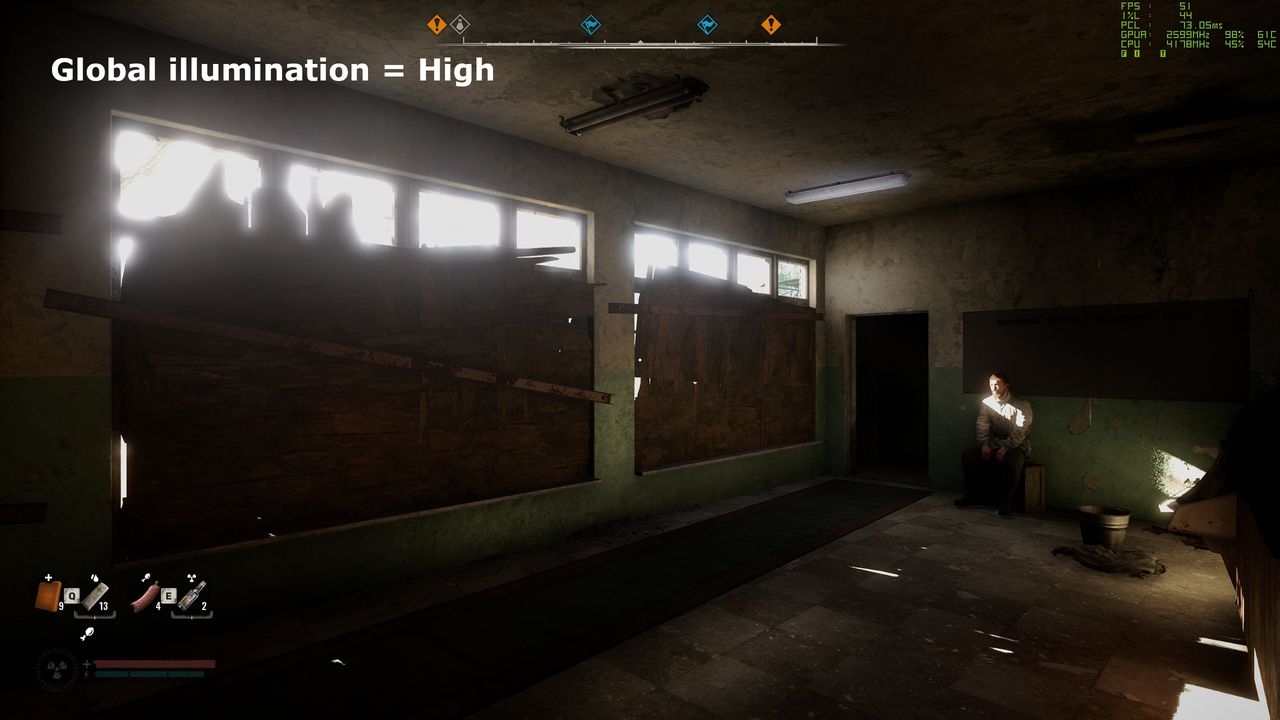
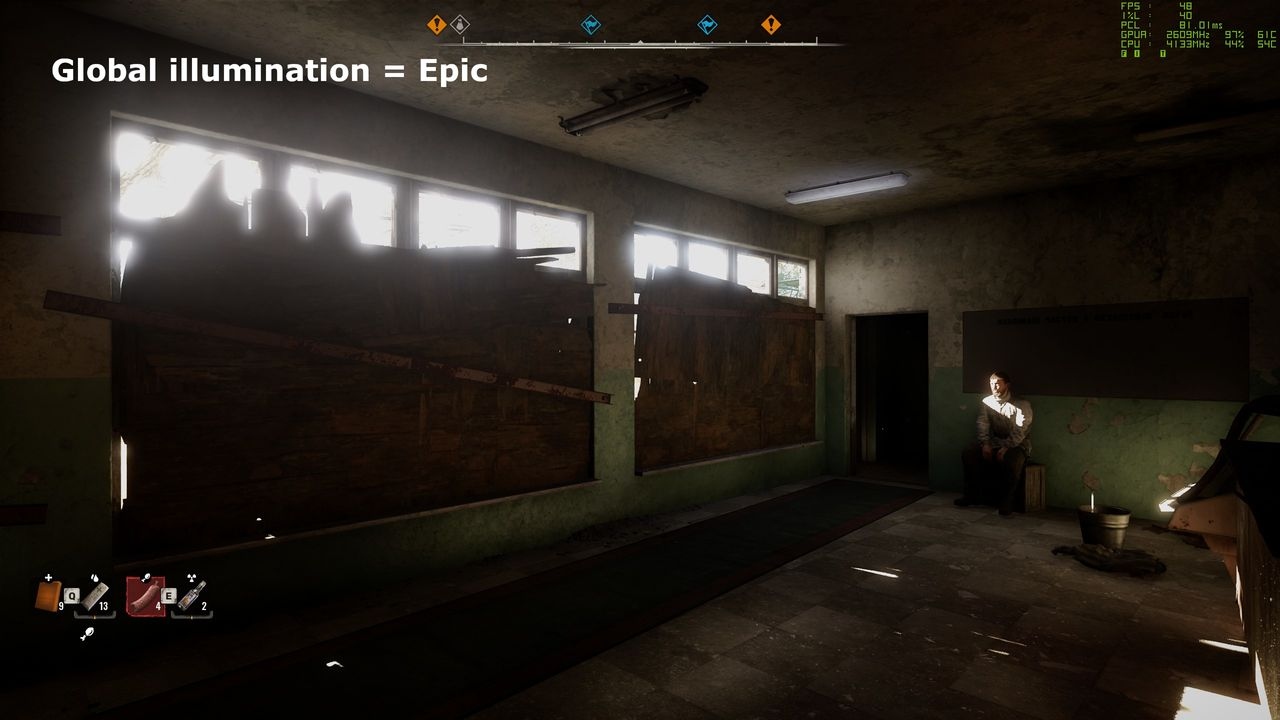
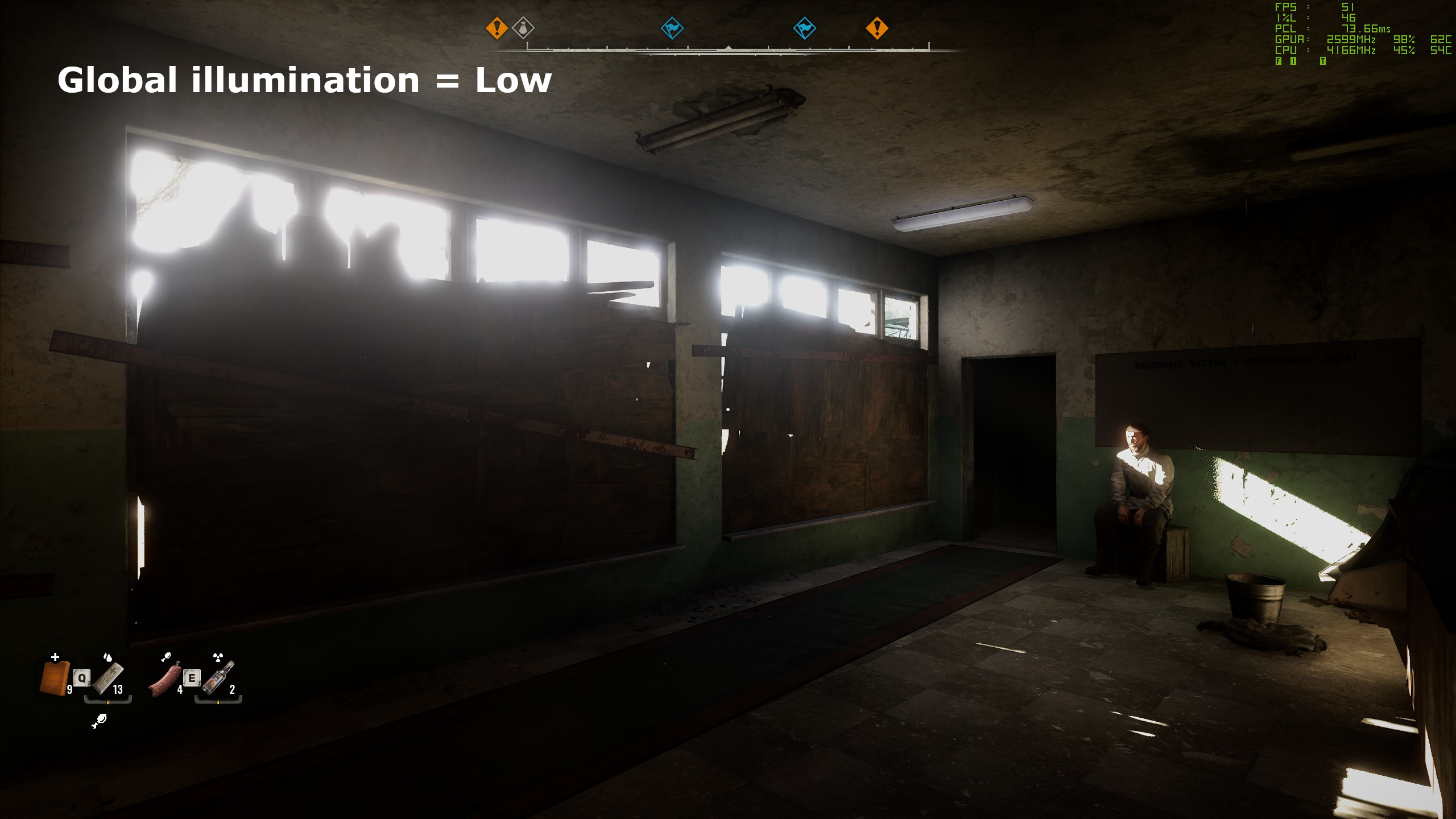
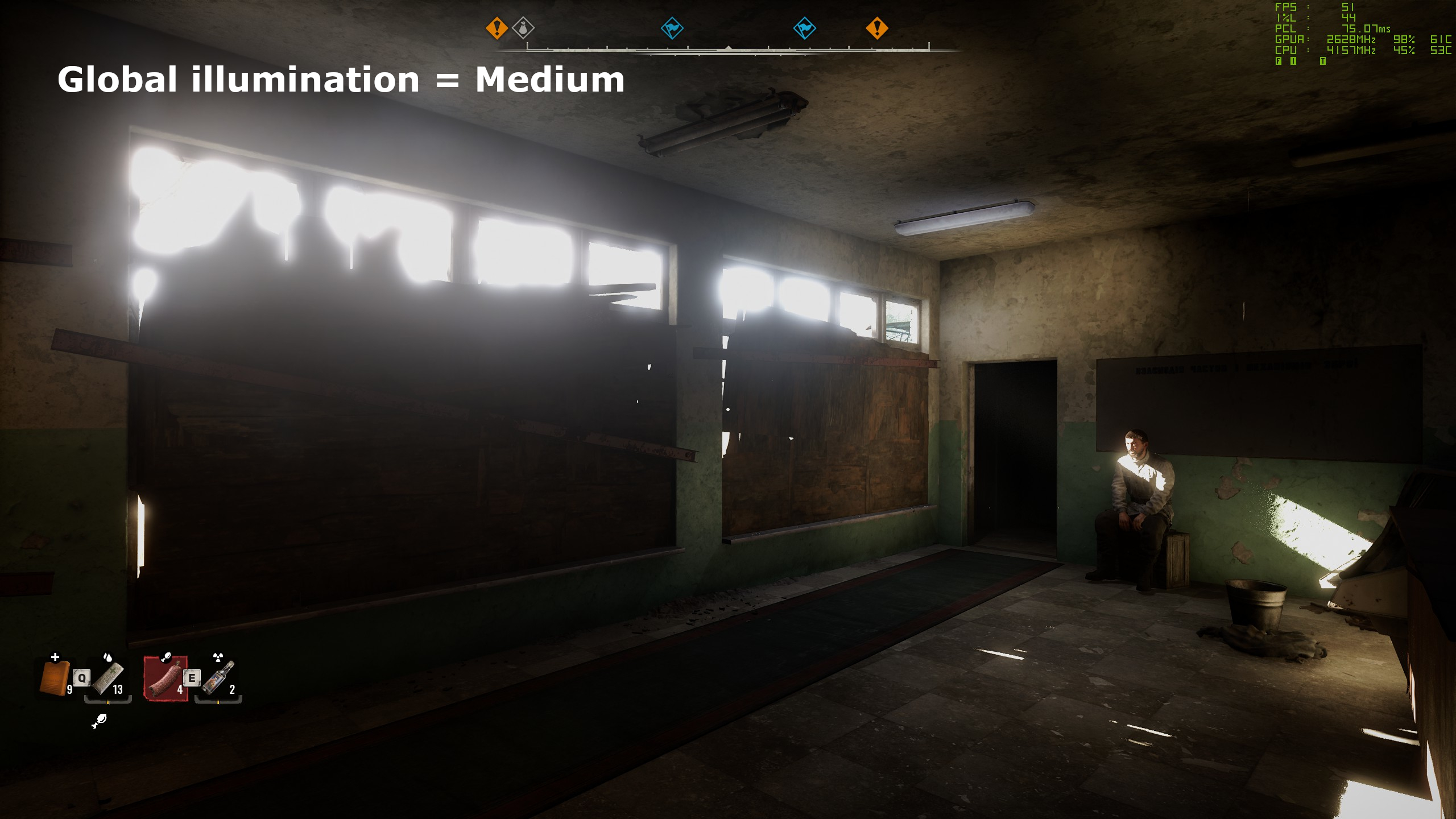
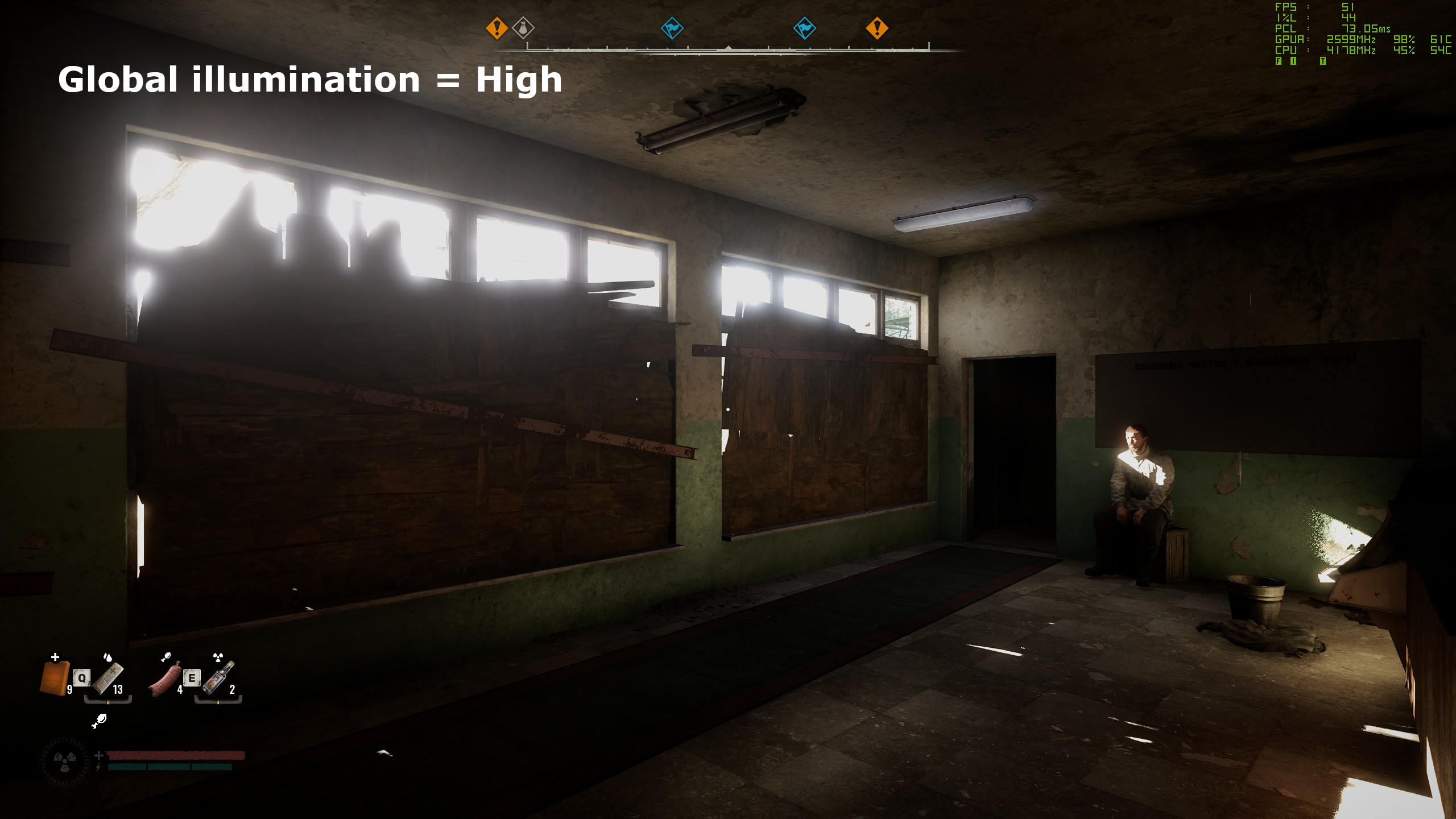
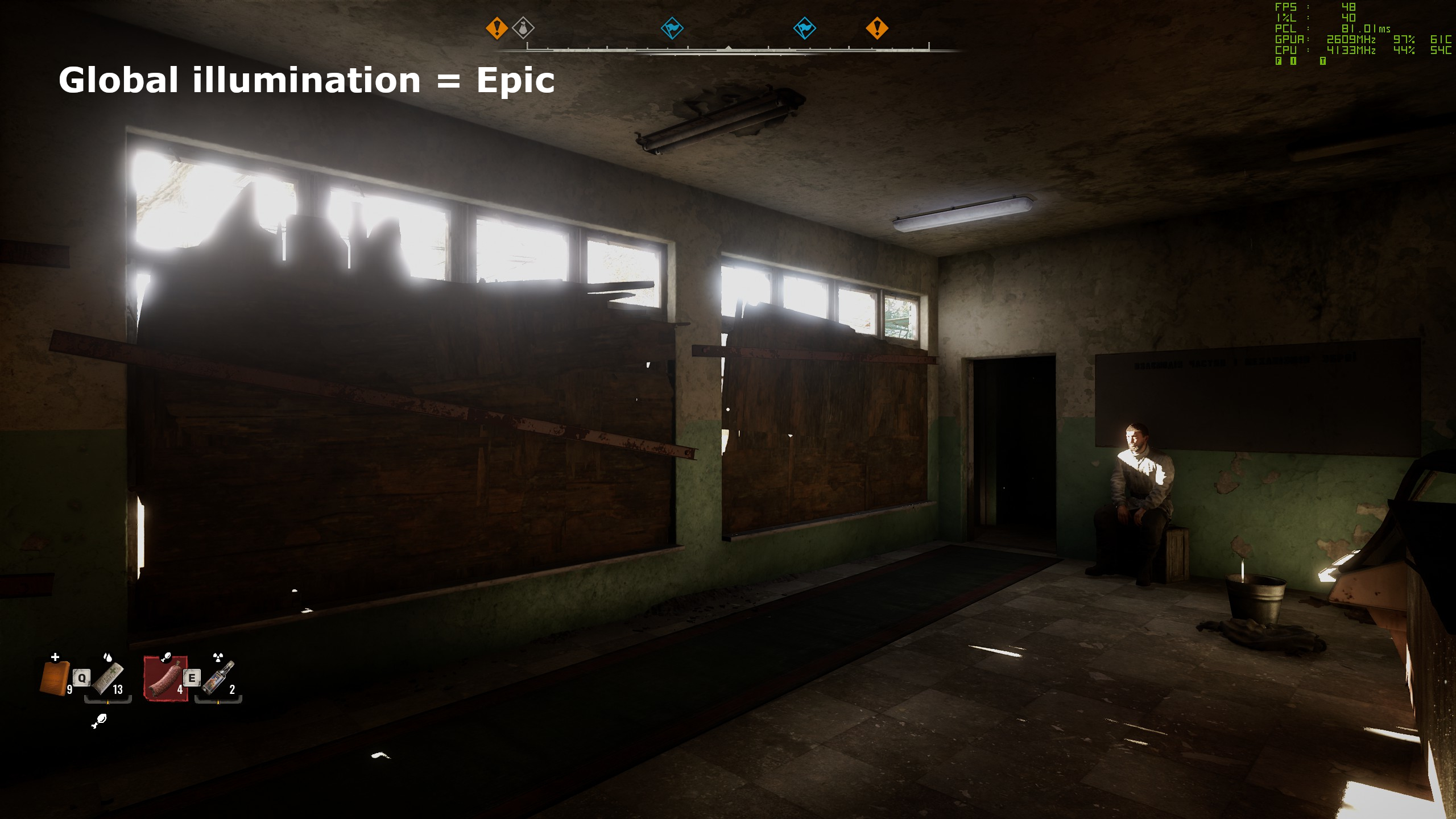
Global illumination, or GI, controls lighting quality throughout indoor and outdoor environments. It is one of the settings capable of noticeably affecting performance on its own.
The RX 6750 XT handled High well, but Epic reduced performance by a few frames per second. Epic looks best, yet more complex scenes than the example shown can put substantial pressure on mid-range GPUs.
Rather than maximizing GI and lowering everything else, keep it balanced with the other options. Better lighting offers limited benefit when accompanied by blotchy shadows.
Reflections
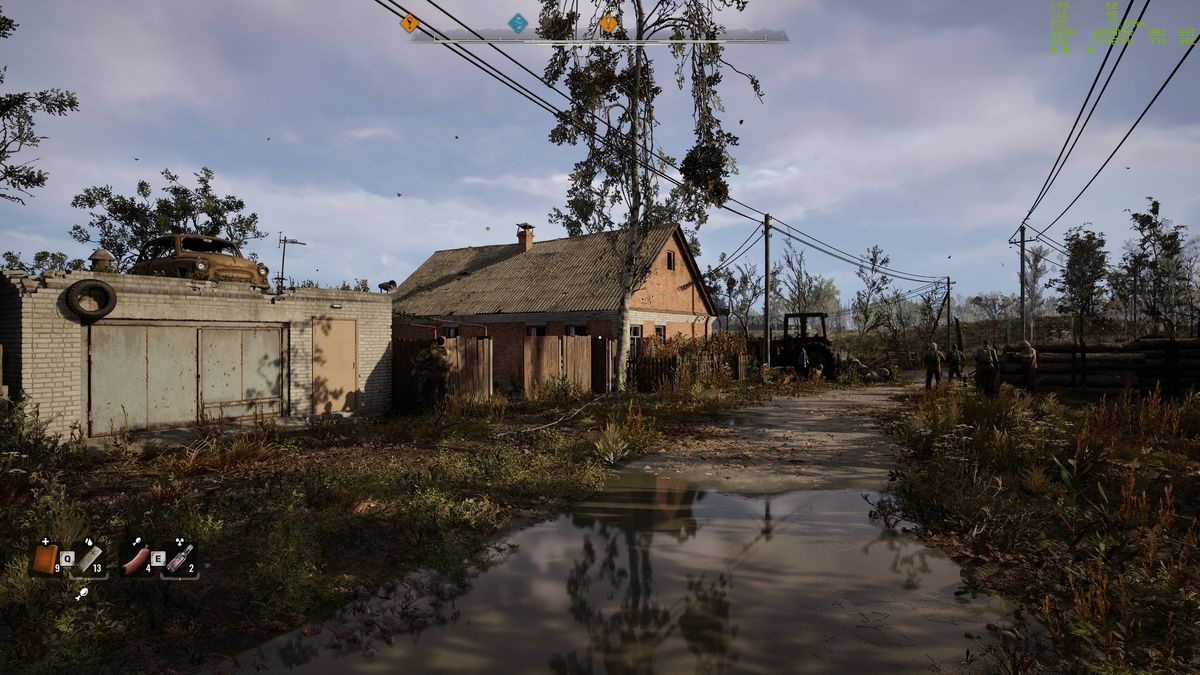
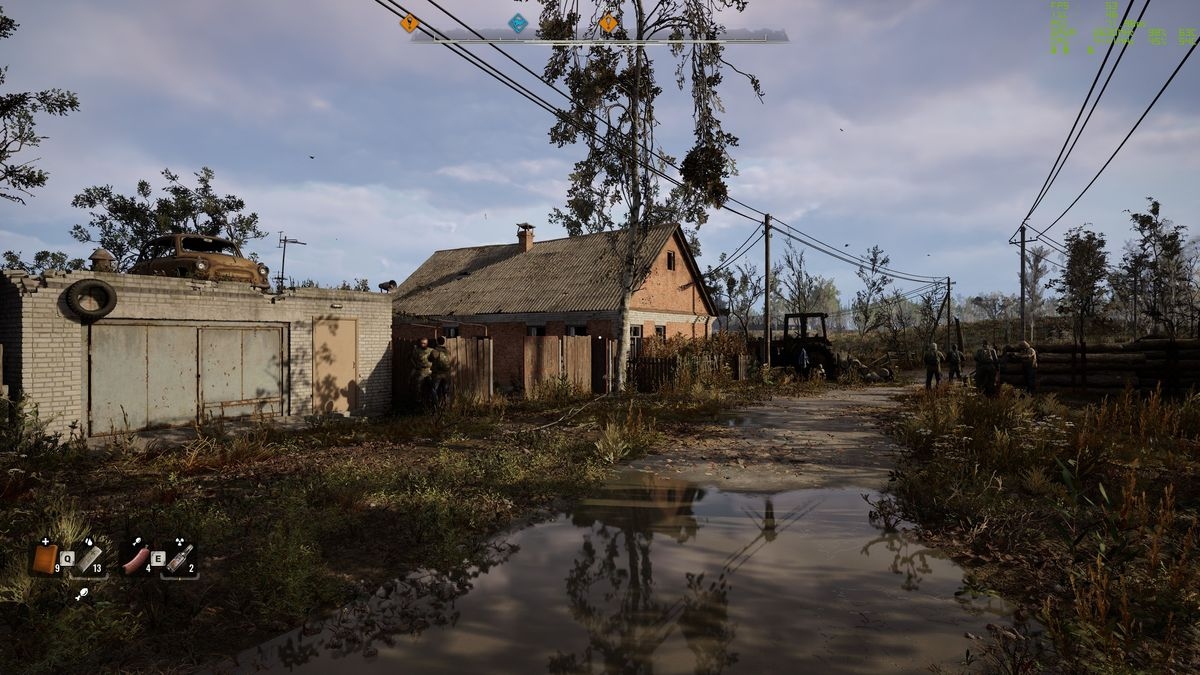
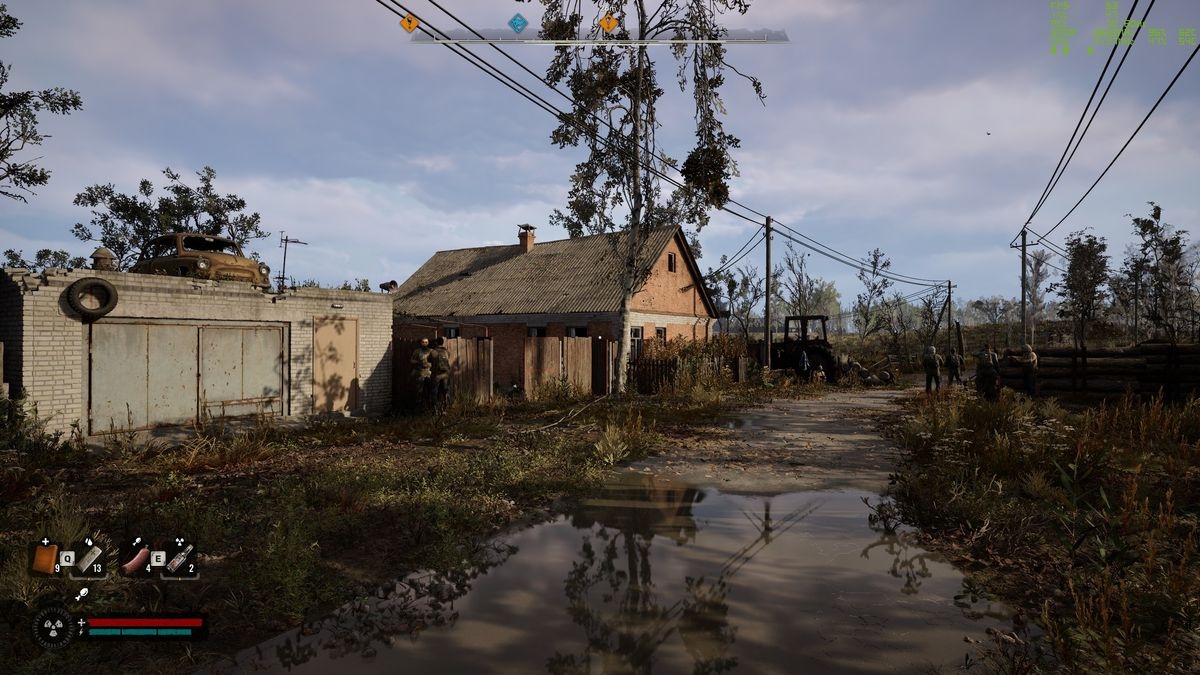
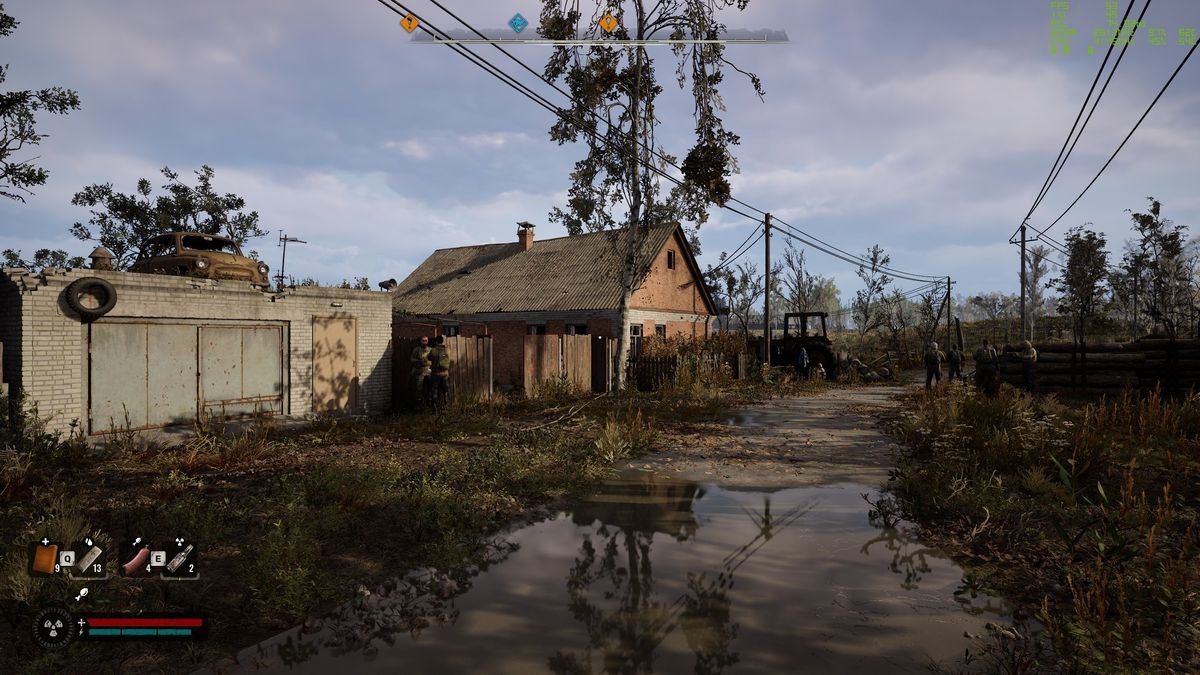
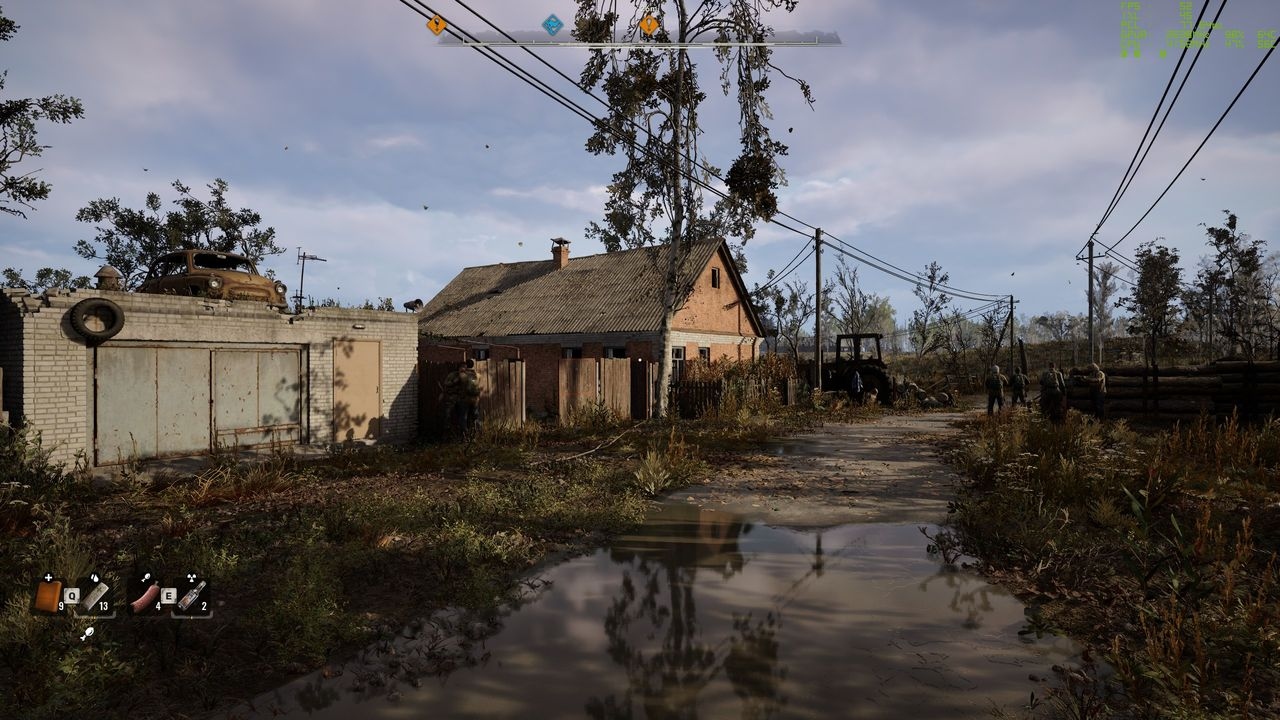
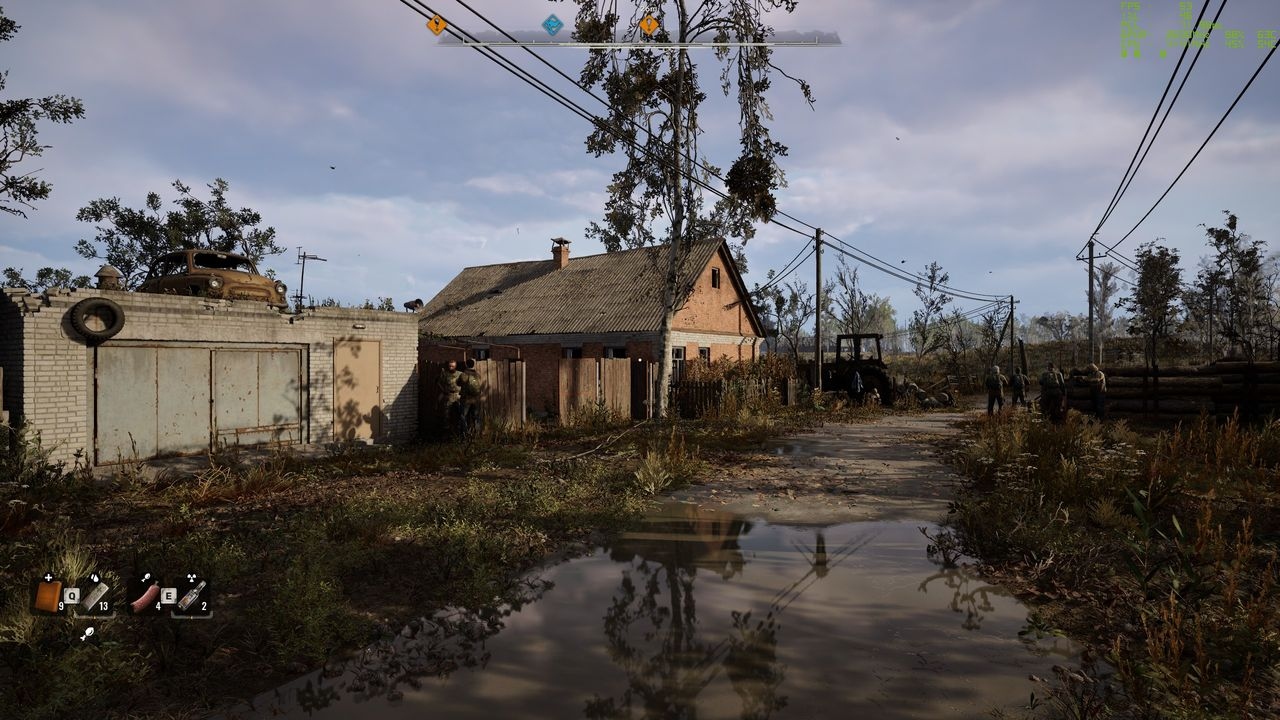
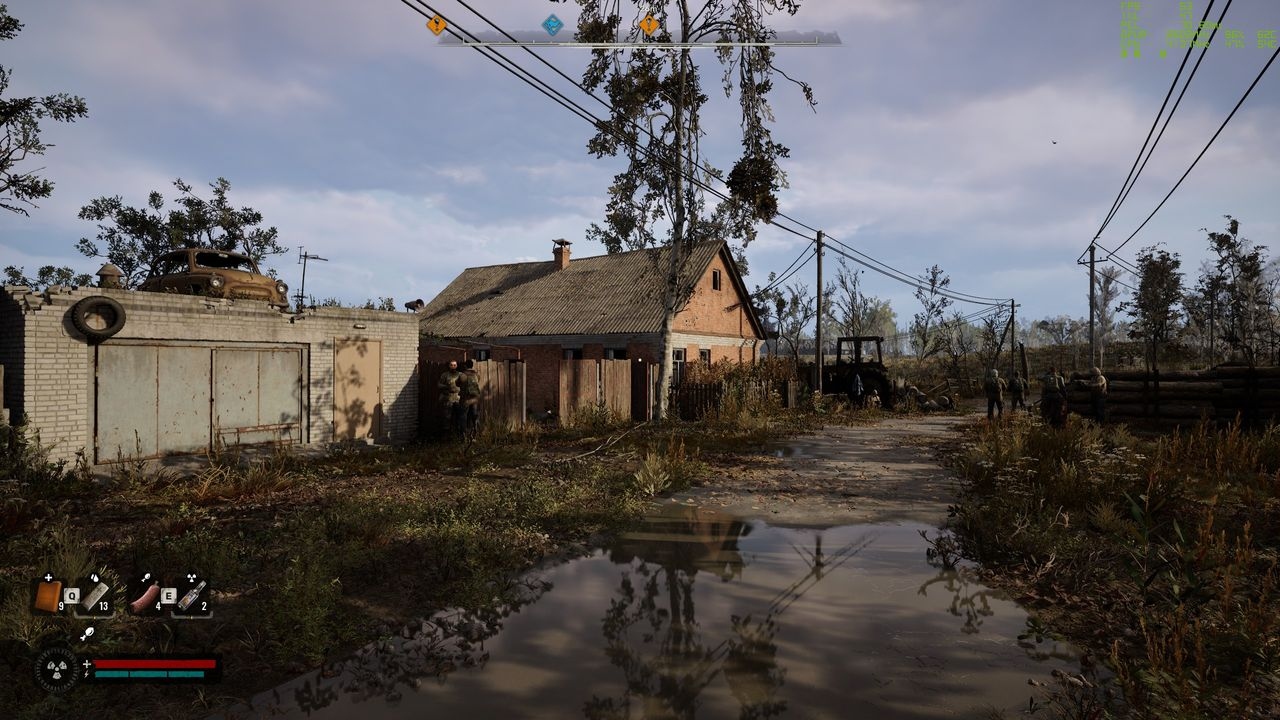
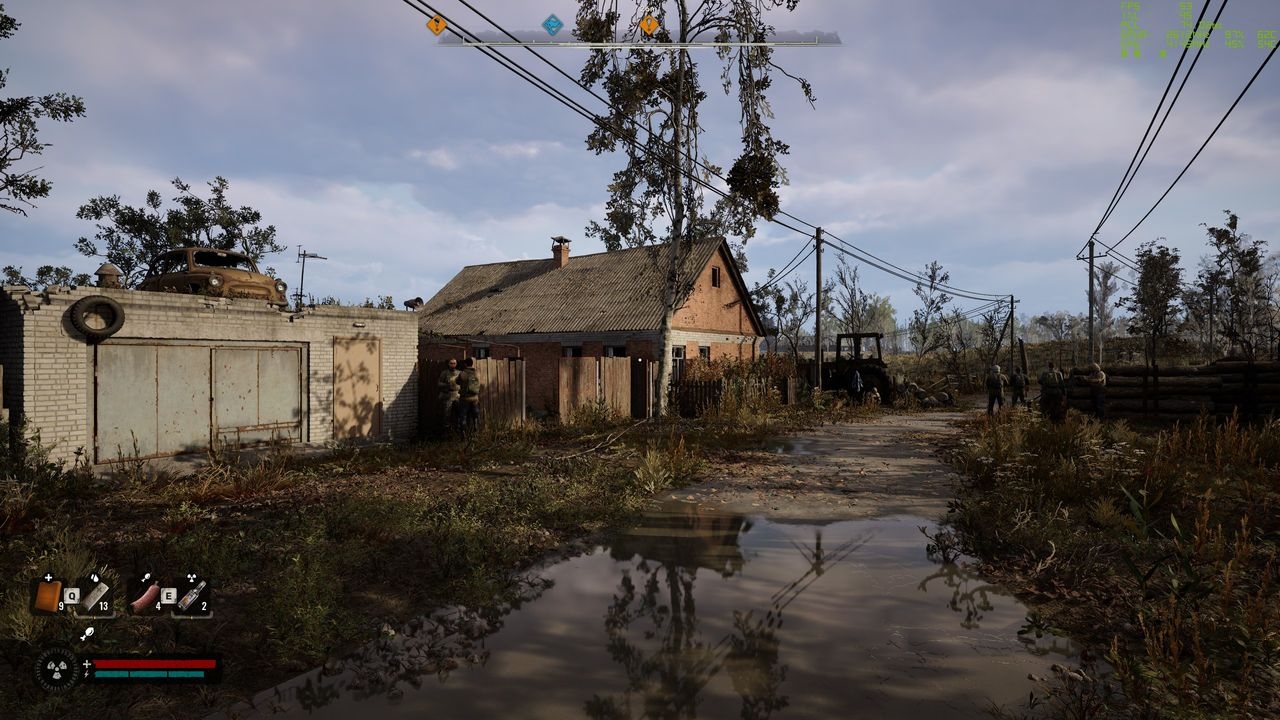
Reflections are a graphical weakness despite being physically correct: their sampling resolution is low. Software Lumen evaluates lighting where rays meet a surface cache—a dataset describing object materials from different viewpoints—rather than evaluating it per triangle.
Increasing reflection quality appears mainly to increase sampling. Its performance cost is generally small and can be imperceptible, depending on the other options, but becomes more relevant with high foliage detail and shadow quality. As with GI, a balanced approach works best: use a reflection setting comparable to object detail, shadows, and foliage.
Shadow quality
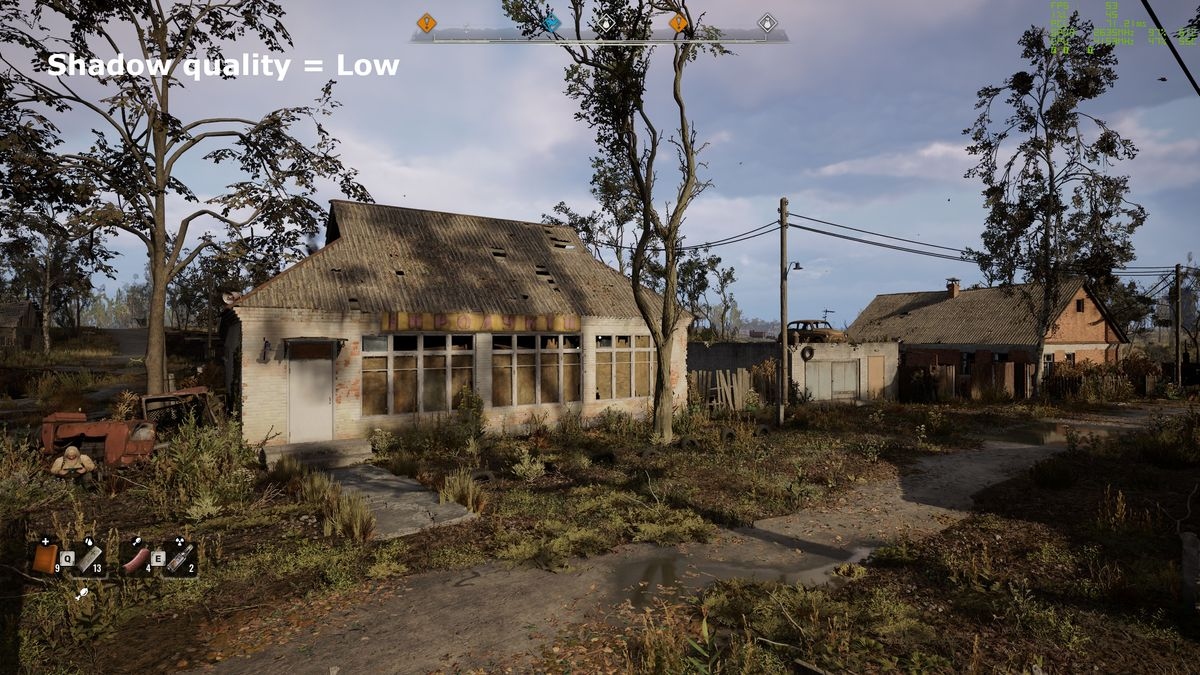
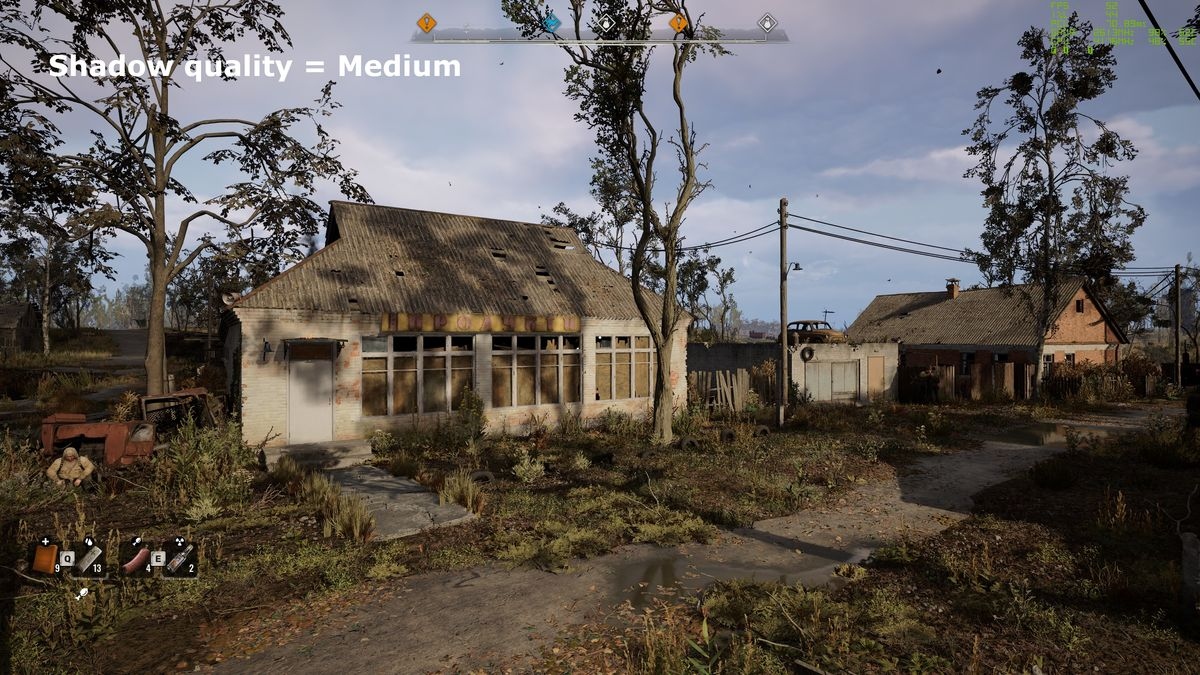
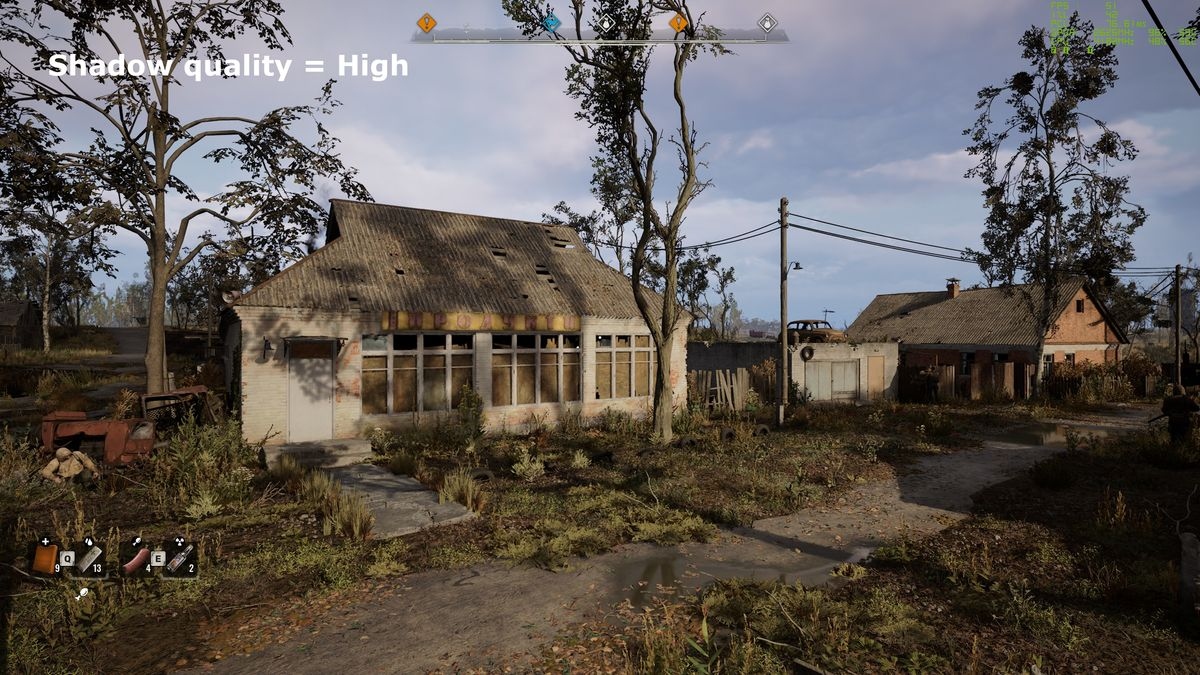
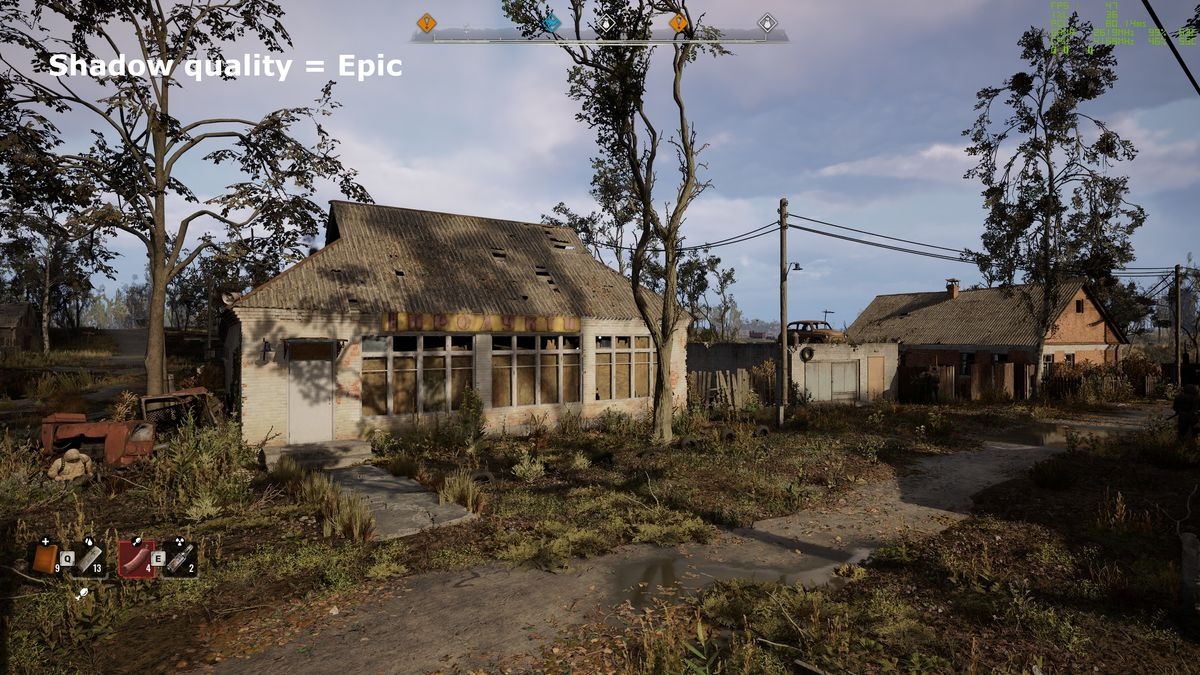
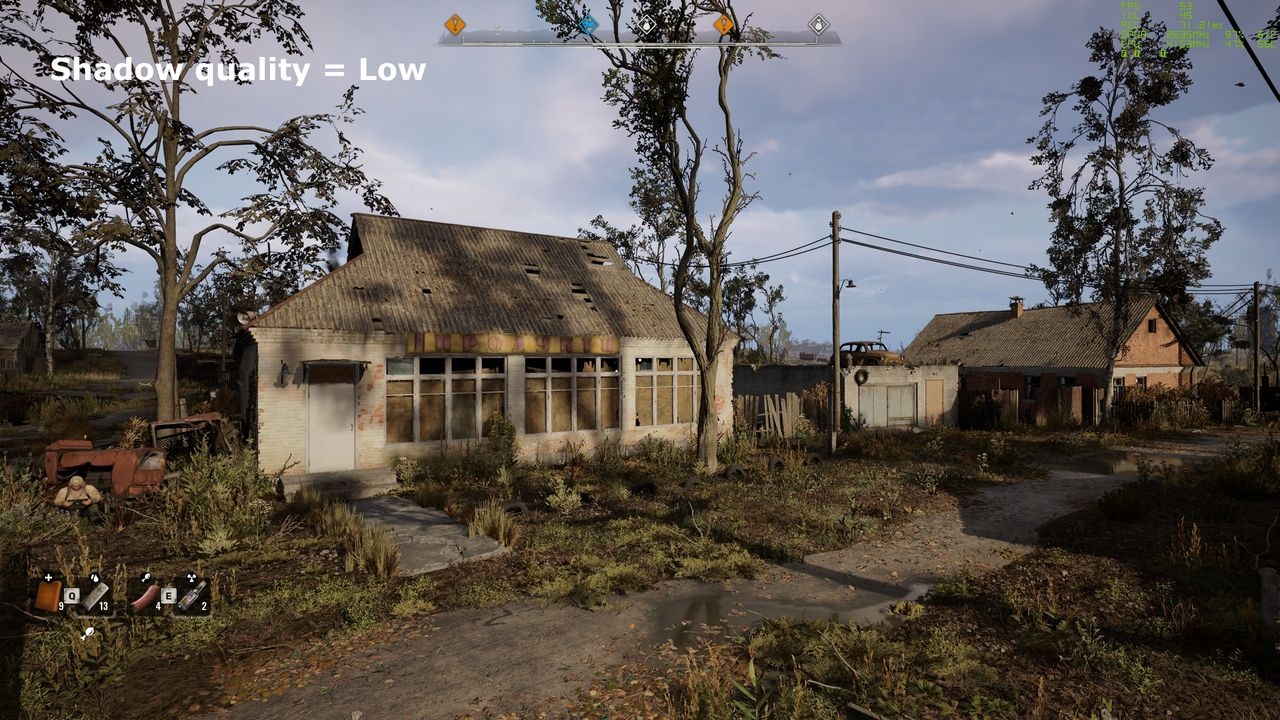
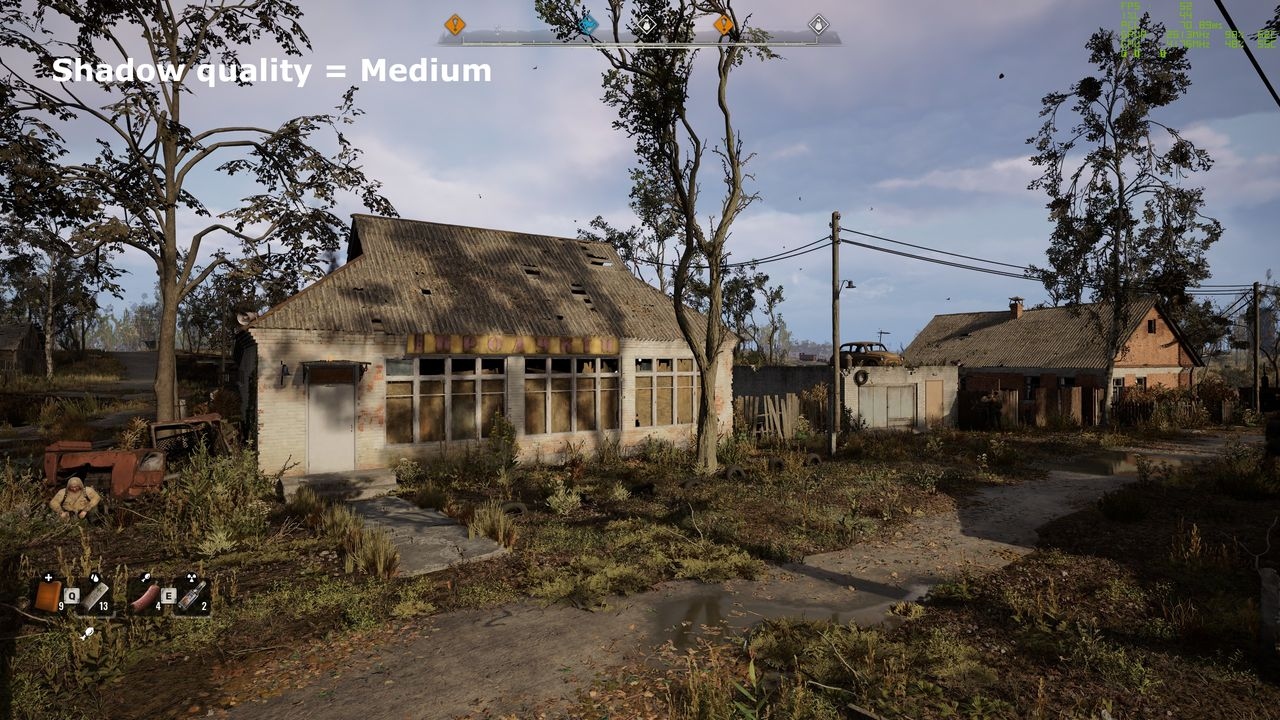
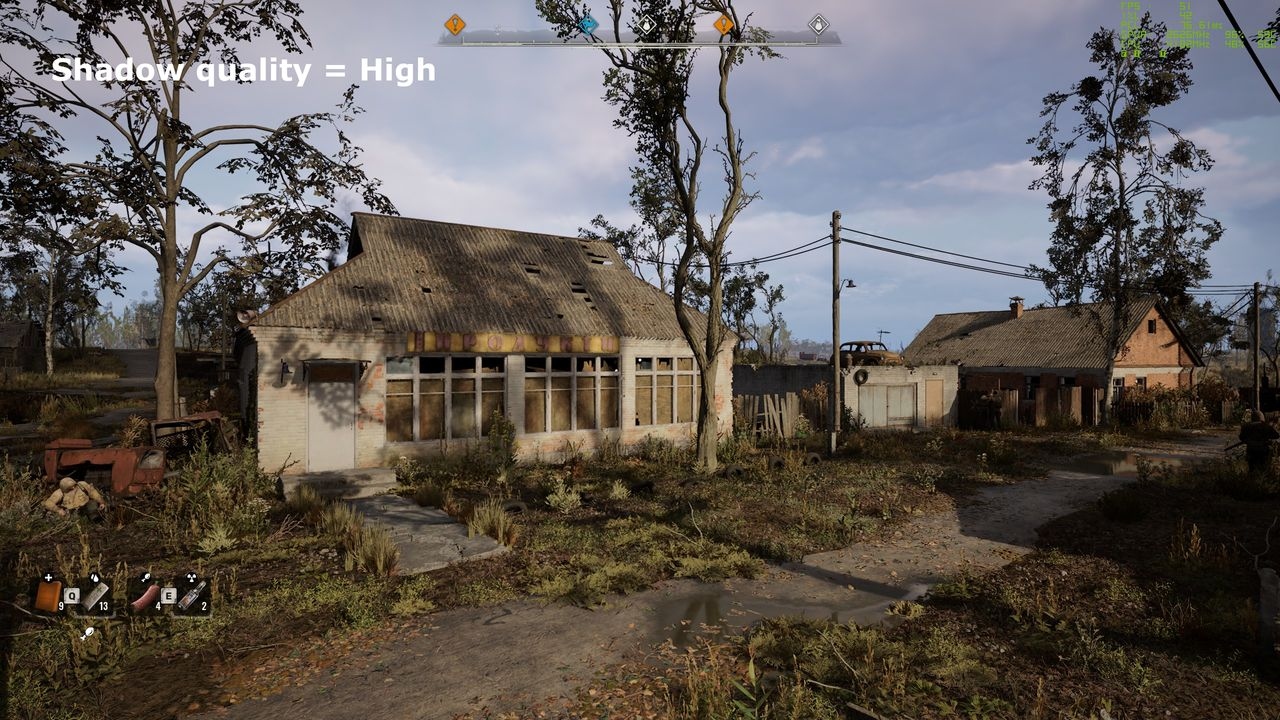
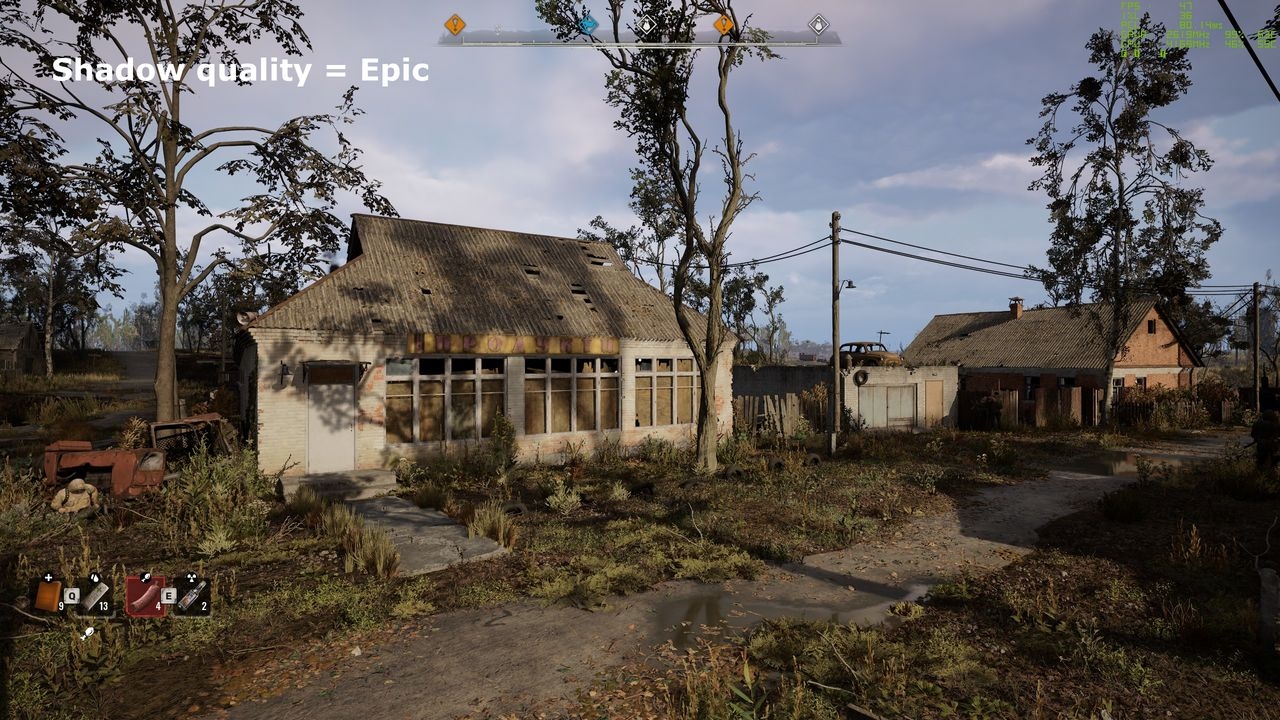
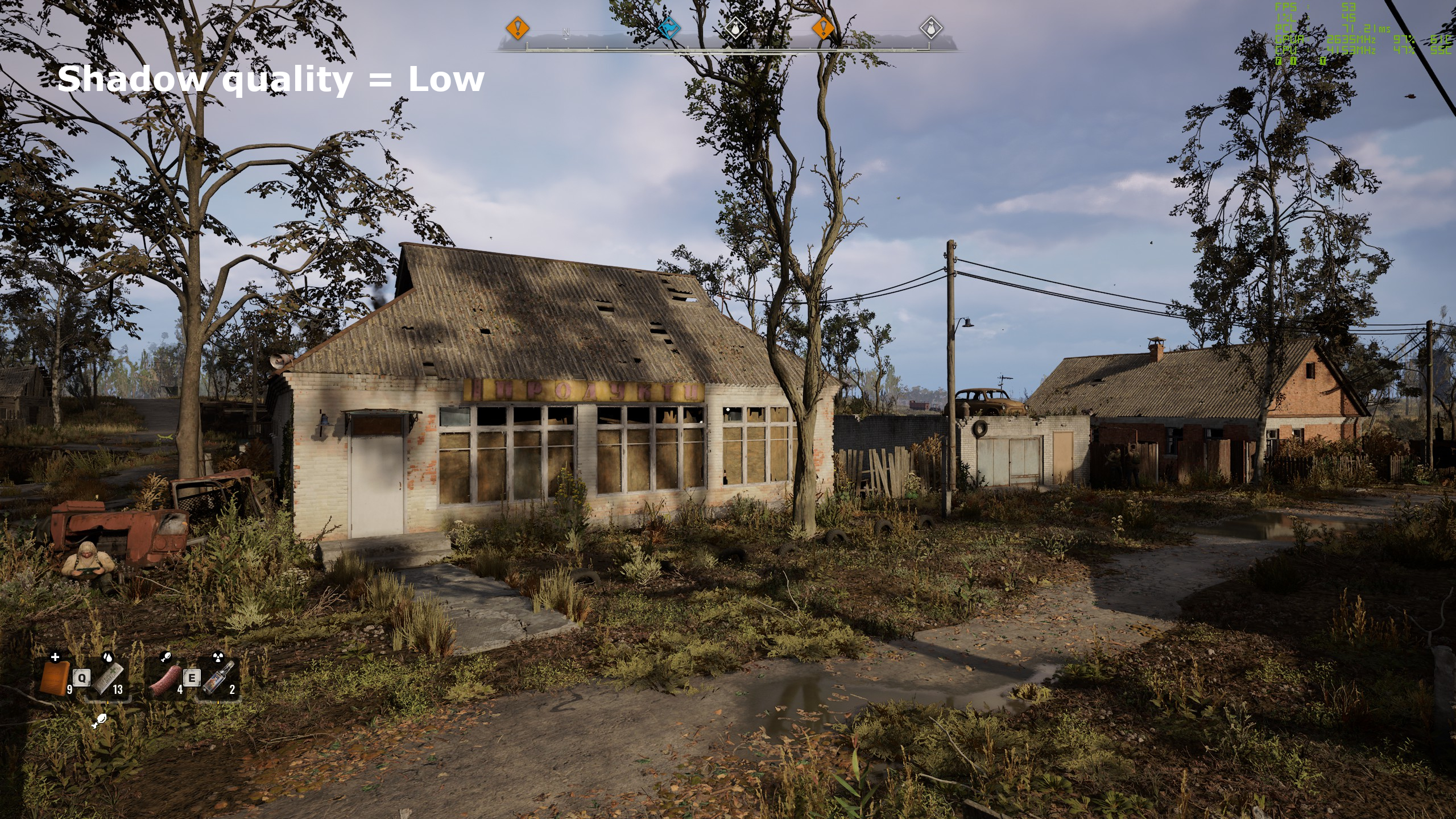
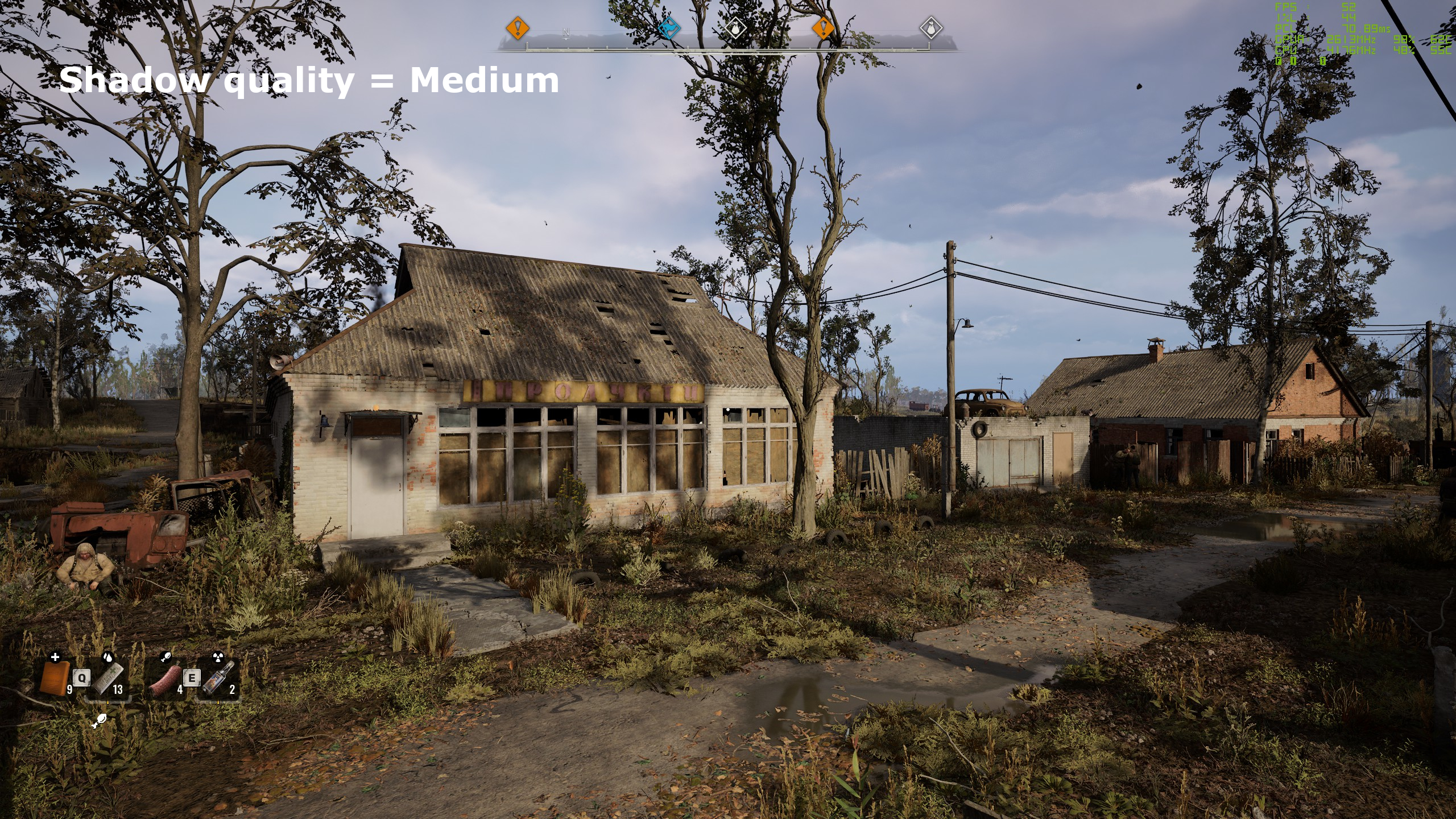
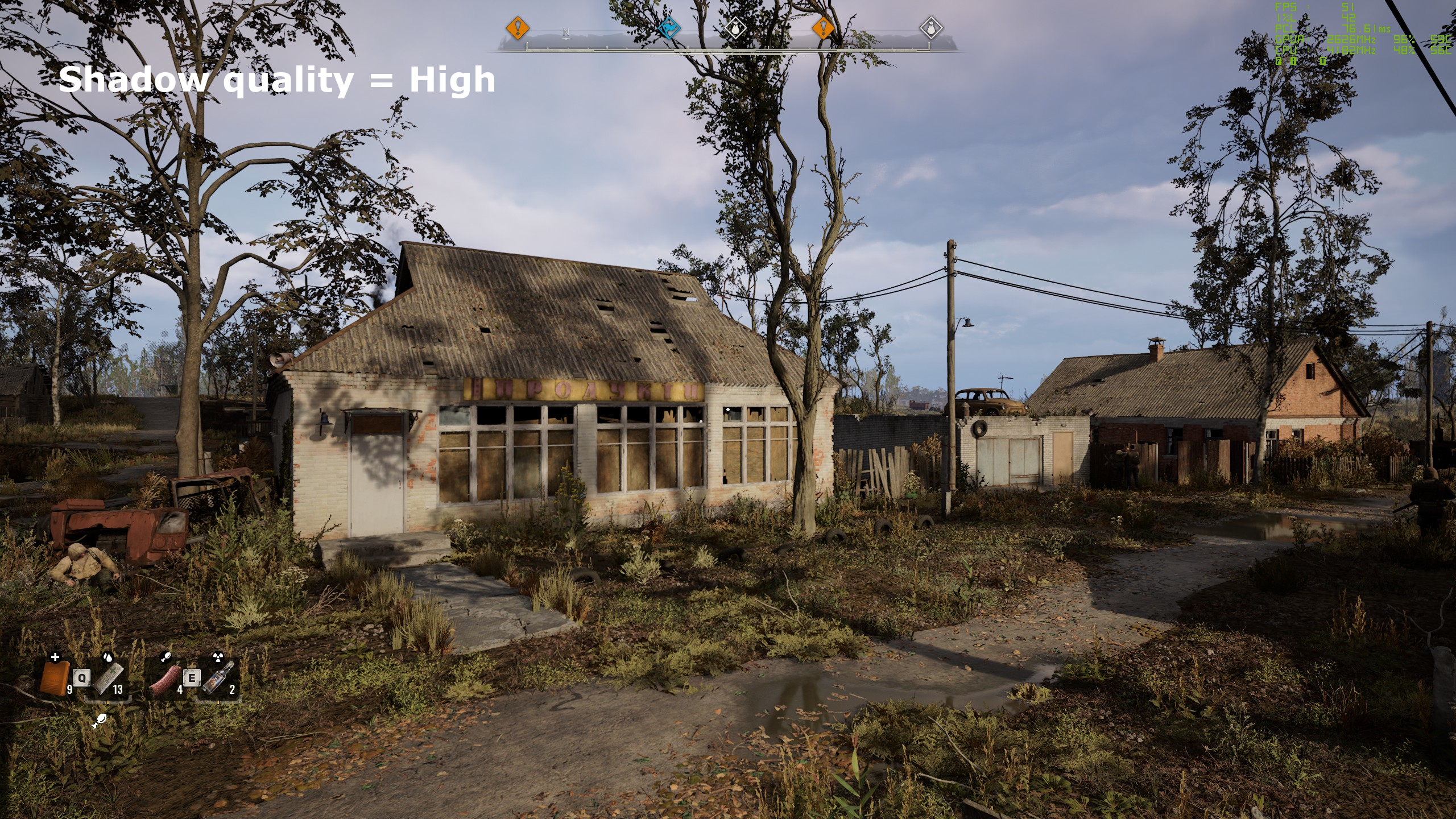
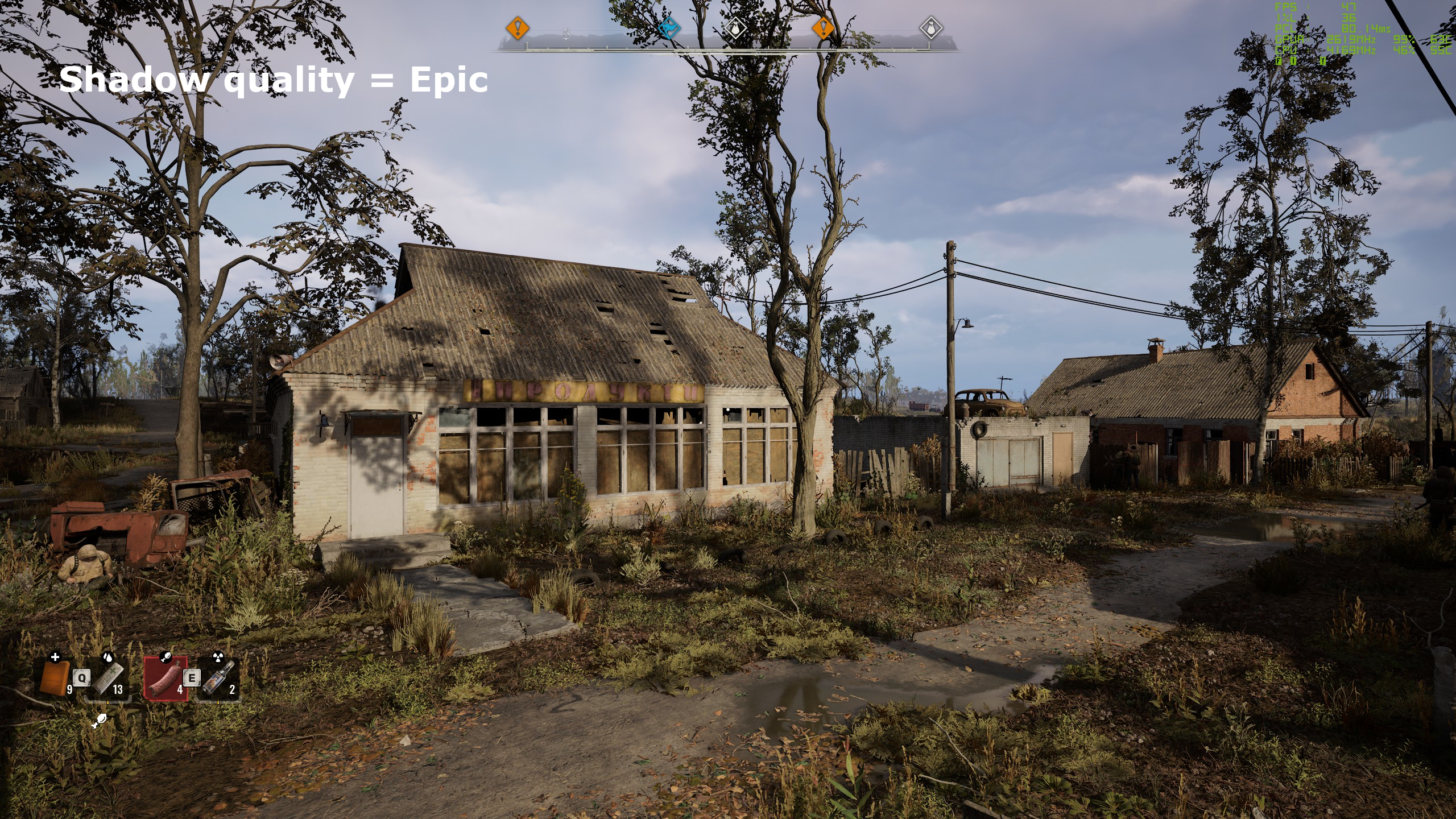
Of the individual settings, shadow quality had the clearest effect on both appearance and performance in Evanson's testing. Like reflections, shadows appear physically correct but are rendered at relatively low resolution.
Maximum quality provides enough sampling for smooth, consistent shadows at a distance, though some become mushy up close. Buildings and other static objects tend to cast sharp shadows; moving objects, including NPCs, enemies, and especially trees, produce more variable results.
Unless your GPU is high-end, choose Medium or High and accept some softness.
Foliage quality
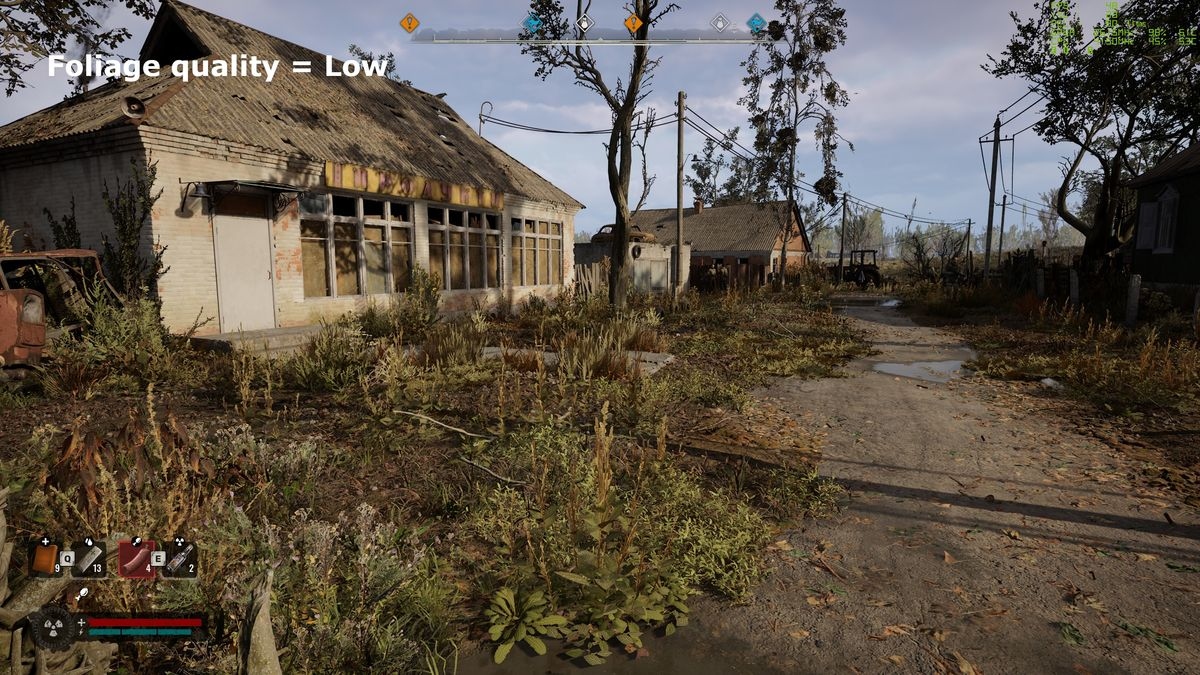
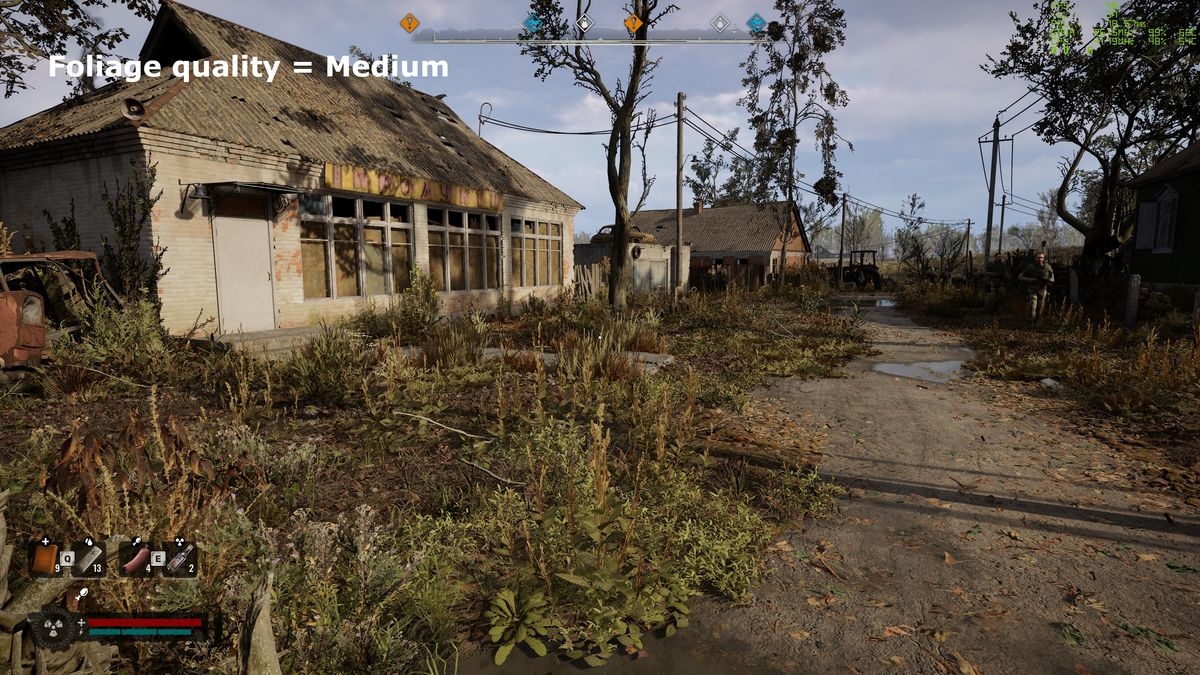
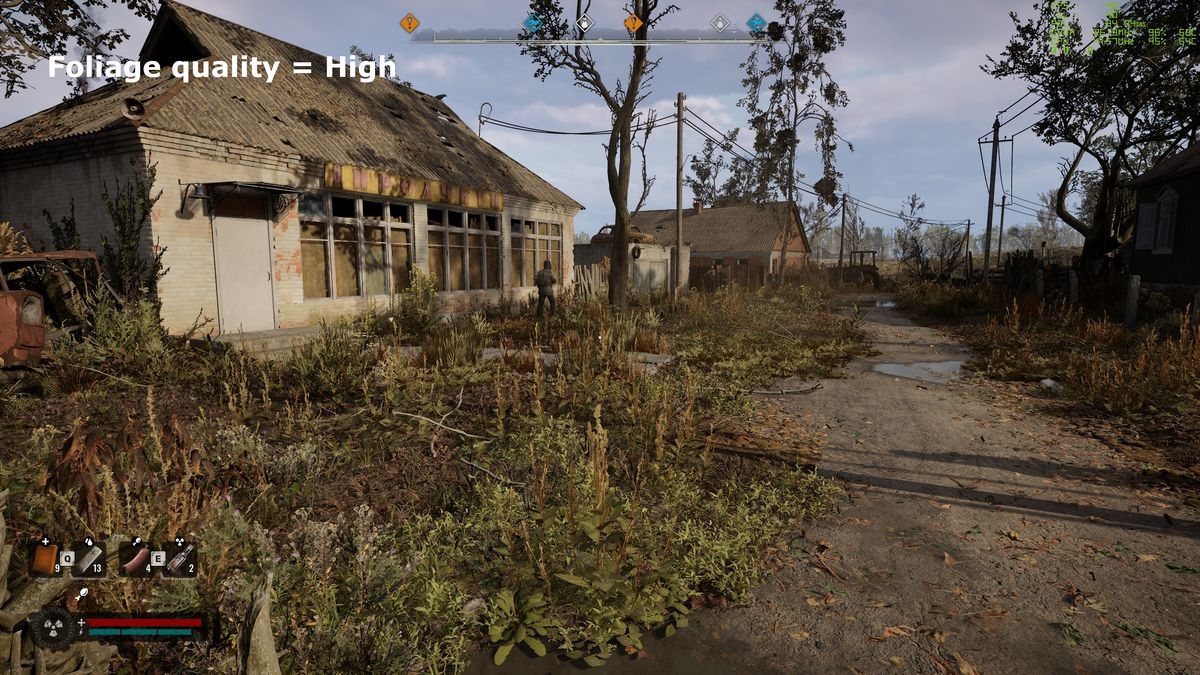
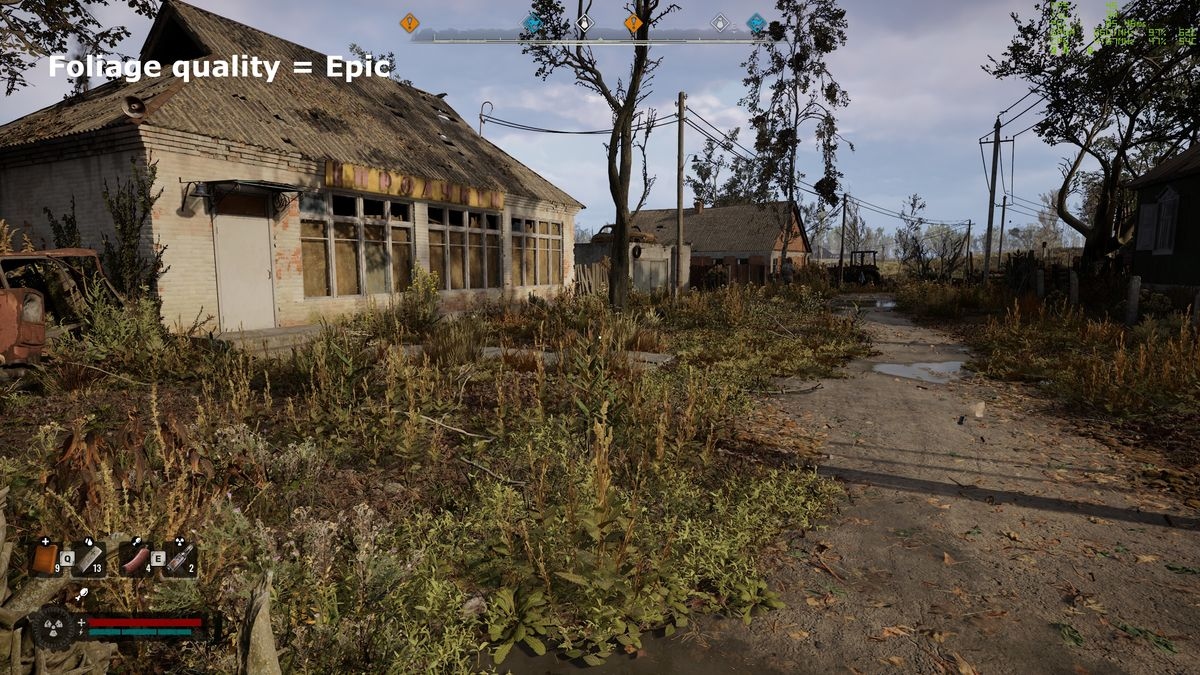
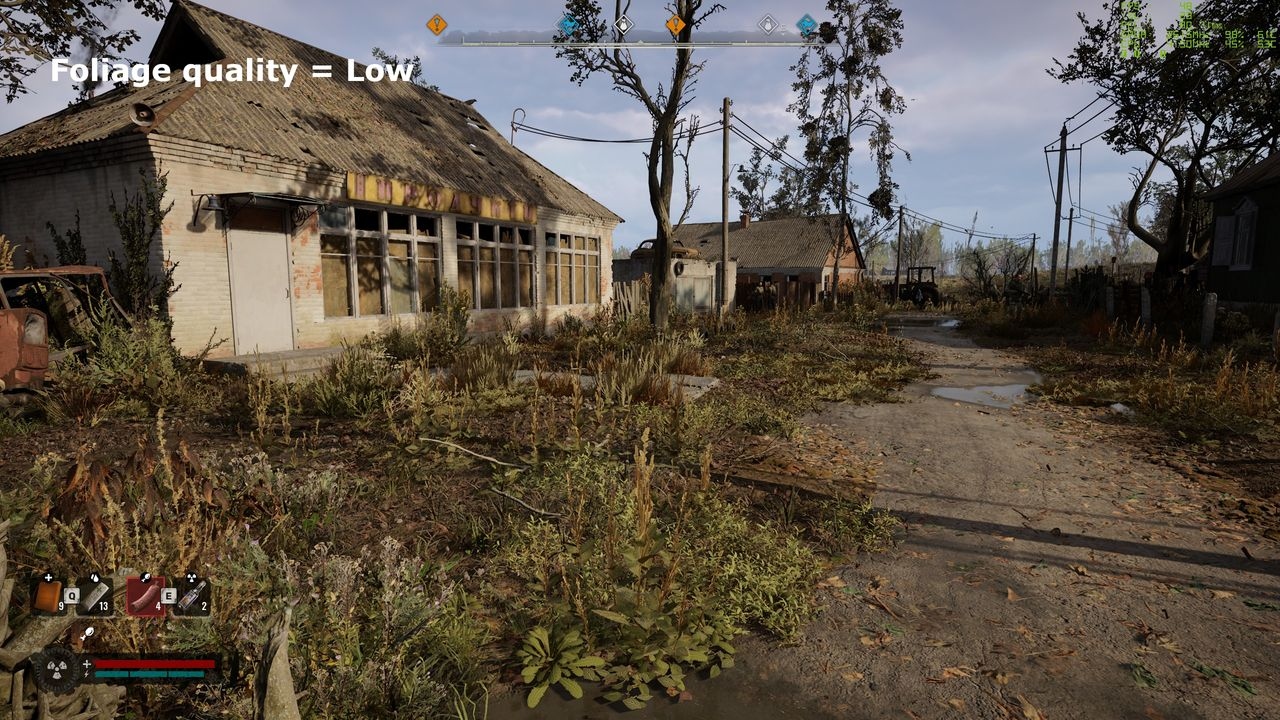
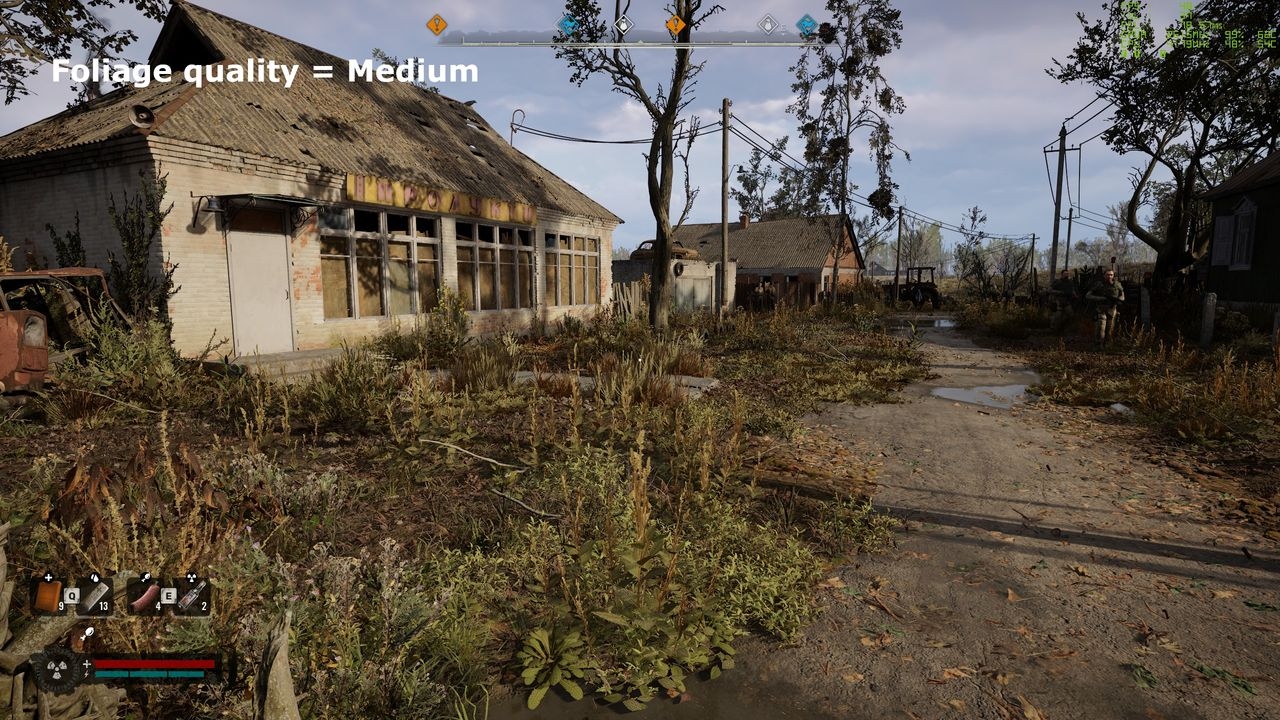
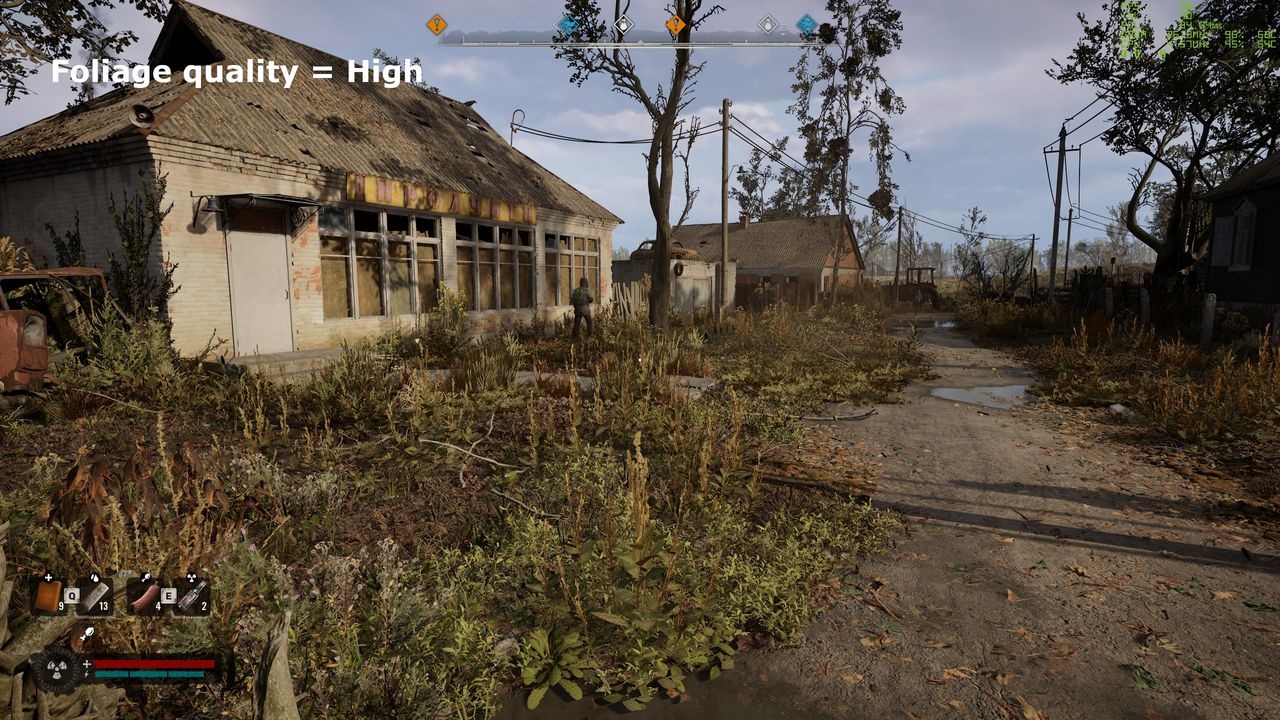
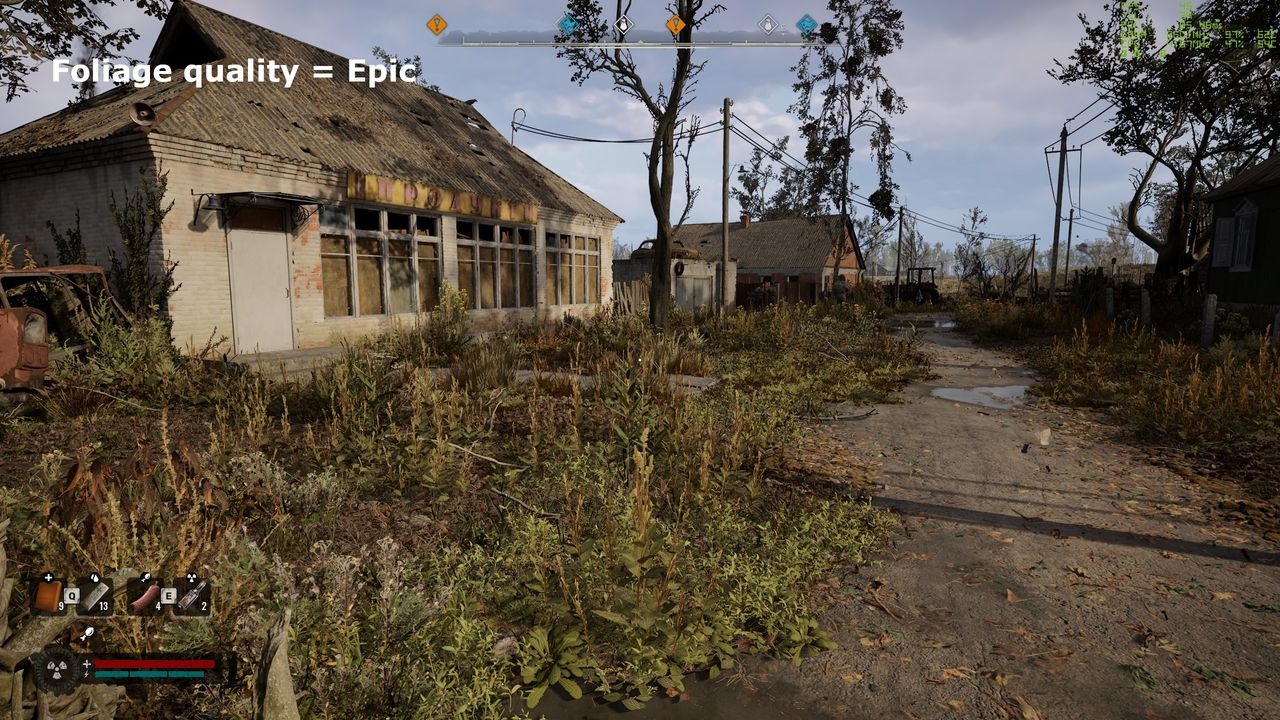
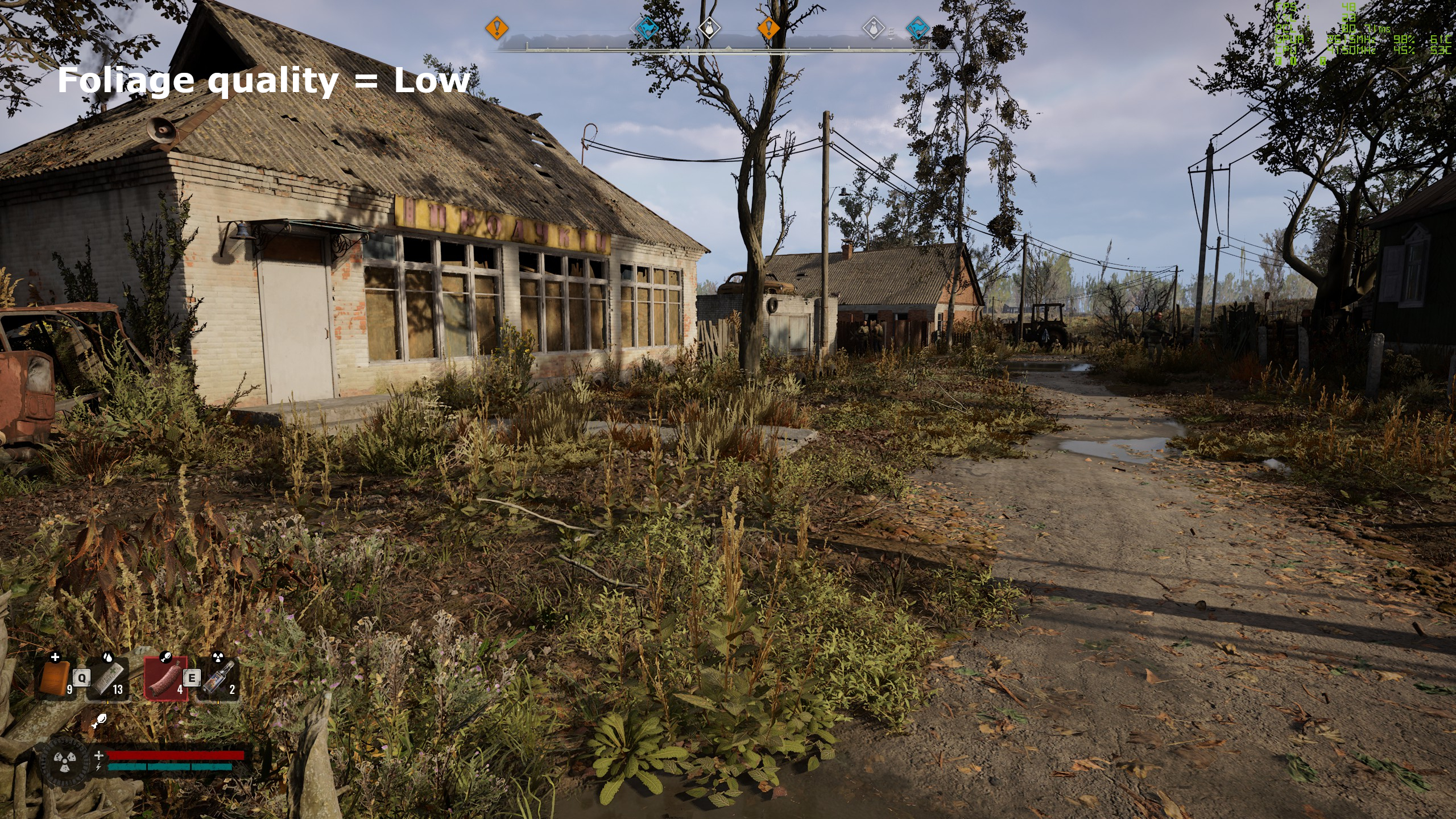
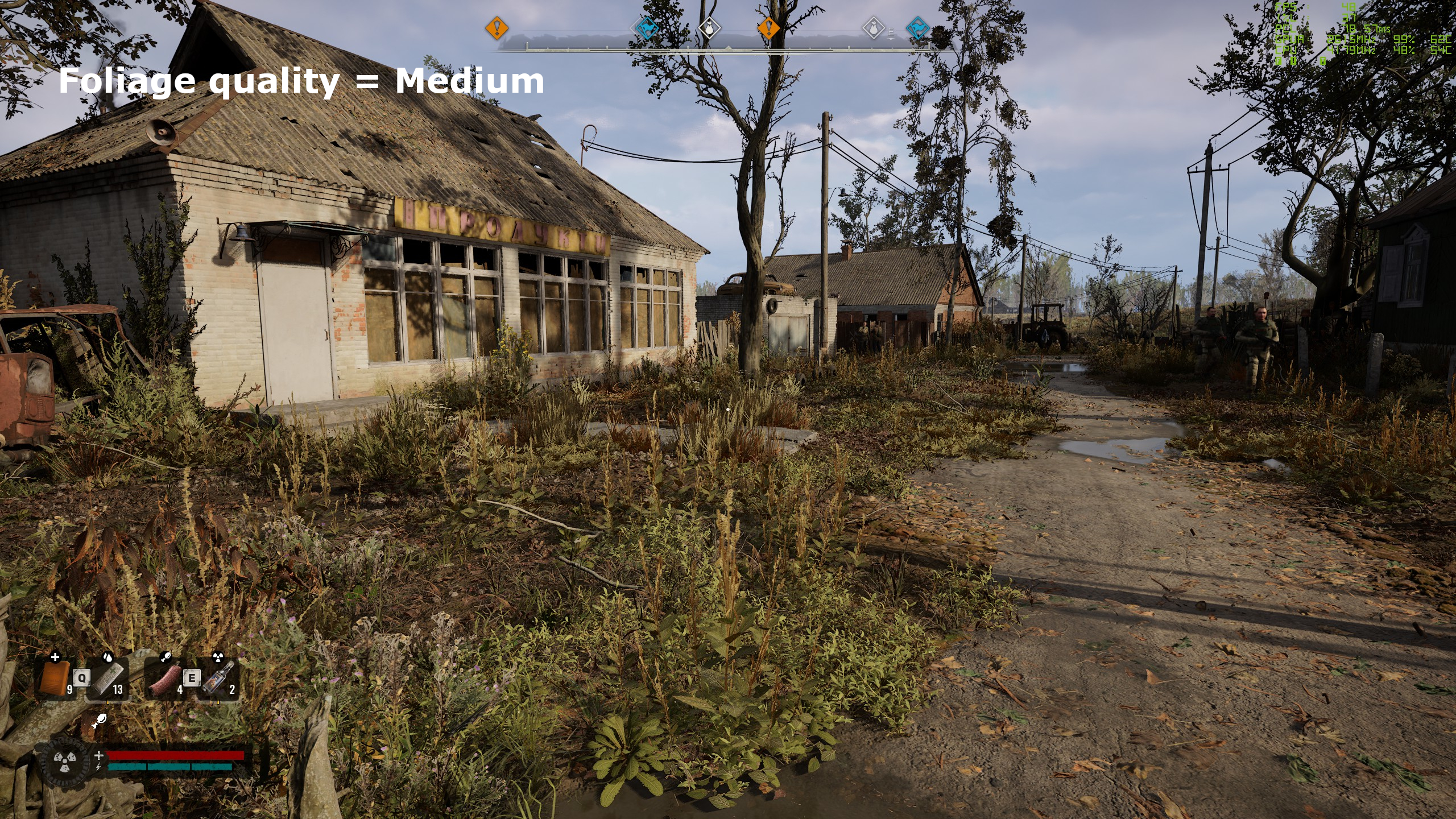
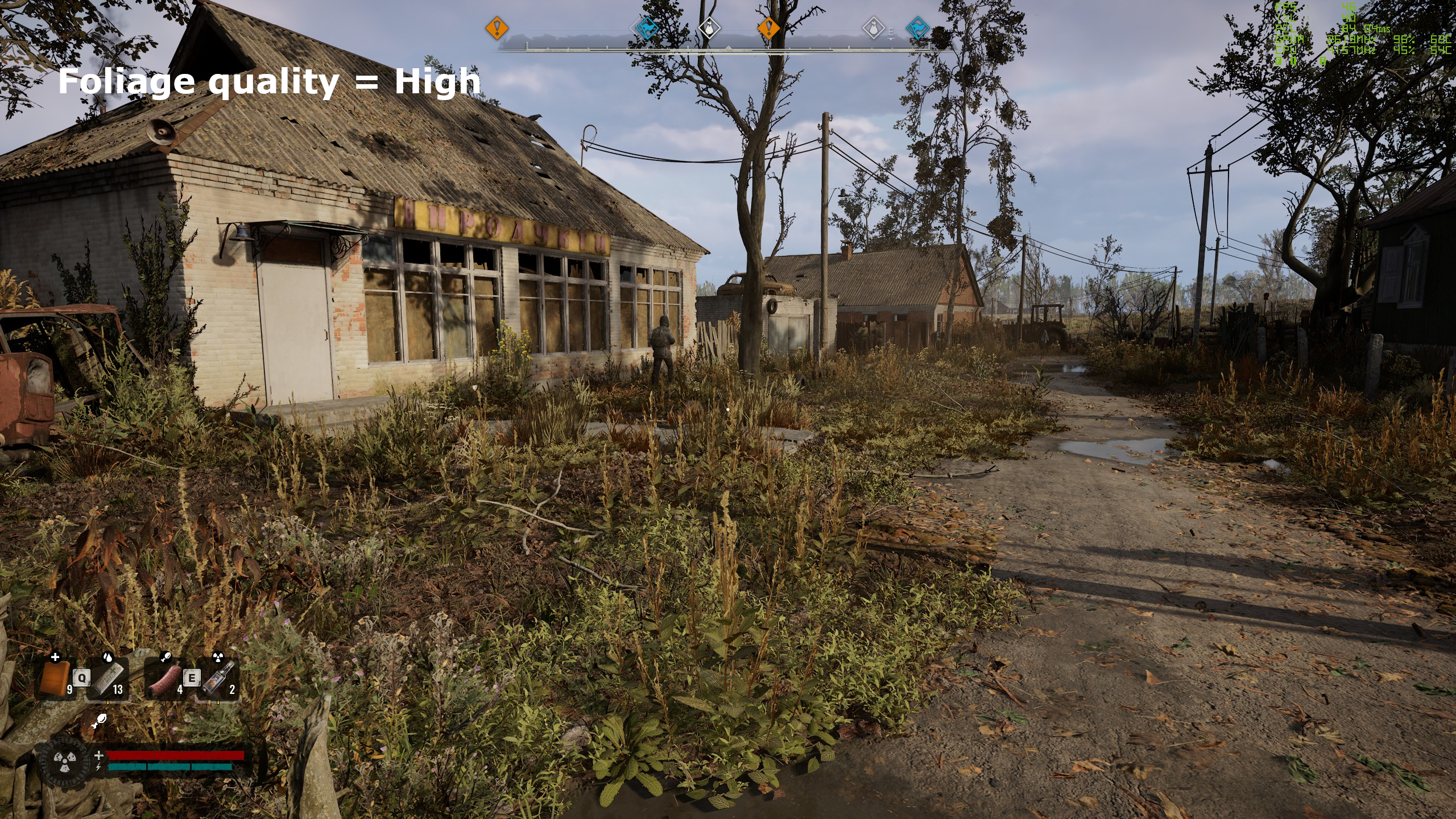
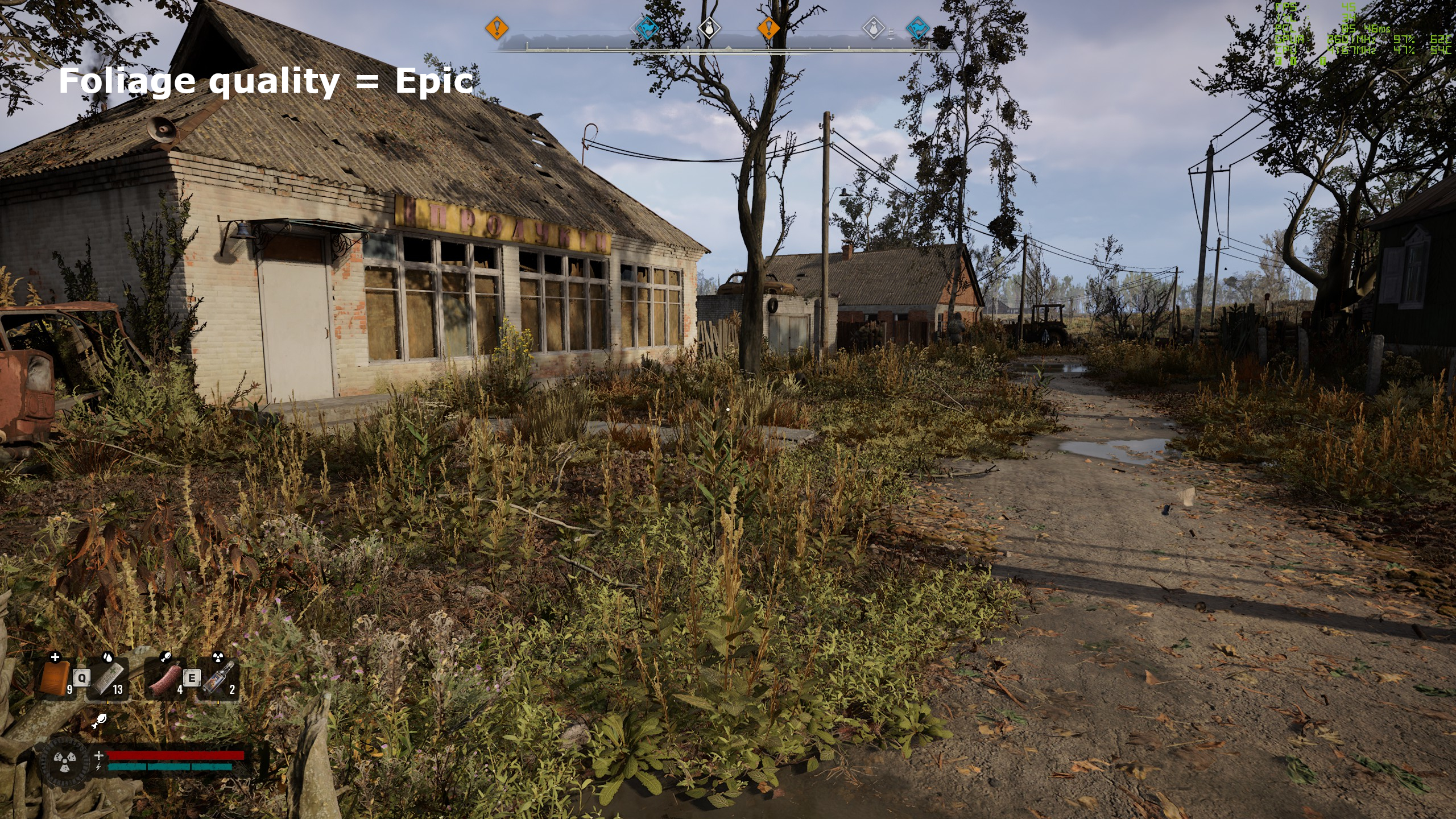
Foliage quality strongly affects grass density and, to a lesser degree, the appearance of trees and bushes. Epic looks best, but its performance cost grows when combined with high environment draw distance, shadow quality, and global illumination.
Medium and High look fairly similar. If you are using the High preset and need a few extra frames per second, lowering foliage is a useful compromise.
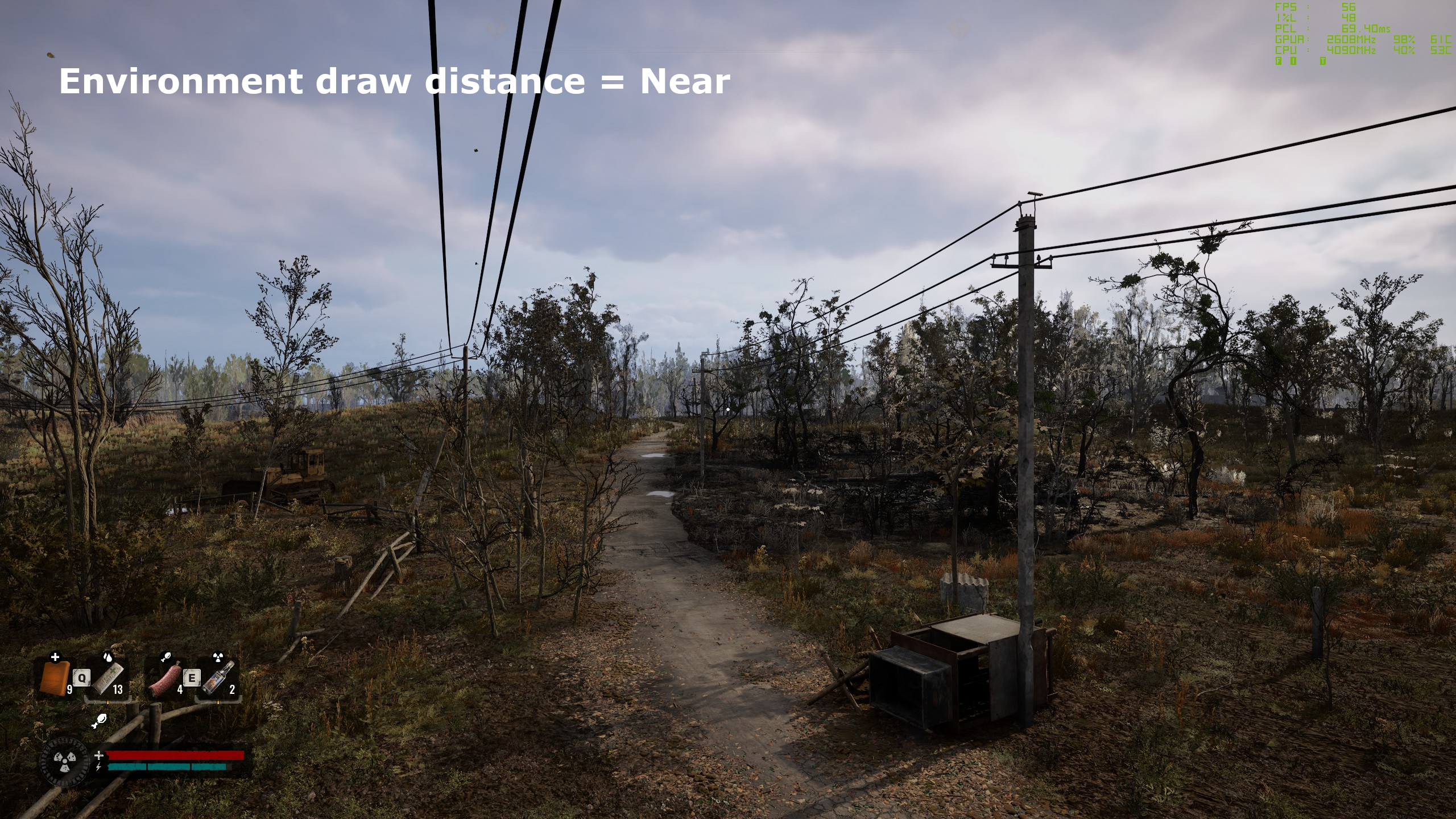
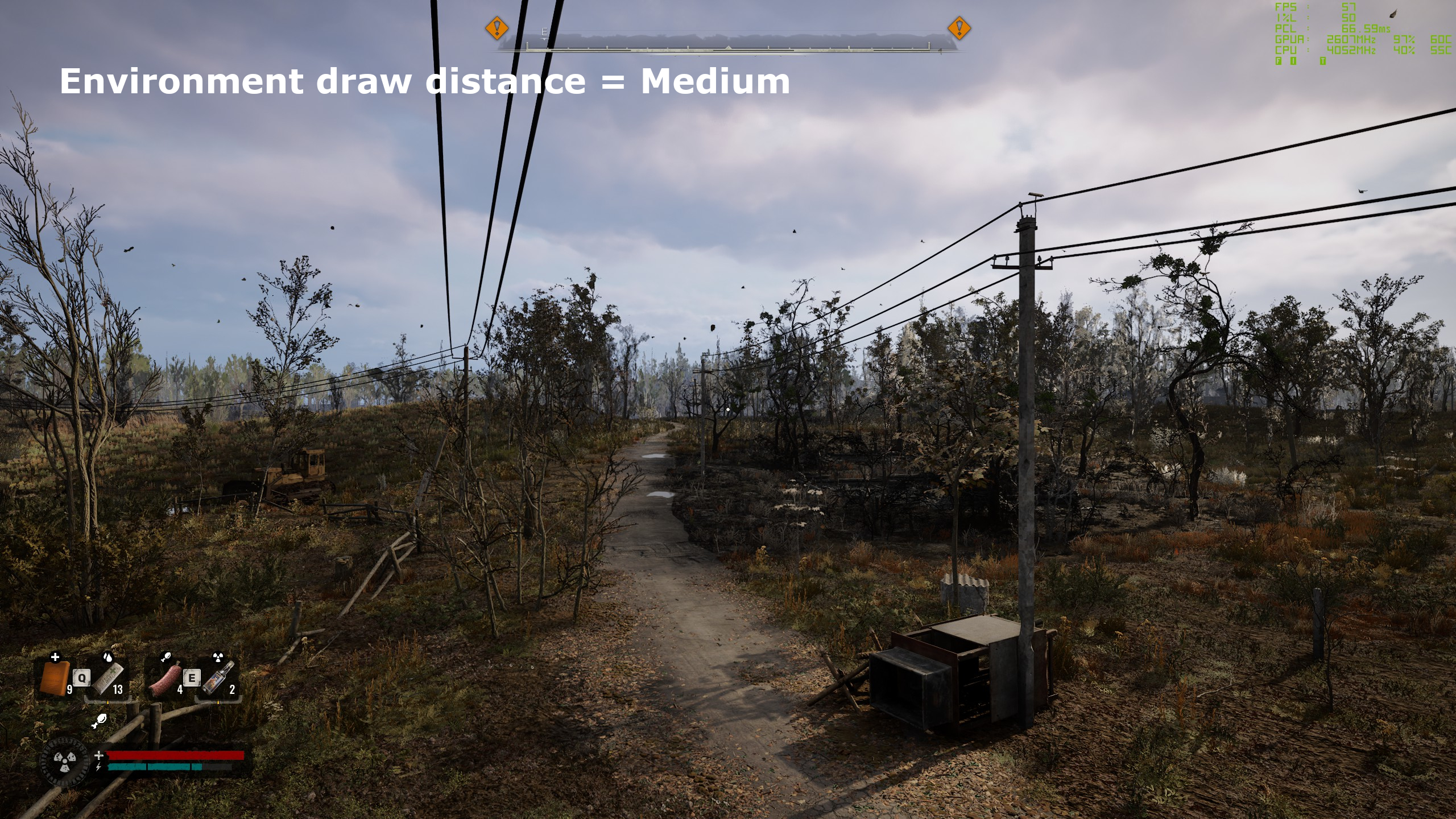
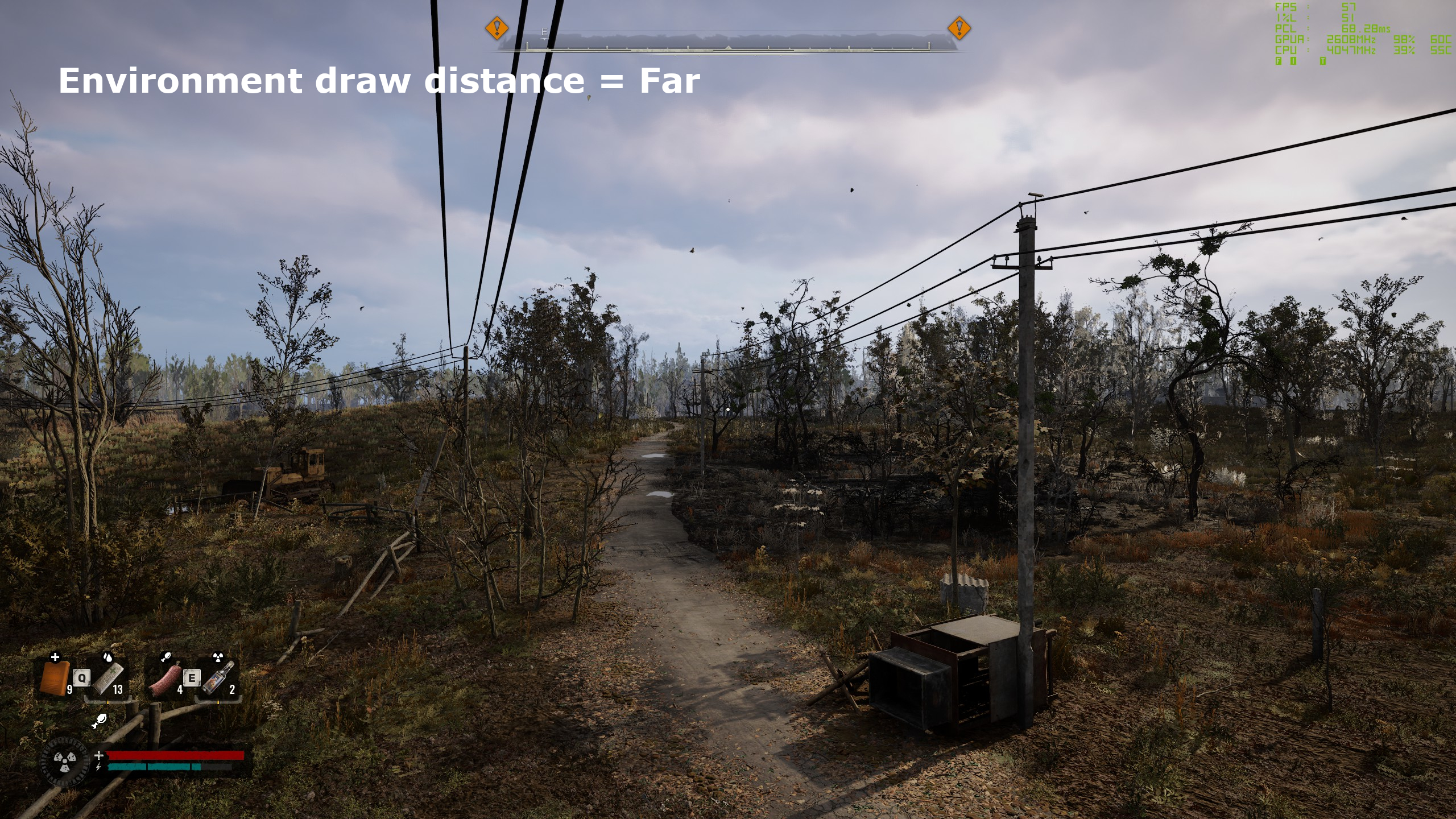
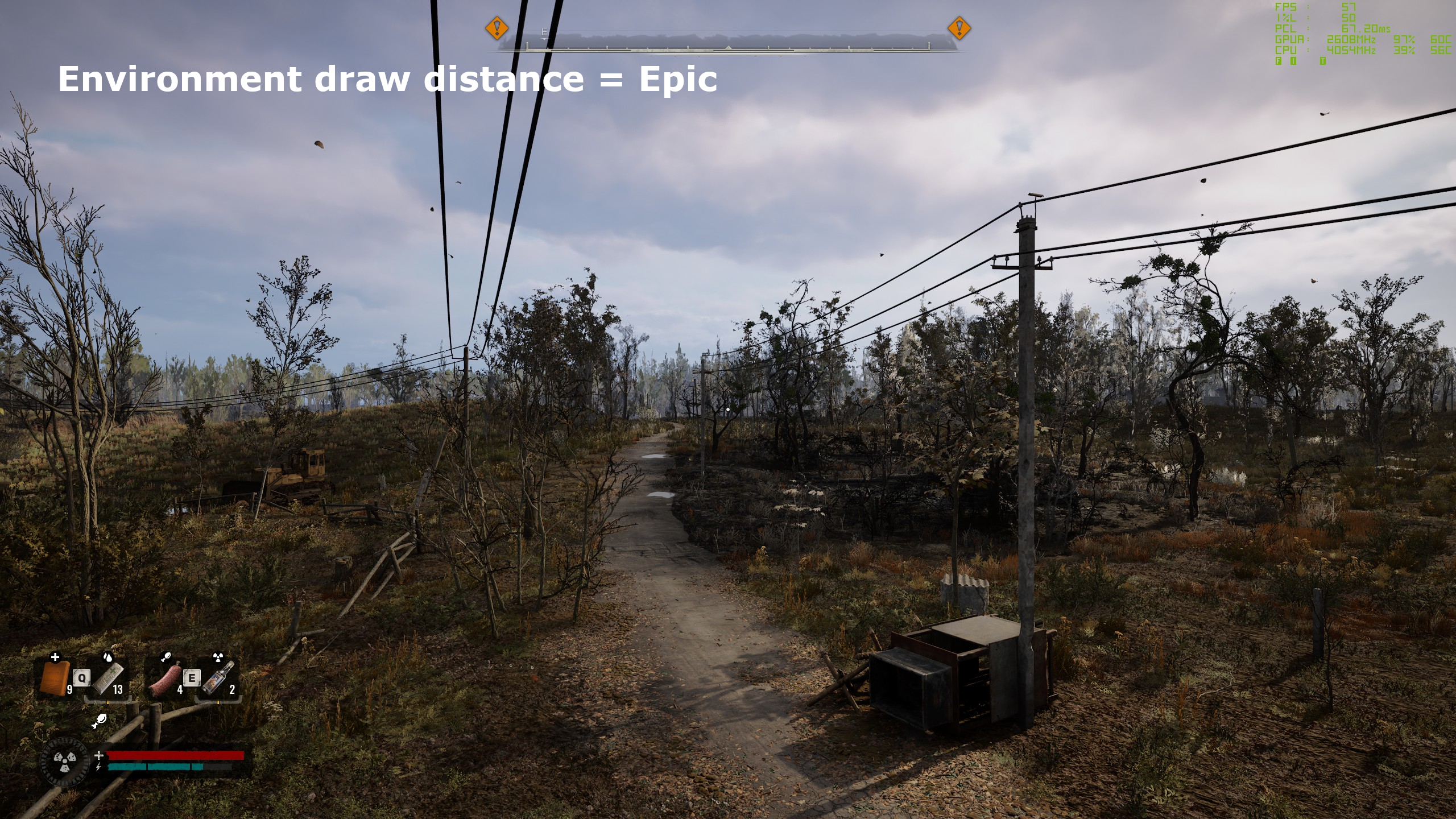
Environment draw distance
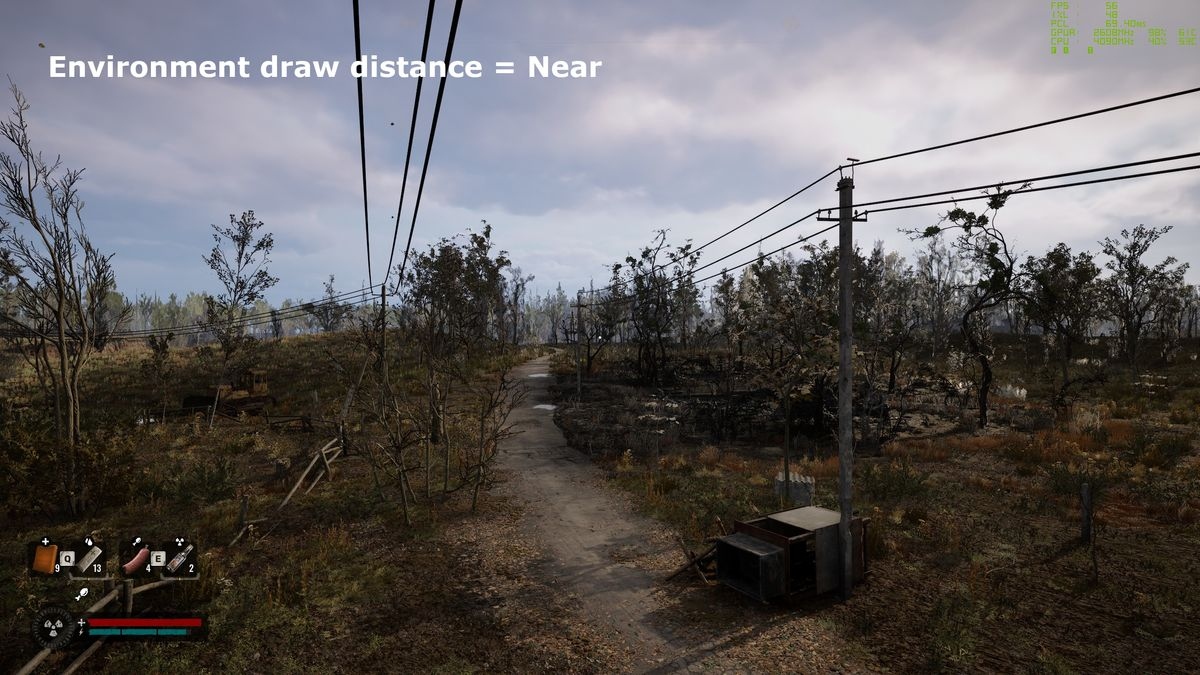
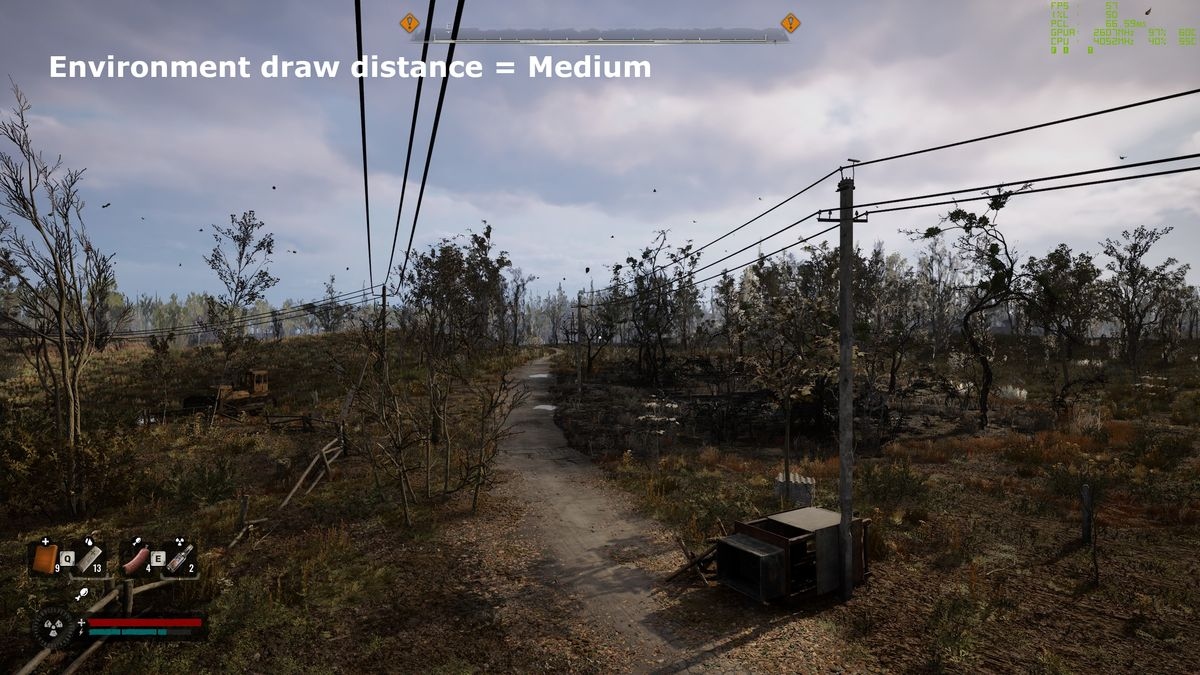
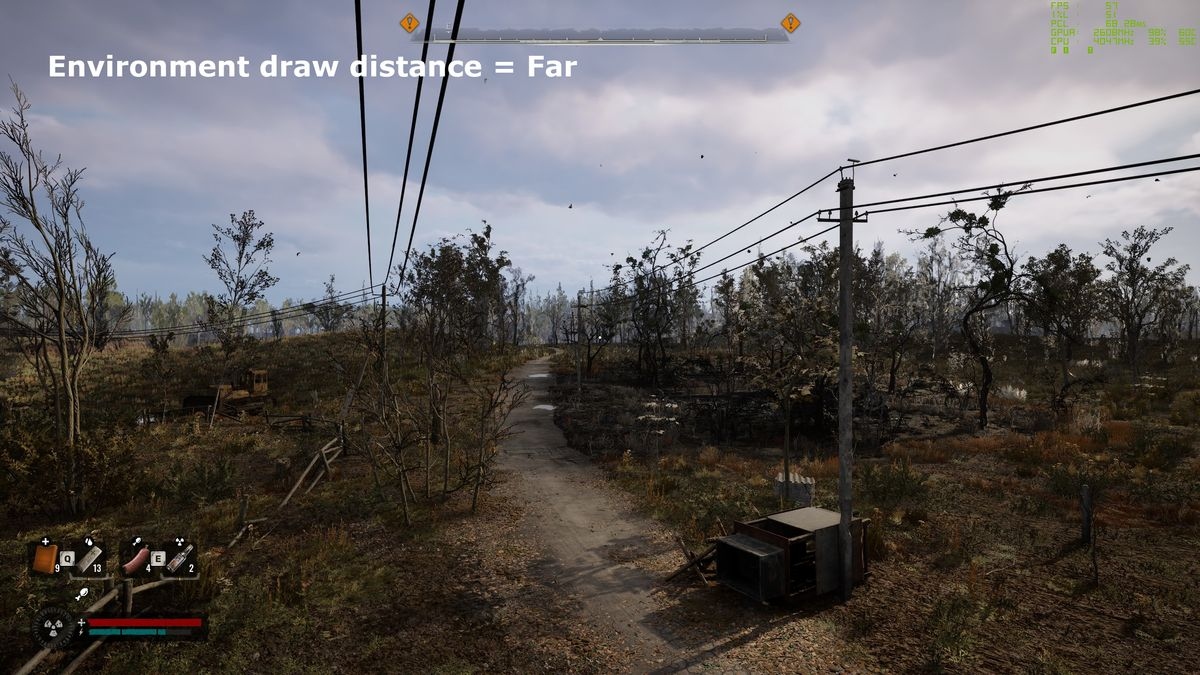
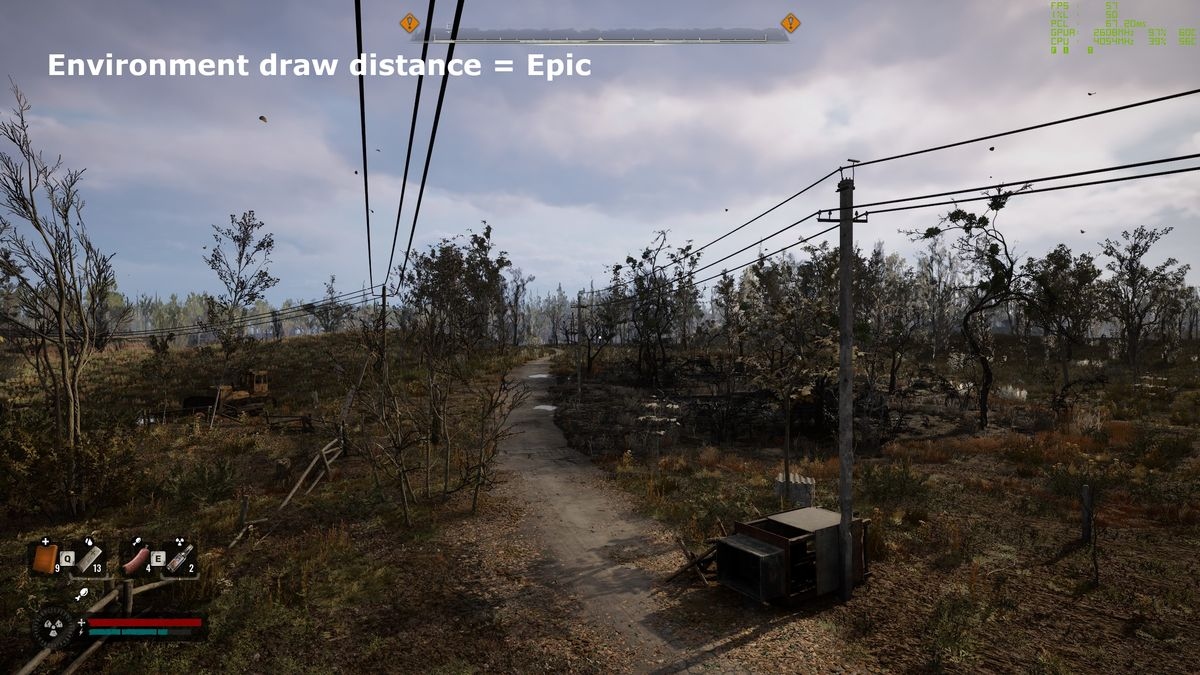
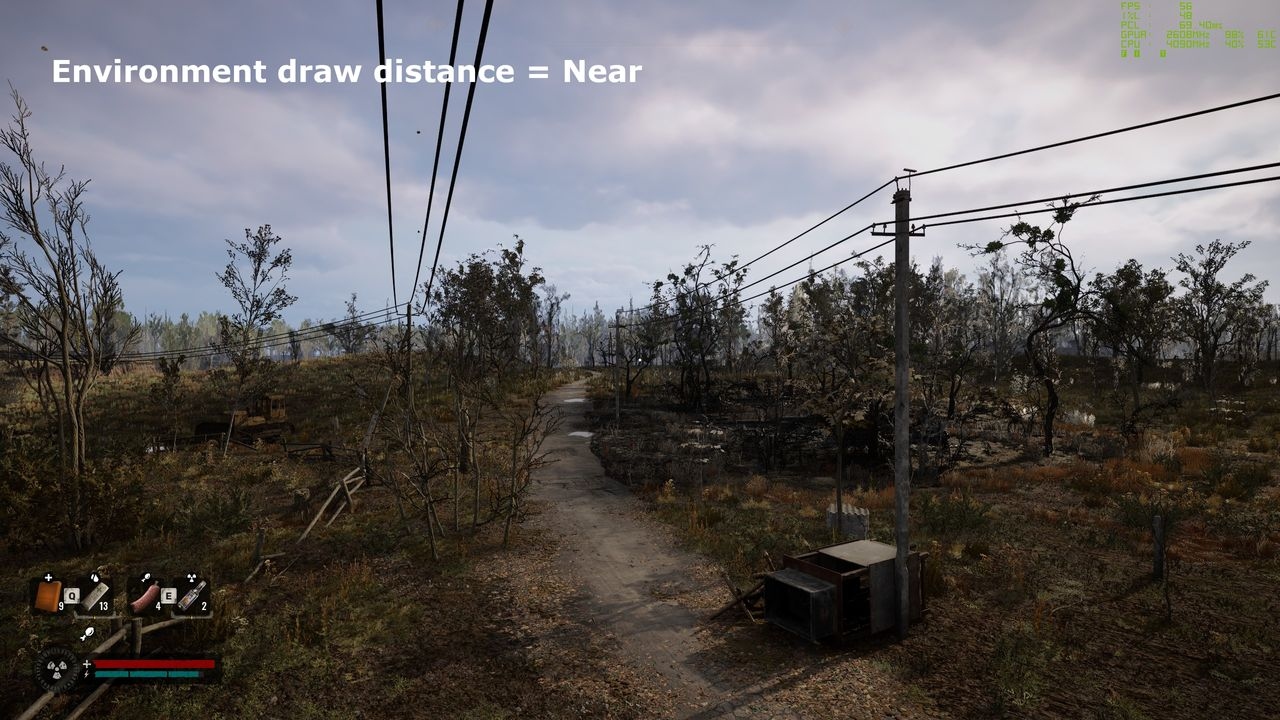
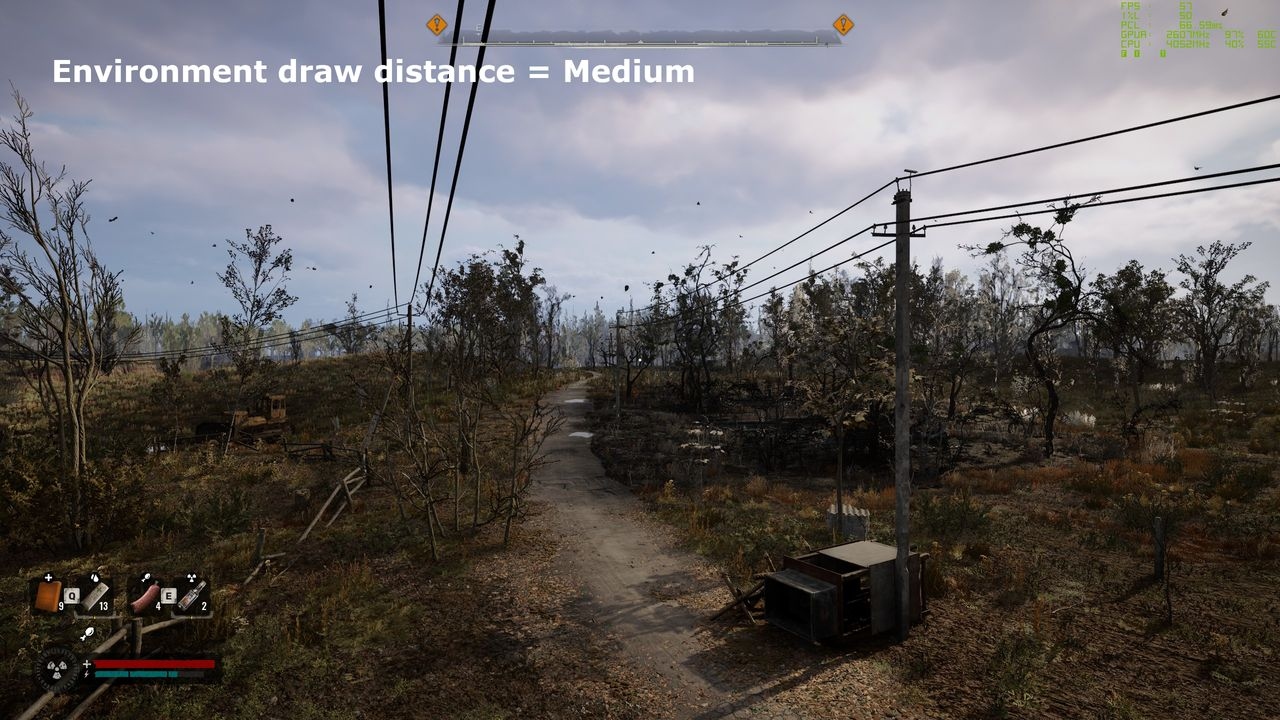
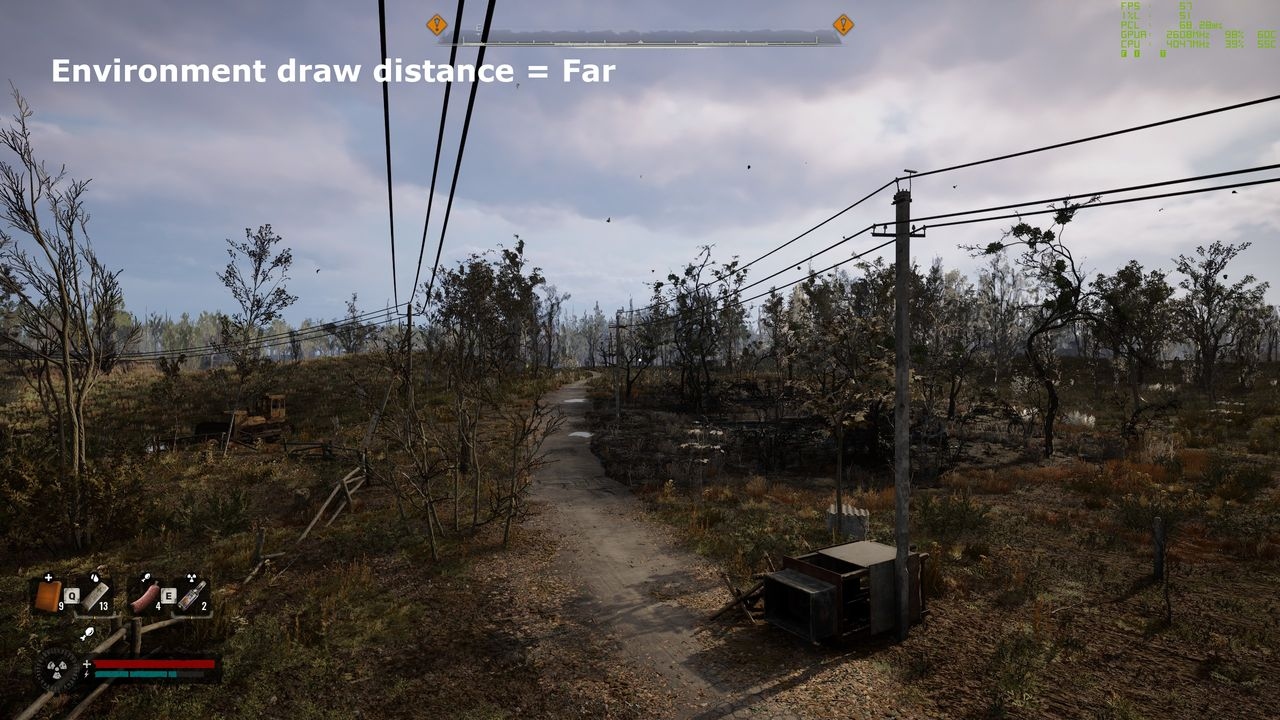
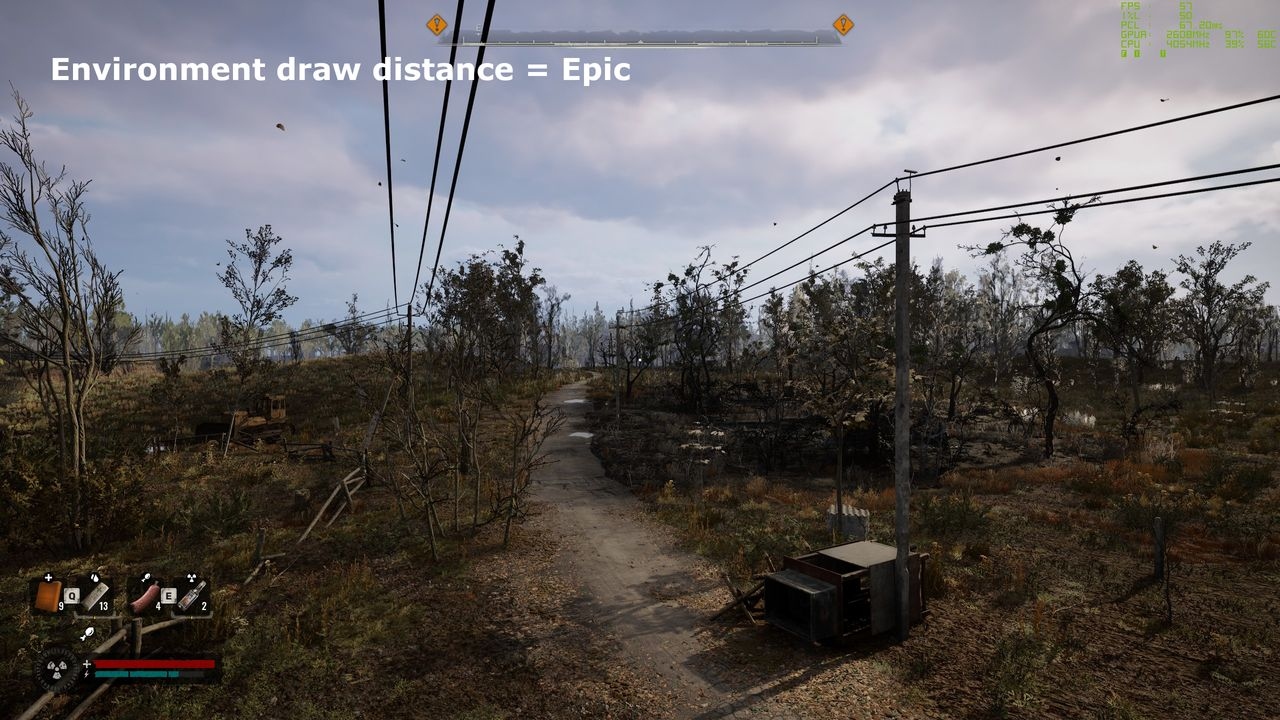
Environment draw distance is another worthwhile adjustment. With the Medium preset used for these comparisons, Evanson found it could be raised freely to reveal more of GSC Game World's desolate Zone. On the RX 6750 XT, Epic draw distance caused no frame-rate loss with that preset.
The cost rises when foliage is High or Epic, however. Changing foliage quality alongside draw distance produced a 10% frame-rate reduction between Low and Epic. In general, keep draw distance aligned with foliage and shadow quality.
Custom settings or presets?
These findings came from review code tested before release. Several patches arrived during testing, including two exceeding 130 GB each, so some, all, or none of this guidance may remain fully applicable to the official release.
Ray tracing sets the broad performance limits, making a single setting change unlikely to transform frame rates. Fine-tuning usually requires adjusting several options, and some changes require a game restart.
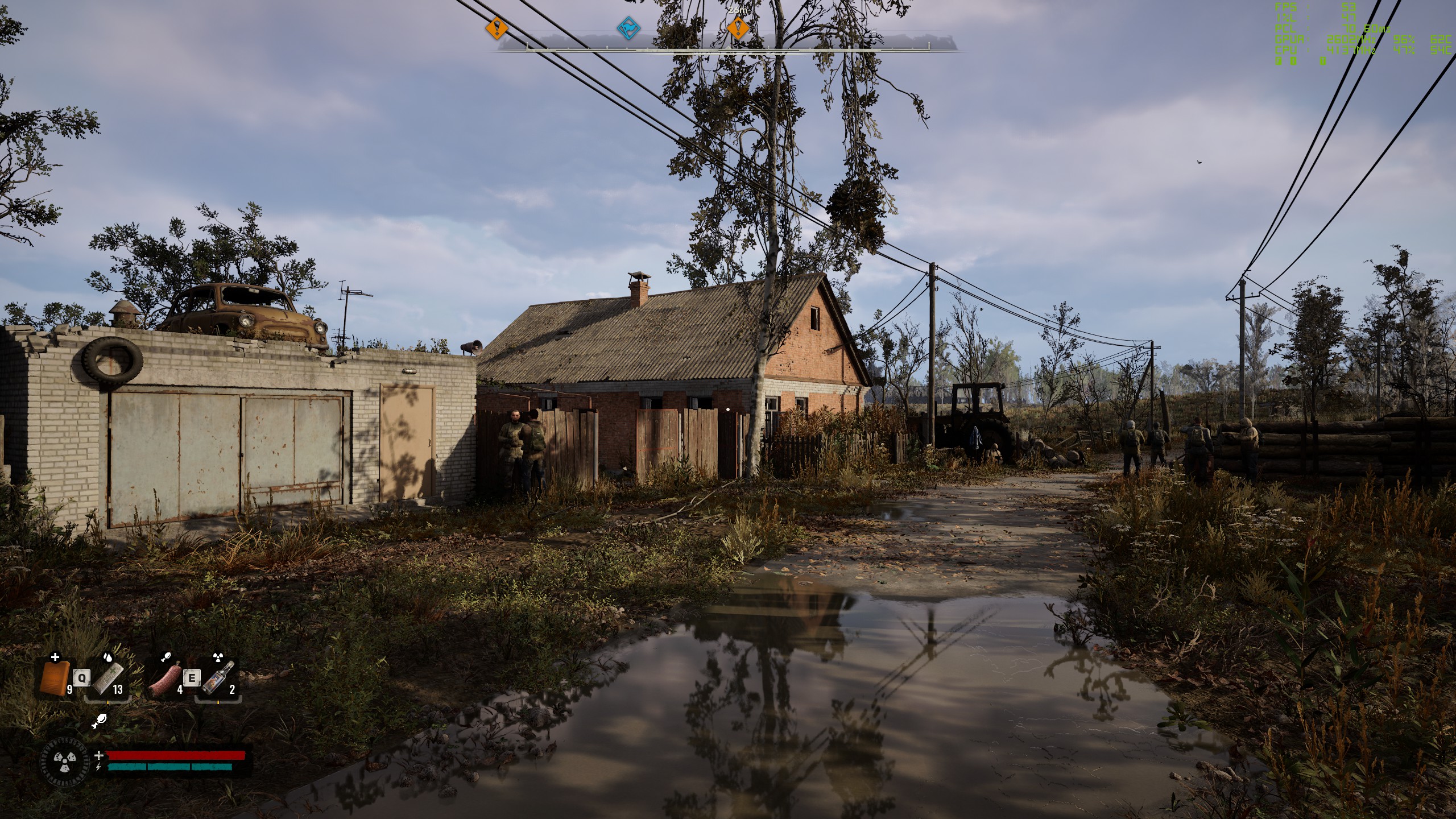
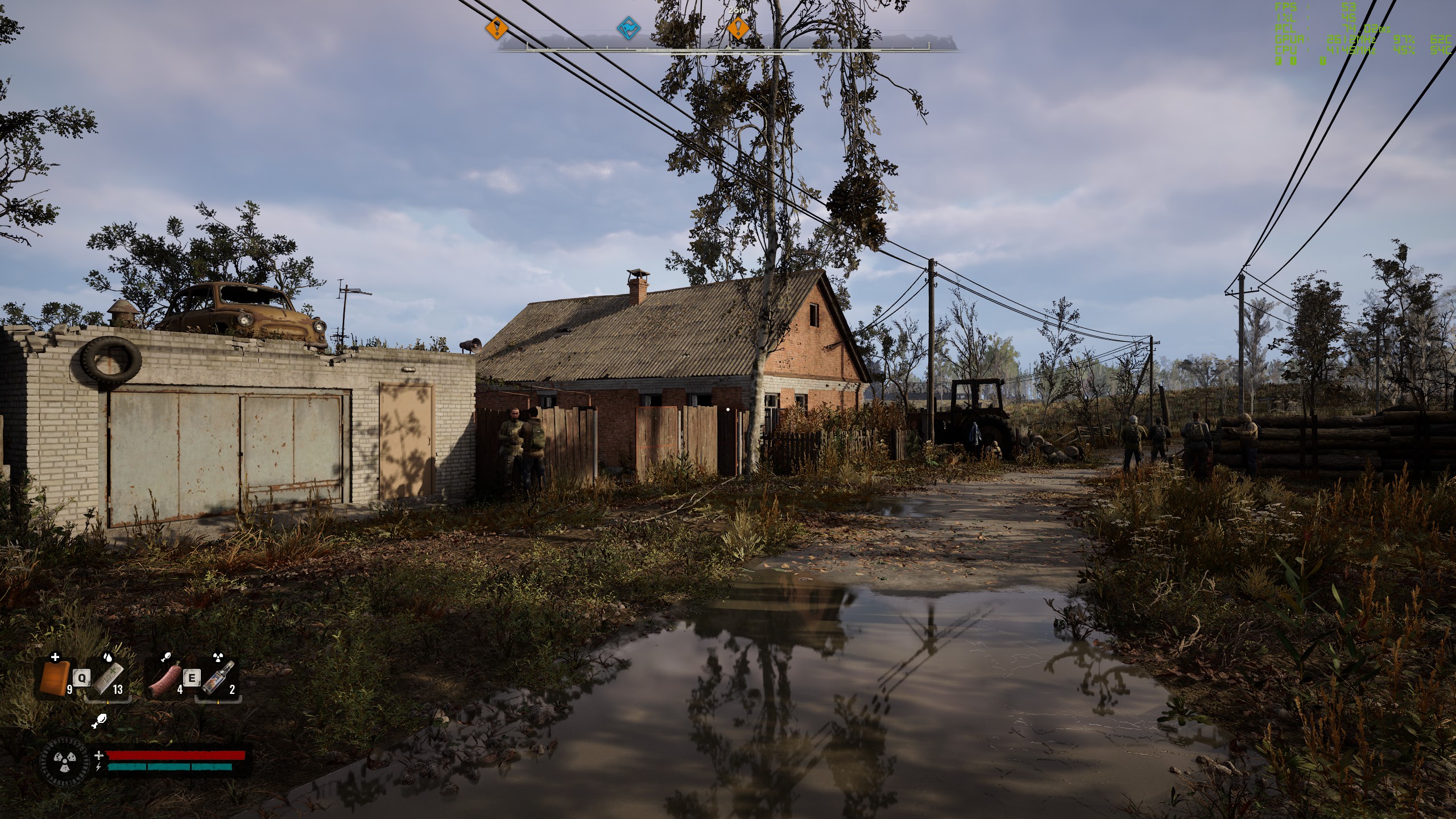
Example footage: Epic preset, 1080p resolution, no upscaling.
Core i7 14700KF, RTX 4080 Super, 32 GB DDR5-6400.
Beyond graphics performance, the Display menu offers an FOV range of 70 to 110°, which can help with motion sickness. The sharpness slider defaults to 20%; Evanson also found it helpful for sickness, preferring 12%.
Overall, Evanson recommends choosing a preset rather than chasing a perfect balance. It may not deliver the absolute best frame rate or ideal graphics, but it is a straightforward way to get into the game.

About the author
Nick Evanson's interest in gaming and computers began in the early 1980s. After university, he taught physics and IT, then began writing about technology in the late 1990s. He wrote 3DMark and PCMark help files with MadOnion, briefly worked at Beyond3D.com, and joined the renamed Futuremark as editor-in-chief of its PC gaming site, YouGamers. Following the site's closure, he spent years lecturing in engineering and computing before returning to writing, including four years covering technology and PCs at TechSpot.com. His particular interests include GPUs and open-world, grind-heavy RPGs.