
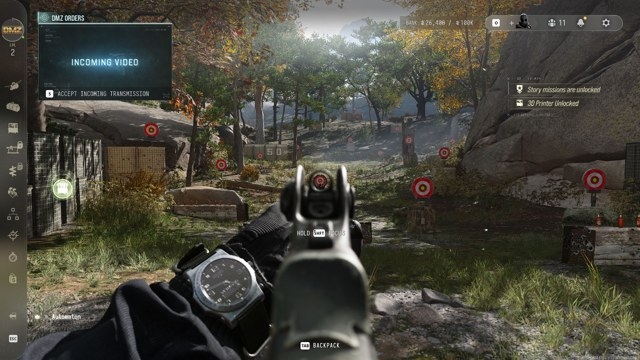
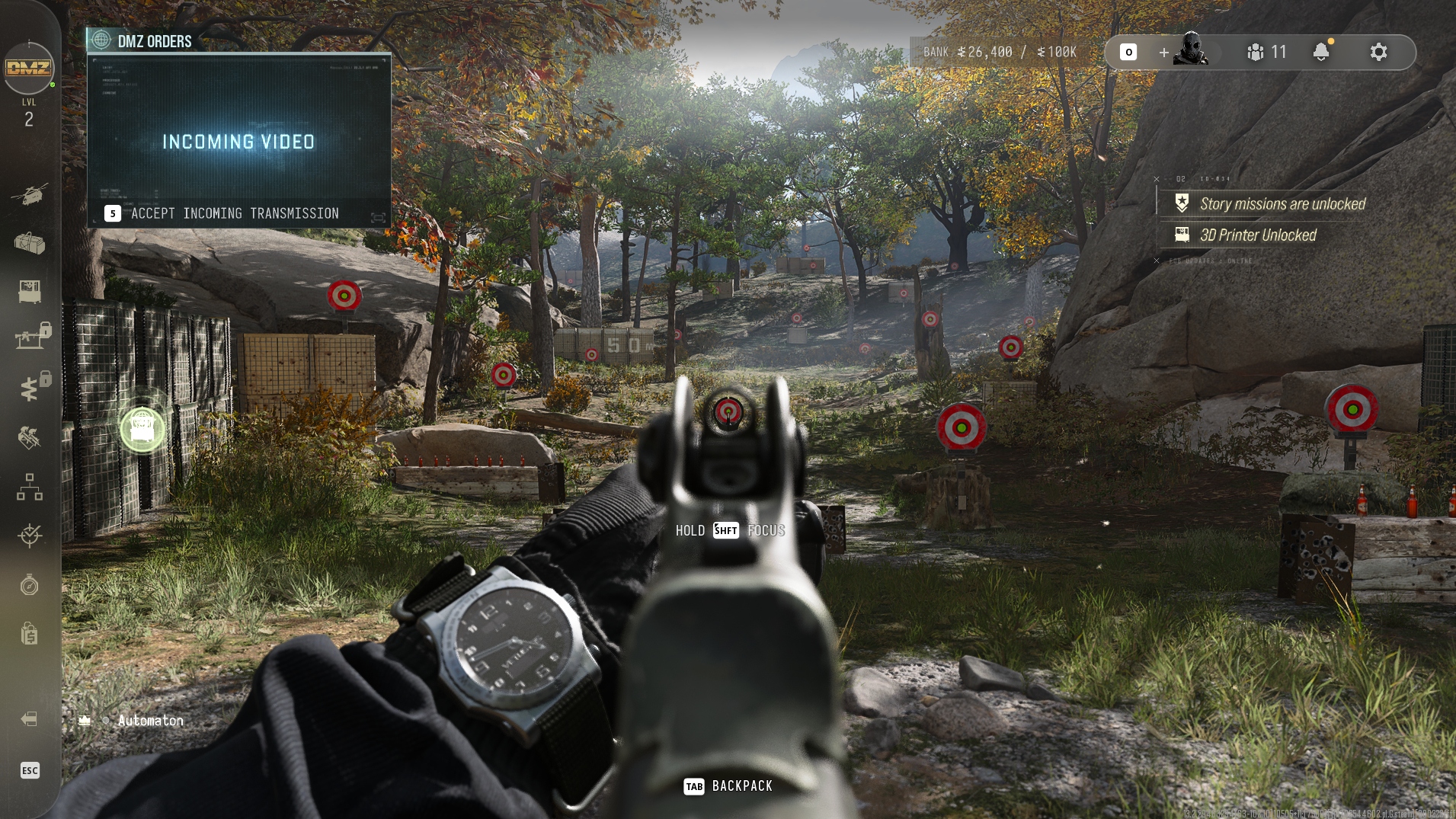
Call of Duty: Modern Warfare 4 looks impressive, despite texture pop-in and flickering in DMZ mode. Rather than sacrifice its visuals wholesale for higher frame rates, the source author tested every graphics setting individually and identified four worth adjusting.
For a quick setup, the author's recommendation is the Balanced preset on a mid-range PC or Ultra on a high-end system.
How the presets compare
Each performance measurement used the same 30-second route in Mission 4 of the campaign, with movements and actions kept as consistent as possible. Testing was conducted at 1440p with an RX 9070 XT, Ryzen 7 7800X3D, and 32 GB of DDR5 RAM.
| Preset | Average fps | 1% low fps |
|---|---|---|
| Minimum | 146 | 119 |
| Basic | 137 | 114 |
| Balanced | 133 | 109 |
| Ultra | 107 | 85 |
| Extreme | 97 | 75 |

Aside from enabling upscaling, switching from Ultra to Balanced produced the largest performance improvement. The gaps between Balanced, Basic, and Minimum were much smaller, as was the difference between Ultra and Extreme.
The four settings worth adjusting
For more targeted changes, open Graphics > Quality > Advanced Quality Settings and look for:
- Detail quality
- Shadow quality
- Shadow filtering quality
- Terrain quality
The two shadow options control shadow appearance. Terrain quality changes the texture of ground surfaces, while detail quality affects the definition of smaller objects.
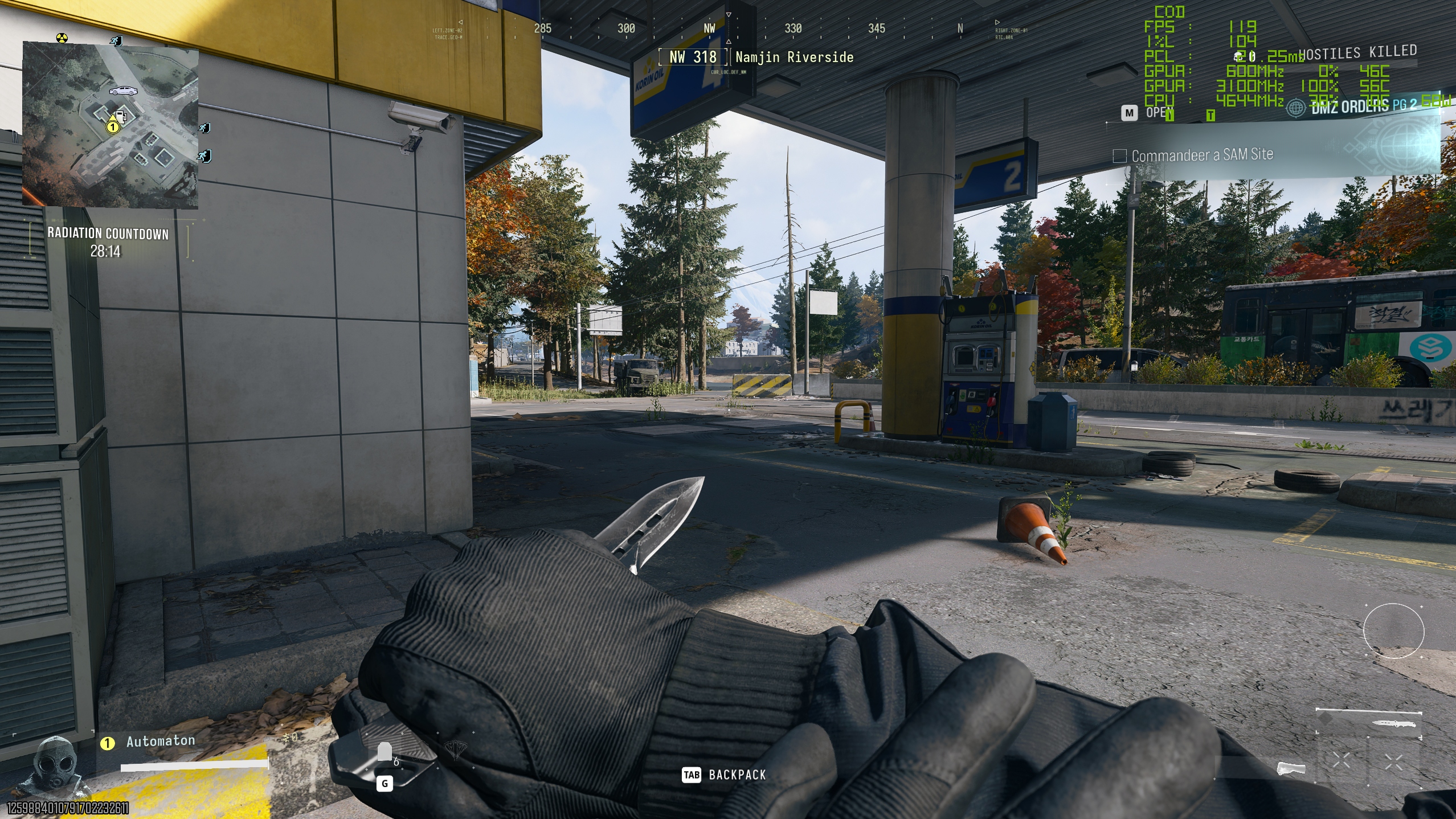
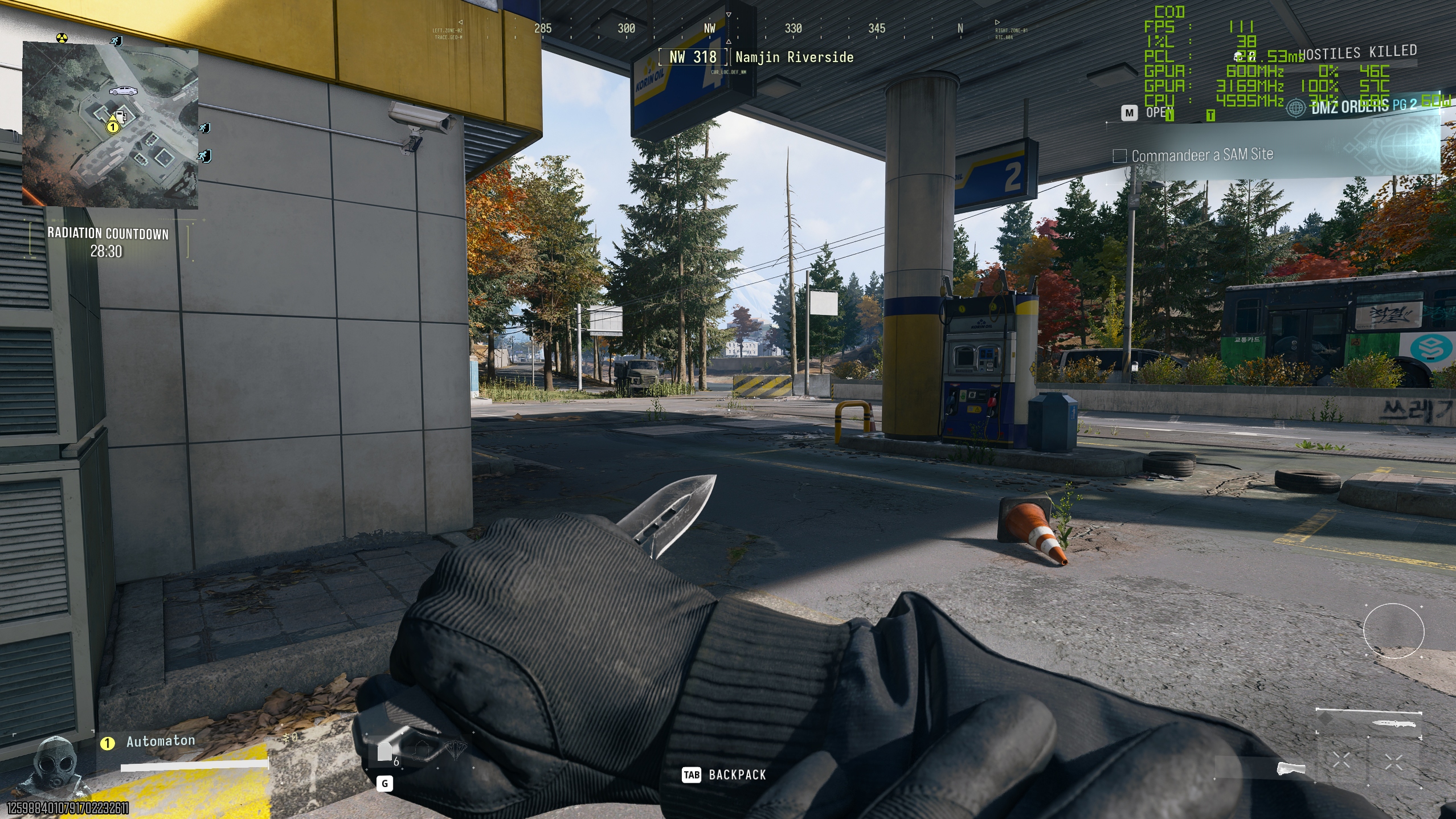
Shadow quality comparison
The left-hand images use normal shadow quality and high shadow filtering quality; the right-hand images use low shadow quality and normal shadow filtering quality.

Detail and terrain comparison
On the left, both detail quality and terrain quality are high. On the right, detail quality is normal and terrain quality is medium.
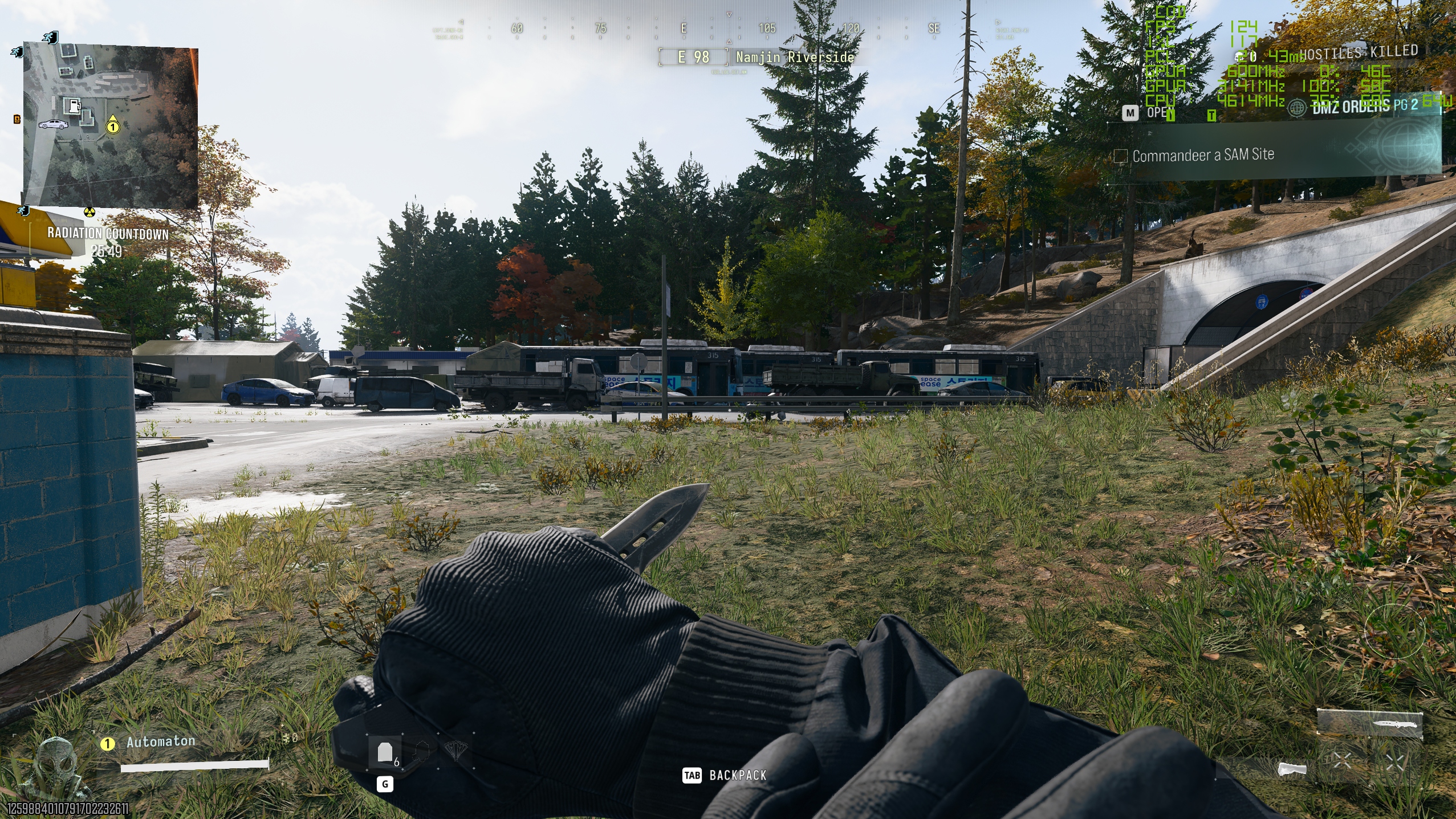
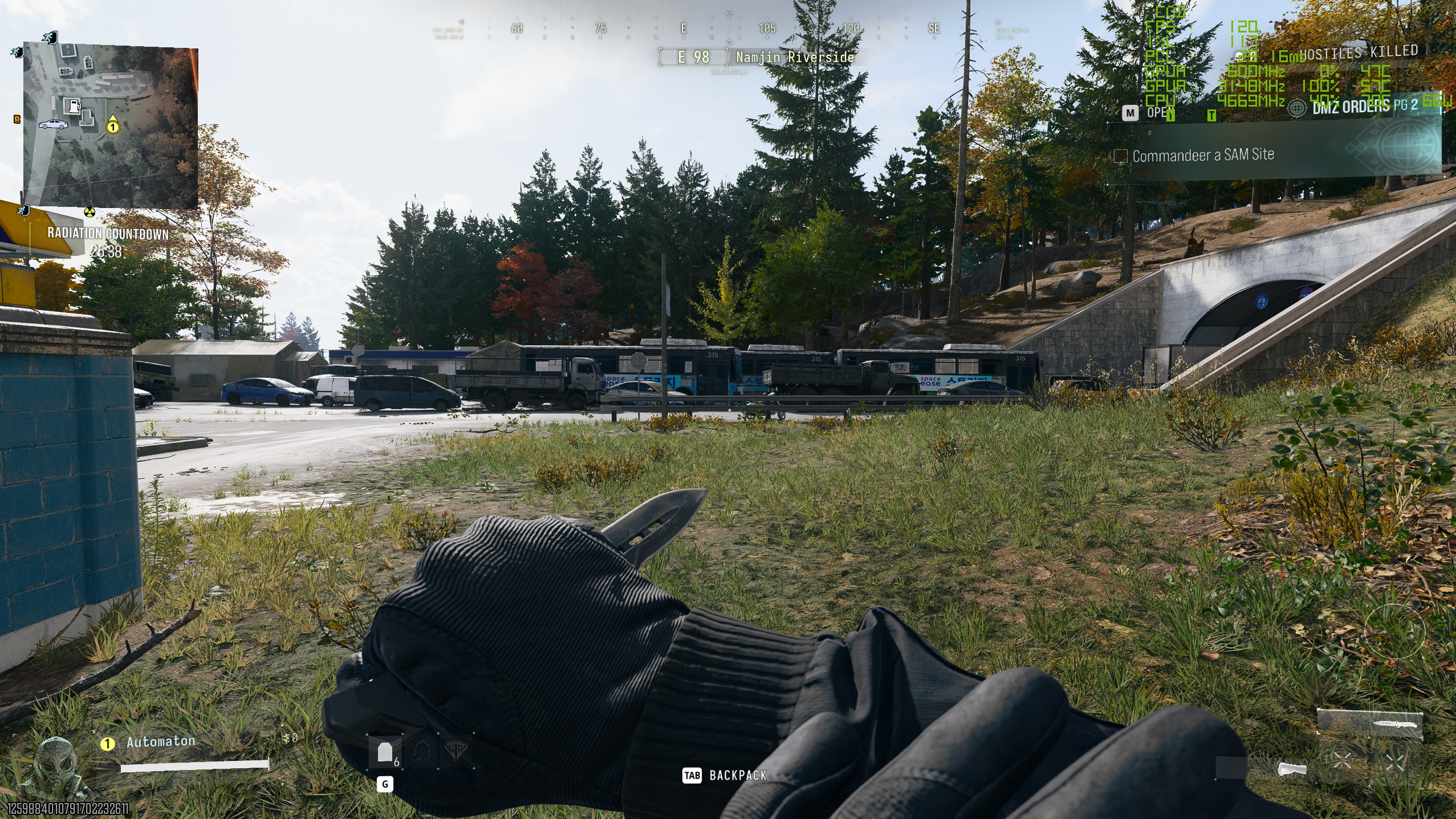
Lowering these options visibly changes the image, but the game still looks good. Reducing both the shadow and detail-related settings delivered a substantial frame-rate increase in the author's tests.
Performance with only these four settings reduced
The following results compare the Ultra preset against Ultra with only the four options above reduced to their Balanced preset values.
| Configuration | Average fps | 1% low fps |
|---|---|---|
| Ultra preset | 107 | 85 |
| Four settings lowered | 124 | 101 |
A caveat about detail quality
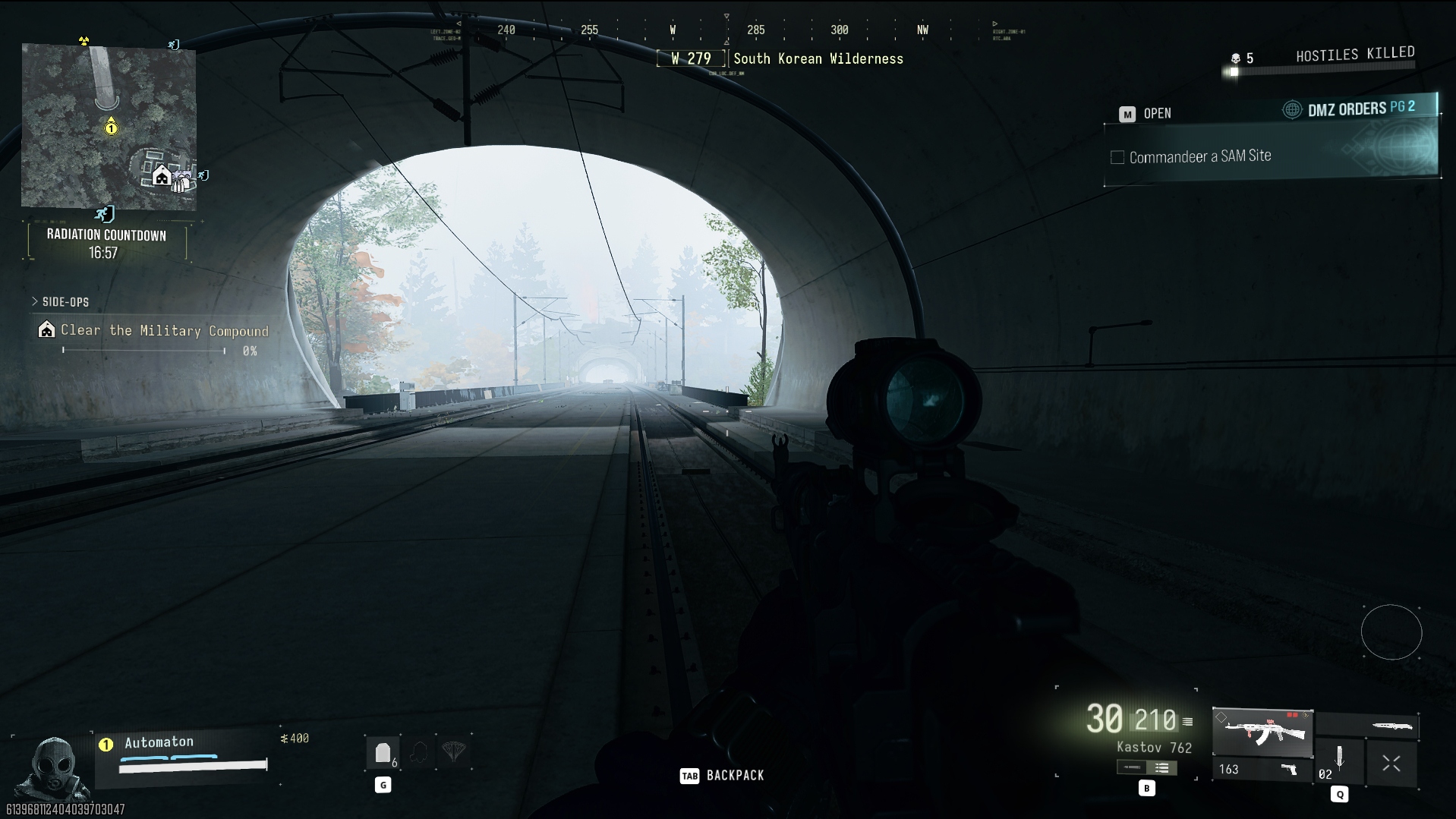
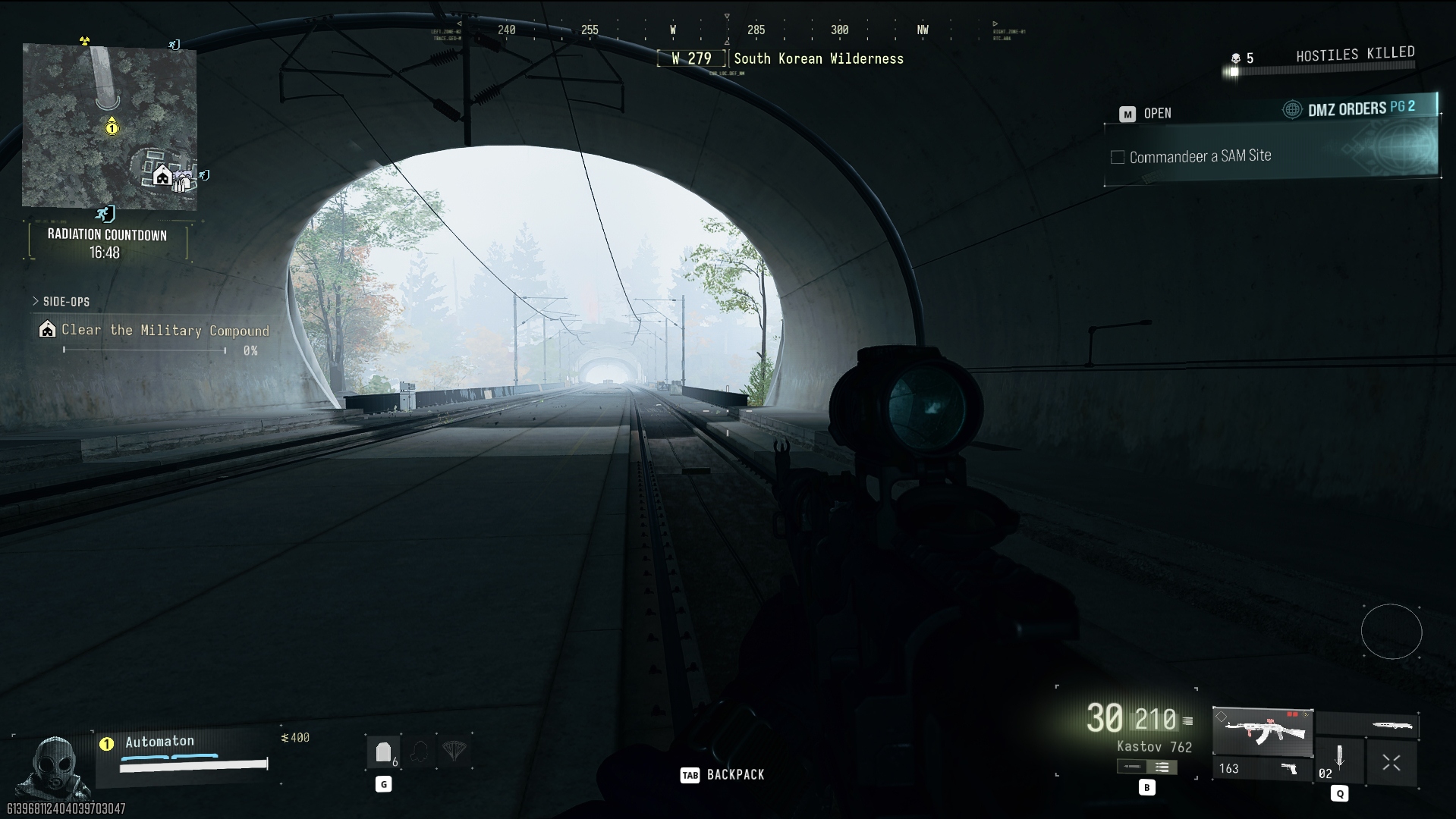
Anyone concerned about visual glitches may prefer to leave detail quality at high. Below that level, the author found that occasional trees looked blocky and unfinished, even at a moderate distance. Most trees and other details remained unaffected, so the author considered the issue tolerable.
The comparison below shows high detail quality on the left and normal on the right. The yellow/orange tree loses all its detail in the right-hand image.
How upscaling changes the tradeoff
With upscaling enabled, reducing these settings made a smaller difference. In DMZ mode on an AMD Radeon RX 9070 XT, the author saw performance rise from about 150 fps to about 160–165 fps, rather than the larger improvement in the campaign comparison.
For DMZ and multiplayer, the author's preference was to prioritize frame rate: select Balanced to lower the four settings, switch to 1080p on a 400 Hz monitor, and enable Quality upscaling.
For the campaign—and for players less focused on maximizing frame rate—the author instead favored keeping three or four of these options at their Ultra preset levels and enabling Quality upscaling, provided the PC could handle it. This choice preserves the nicer shadows, while accepting the very slight, occasional loss of crispness associated with upscaling.

About the author
Jacob first owned a gaming PC at about 12. After concluding that a local repair shop had overcharged him for the build, he resolved to assemble his own systems. He became a Hardware Writer at PCGamesN in 2020, then spent several years working toward a PhD in Philosophy while freelancing for TechRadar, Pocket-lint, and PC Gamer, before joining PC Gamer full-time.

