
FPS, or Frames Per Second, measures how many images appear on screen each second in a video or game. At 30 FPS, for example, the screen displays 30 images per second. Higher frame rates make motion smoother, while low FPS can produce a choppy experience.
During gameplay, the CPU, GPU, and RAM work together to produce and display frames. Sudden frame-rate drops can cause stuttering. Increasing FPS can improve performance, but it also raises CPU load, which is why graphically demanding games need powerful hardware.
Free FPS counter software can show your current frame rate. Hardware upgrades may be needed for the best experience, but the following software adjustments can also help.
Windows and hardware changes for better FPS
Update your graphics driver
The GPU renders frames before the CPU displays them. Outdated graphics drivers can interfere with rendering and cause lag or stuttering, so keep your driver current.
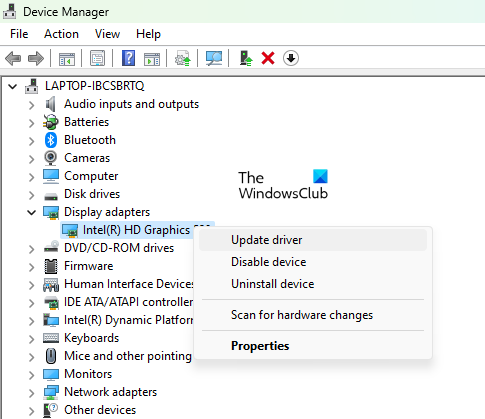
You can update it through any of these methods:
- Install the graphics driver offered through Windows Optional Updates.
- Download the latest driver from your graphics card manufacturer's official website and install it manually.
- Use Device Manager to update the driver.
- Use free driver updater software.
Enable Windows Game Mode
Microsoft designed Game Mode to improve gaming performance by disabling background activities during play, including Windows Updates and app notifications. To enable it in Windows 11/10:
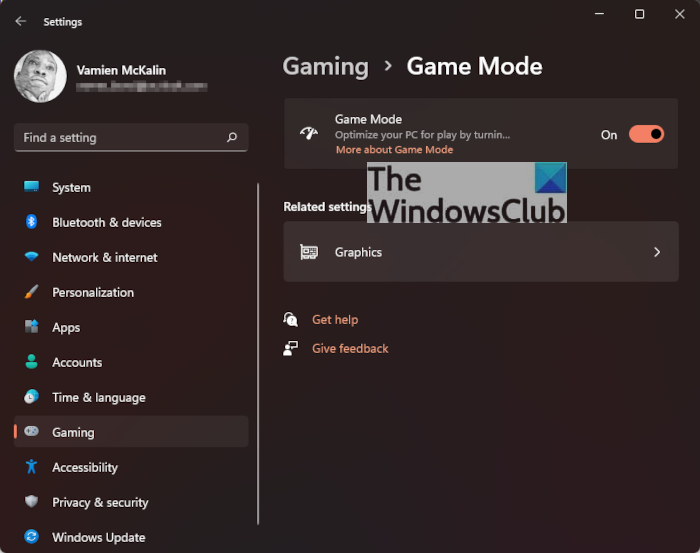
- Press Win + X and choose Settings.
- Open Gaming > Game Mode.
- Turn on the switch next to Game Mode.
Close background programs and disable startup apps
RAM temporarily holds data used by running applications, including calculation results from the CPU. System performance depends partly on how quickly the CPU and RAM exchange that data.
Each running app consumes memory, leaving less available for your game and potentially reducing FPS. Disable startup apps and close other running programs to free up RAM.
Reduce the game's resolution
On a PC without high-end gaming hardware, playing at full-screen resolution may cause lag. Choosing a lower resolution can help.
Install DirectX 12
DirectX provides components that let Windows software, particularly games, work with audio and video hardware. DirectX 12 adds graphics features and offers higher average frame rates than DirectX 11.
To check your installed version:
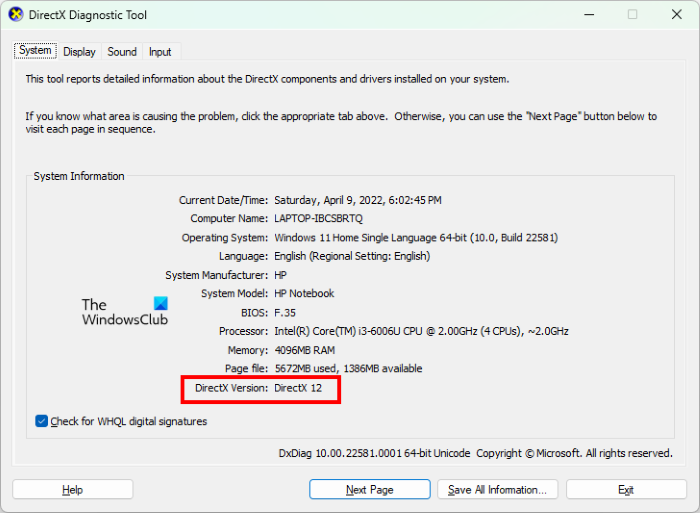
- Open Windows Search and enter dxdiag.
- Select dxdiag in the results to open the DirectX Diagnostic Tool.
- Find the DirectX version on the System tab.
The latest versions of Windows 11 and Windows 10 already include DirectX 12. An older, unupdated installation may have DirectX 11 instead. Installing the latest Windows Updates is the easiest way to obtain DirectX 12.
Overclock your graphics card cautiously
GPU overclocking increases the graphics card's clock speed so it can render graphics faster. Free overclocking software is available for this purpose.
Although overclocking can raise FPS, monitor both CPU and GPU temperatures: excessive heat can damage either component. If your graphics card exceeds its optimal temperature range or the computer begins crashing frequently, undo the overclock and consider a hardware upgrade instead.
Upgrade the graphics card or RAM
If your graphics card still cannot deliver the frame rates you need, research a replacement suited to your gaming requirements.
RAM speed and capacity also influence system performance, but adding memory does not always improve FPS. With 4 GB or 8 GB of RAM, an upgrade can increase frame rates. If you already have 16GB, adding more will not affect game FPS.
Game-specific FPS settings
Alongside the system changes above, adjust the following in-game options for Valorant, Minecraft, Lunar Client, Warzone, and CS:GO.
Valorant
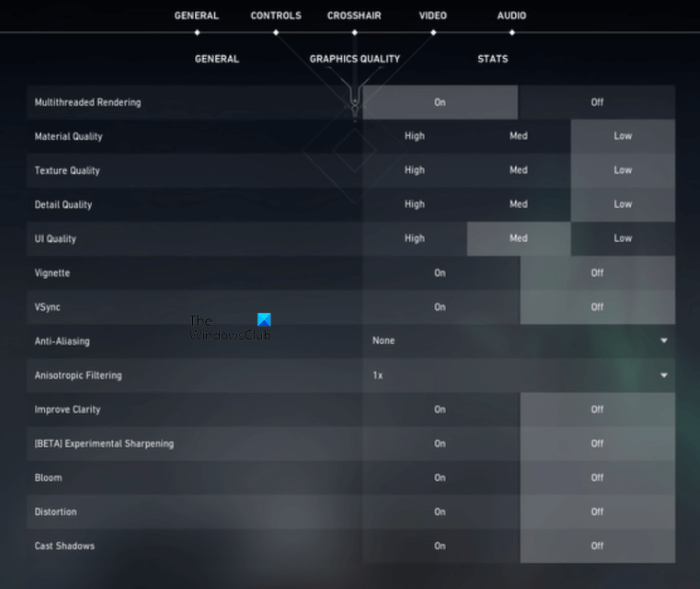
Open Valorant's Video settings and make these changes:
- On the General tab, disable Show Corpses and Show Blood. Removing bodies and blood from the floor provides a small FPS increase.
- Choose a low resolution, set Display Mode to Fullscreen, and disable the Limit FPS options.
- Switch to Graphics Quality. Enable Multithreaded Rendering to make full use of the CPU and GPU, then set Anti-aliasing to None.
- Disable these options:
- Vignette
- VSync
- Improve Clarity
- Experimental Sharpening
- bloom
- Distortion
- Cast Shadows
Minecraft
In Minecraft's Video settings, use the following configuration:
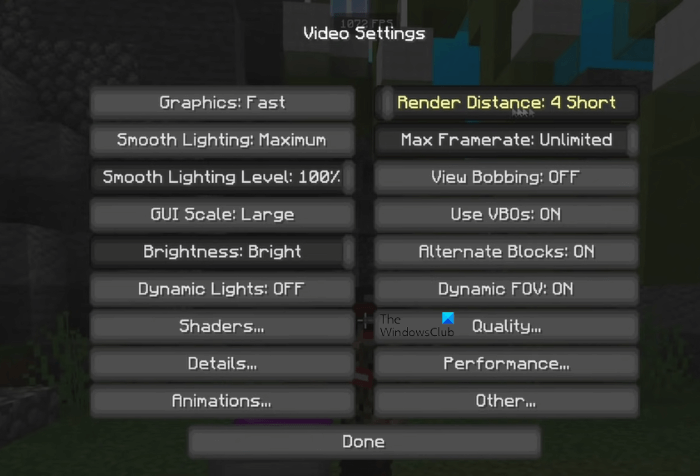
- Set Graphics to Fast and Smooth Lightening to Maximum.
- Keep Render Distance at a minimum. Try different values to find the one that delivers the highest FPS.
- Set Maximum Framerate to Unlimited.
Lunar Client
Open Lunar Client's Video settings and adjust these options:
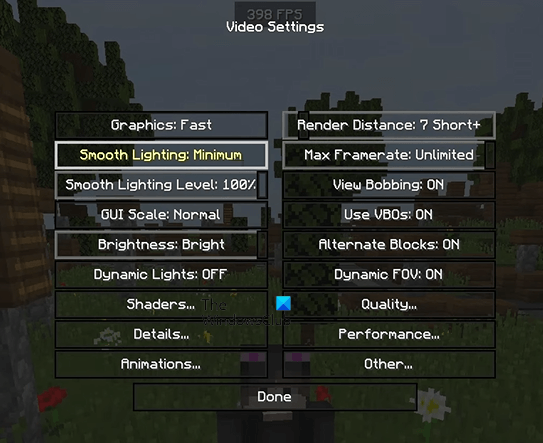
- Set Graphics to Fast and Smooth Lightening to Minimum.
- Minimize Render Distance, testing different values to find the best frame rate.
- Leave View Bobbing on or off according to your preference; it does not affect FPS.
- Set Maximum Framerate to Unlimited.
- Disable unwanted animations, such as Water Animated, Lava Animated, Fire Animated, and Portal Animated.
Warzone
Open Graphics in Warzone's settings, then configure the Display and Quality tabs.
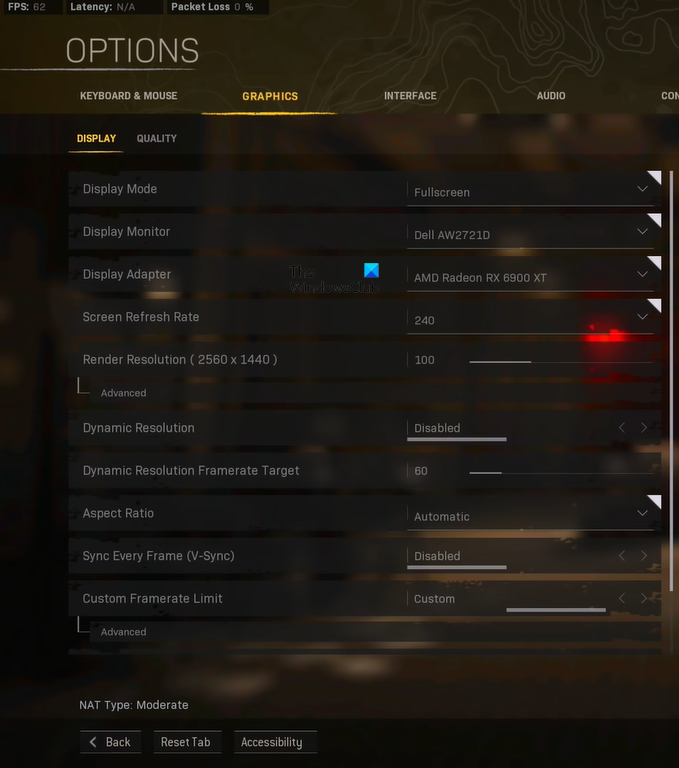
On the Display tab:
- Choose Fullscreen for Display Mode.
- Disable Dynamic Resolution and VSync.
- Disable NVIDIA Highlights, which appears only with an NVIDIA graphics card.
On the Quality tab:
- Raise Field of View (FOV) to its highest available value.
- Set ADS Field of View to Affected.
- Set Camera Movement to Least.
- Under Details & Textures:
- Set Streaming Quality and Texture Resolution to Low.
- Set Texture Filter Anisotropic to High for an NVIDIA graphics card or Low for an AMD graphics card.
- Disable Bullet Impacts & Sprays, Tessellation, Dismemberment & Core Effects, and On-demand Texture Streaming. Disabling these provides only a small FPS improvement, so you can leave them enabled if preferred.
- Turn off Anti-aliasing.
- Disable DirectX Ray Tracing.
CS:GO
Make the following adjustments in CS:GO's Video settings:
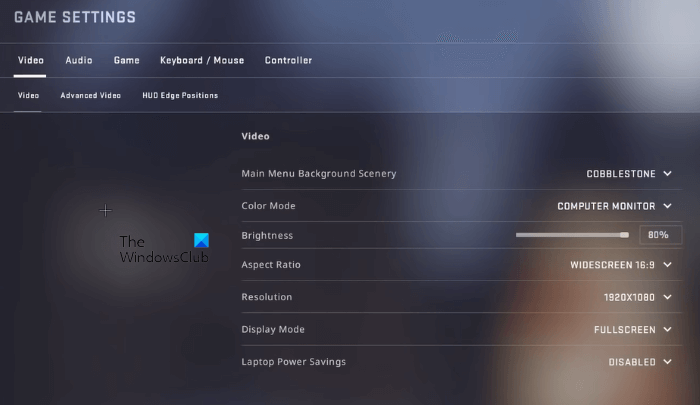
- Lower the aspect ratio and resolution.
- Test Multicore Rendering both enabled and disabled. Which setting produces the highest FPS depends on the computer.
- Disable FXAA Anti-Aliasing, Vertical Sync, and Motion Blur.
- Set Global Shadow Quality and Texture Detail to Low.

