
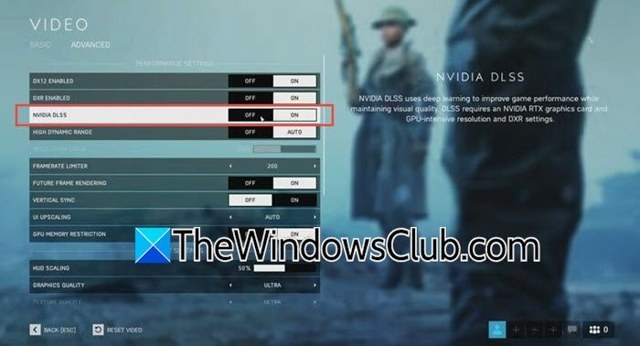
NVIDIA DLSS (Deep Learning Super Sampling) uses artificial intelligence to improve gaming performance. It renders a game at a lower resolution, then uses Tensor Cores on an RTX GPU to upscale the image in real time. This can increase performance while producing visuals that often match or exceed the quality of native-resolution rendering.
DLSS 4.5 introduces features such as Multi-Frame Generation (MFG), which creates multiple AI-generated frames for each frame rendered by the game engine. Dynamic Multi-Frame Generation adjusts its multiplier across games and scenes to maximize smoothness. It can deliver up to a 6x frame-rate multiplier by generating five AI frames for every traditionally rendered frame.
Requirements for NVIDIA DLSS
Before changing your game's settings, check that your system has the following:
- A compatible GPU: DLSS depends on the dedicated Tensor Cores in NVIDIA GeForce RTX graphics cards, including all RTX 20-series models and newer.
- A supported operating system: Windows 10 version 20H1 (build 19041) or newer, or any Windows 11 version.
- Current software: Install the latest GeForce Game Ready Driver for DLSS optimizations in recent games. The latest NVIDIA App is also highly recommended for managing driver updates and advanced GPU features.
Enable DLSS in a Game
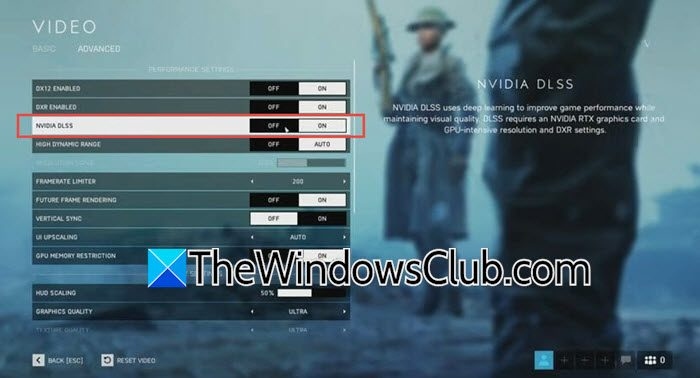
For most users, the easiest way to activate DLSS is through the game's graphics settings:
- Launch the game and open its main Settings, Options, or System menu.
- Open the Graphics, Display, or Video section.
- Find NVIDIA DLSS, DLSS, Deep Learning Super Sampling, or Image Upscaling. The label varies by game.
- Set the option to On to enable DLSS Super Resolution.
- If a Quality Mode option appears, select the balance of image quality and performance you prefer.
Choose a DLSS Quality Mode
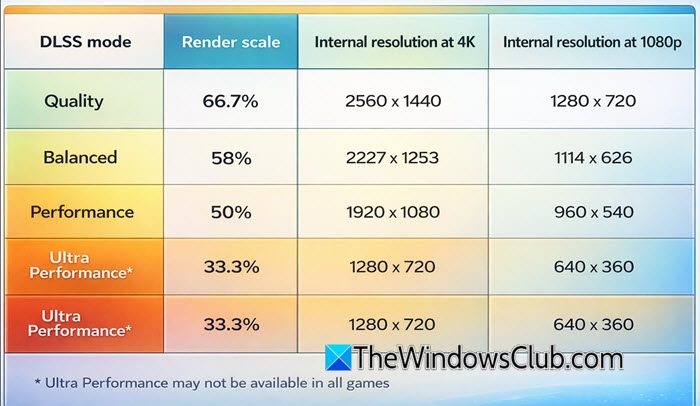
DLSS modes use different internal rendering resolutions to balance visual quality against performance. DLAA instead operates at native resolution.
- Quality Mode (66.7% render scale): Uses an internal resolution of 2560×1440 at 4K, or 1280×720 at 1080p. Best suited to high-end GPUs and maximum image quality.
- Balanced Mode (58% render scale): Renders internally at 2227×1253 for 4K, or 1114×626 for 1080p. Offers a middle ground for most users.
- Performance Mode (50% render scale): Uses 1920×1080 internally at 4K, or 960×540 at 1080p. Best suited to competitive gaming and high frame rates.
- Ultra Performance Mode (33.3% render scale): Renders internally at 1280×720 for 4K, or 640×360 for 1080p. Designed for 8K gaming, with visual trade-offs.
- DLAA: Uses native resolution without downscaling, providing the best anti-aliasing but no performance gain.
Why DLSS May Not Activate
Several hardware and software limitations can prevent DLSS from turning on:
- Check GPU compatibility. An RTX 20 series card or a newer model supports Super Resolution; for Frame Generation, the minimum is an RTX 40 series card.
- Hardware Accelerated GPU Scheduling (HAGS) may be disabled in Windows.
- The GPU drivers may be outdated.
- The game may use an obsolete DLSS 1.x implementation that modern APIs no longer support.
- In-game settings such as HDR or FPS caps may conflict with DLSS and block activation.
Does DLSS Work in Every Game?
No. Developers must integrate DLSS into their games. NVIDIA officially lists over 950 games and applications with native RTX support. Separately, industry reports put native DLSS support at approximately 770 titles, with the total continuing to grow as more games launch with the feature.

