
VSync (Vertical Sync) is a graphics card setting that matches a game’s frame rate to the monitor’s refresh rate. It helps prevent screen tearing and related visual issues. To disable it in Windows 11/10, use the settings for your NVIDIA or AMD Radeon GPU.
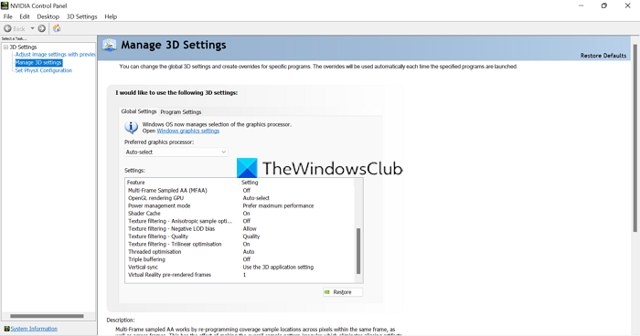
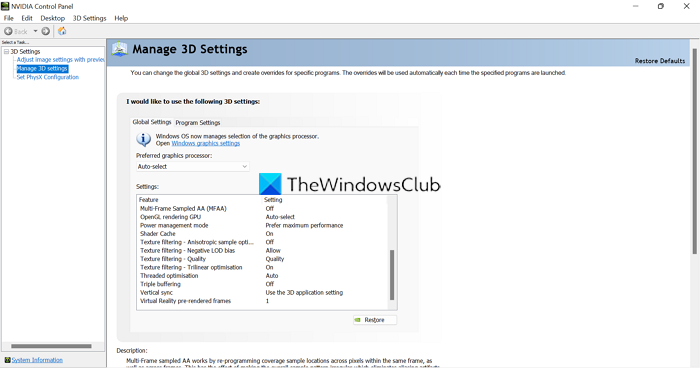
Disable VSync in NVIDIA Control Panel
- Right-click the desktop and select Show more options.
- Choose NVIDIA Control Panel.
- In the left panel, click Manage 3D Settings.
- Scroll through the 3D settings to find Vertical sync.
- Open its dropdown menu and select Off.
Disable VSync in AMD Radeon Software
- Right-click the desktop and select Show more options.
- Choose AMD Radeon Software to open AMD Radeon Settings.
- Click Gaming on the menu bar.
- Find Wait for Vertical Refresh, referred to as Wait for Virtual Refresh in the detailed instructions.
- Open the dropdown beside it and choose Off, unless application specifies. The overview describes this option as Off, unless the application specifies.
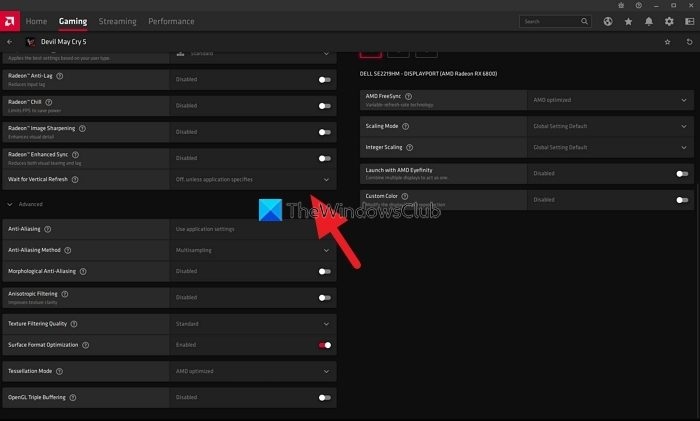
This disables VSync for your AMD Radeon GPU, unless the application specifies otherwise.
What changes when you use VSync?
Your PC’s graphics processor renders what appears on screen. Games run at different frame rates, which can result in blurry or shaky visuals. VSync synchronizes the game’s frame rate with the display’s refresh rate; on a 60Hz monitor, for example, it limits the game to 60 frames per second (fps).
Whether to enable VSync is your choice. It can help with screen tearing or lag in graphics-rich games, but it will not make a difference if the monitor cannot keep up with the game’s refresh rate.

