
How G-Sync helps
G-Sync is Nvidia’s patented adaptive sync technology, designed to let a monitor match the frame rate of a game. It is particularly useful when frame rates drop during play: even a powerful graphics card can throttle, reducing FPS and creating a mismatch with the display’s refresh rate.
Nvidia introduced software-based G-Sync support for selected AMD FreeSync monitors. To use it, you need a compatible monitor and graphics card, then must configure FreeSync on the display and G-Sync in NVIDIA Control Panel.
Check the requirements
Before starting, confirm the following:
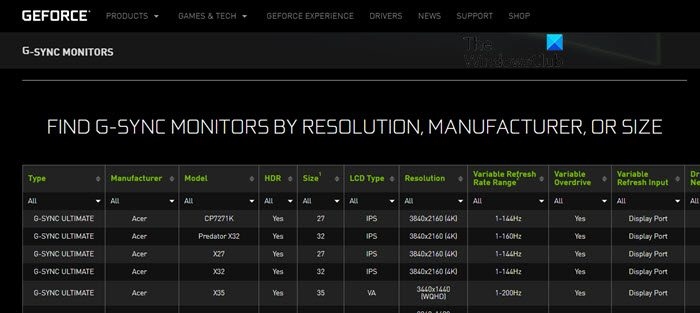
- Check nvidia.com to see whether your monitor supports G-Sync.
- Use an Nvidia GeForce GTX 10-series or better graphics card.
- Connect the monitor through DisplayPort. HDMI will not work for this setup.
- Download the Nvidia Game Ready Driver from nvidia.com/download.
Enable G-Sync on your FreeSync monitor
Once the requirements are met, configure the monitor and NVIDIA Control Panel in this order.
- Enable FreeSync using your monitor’s controls. Press its Settings button, usually beneath the screen, then go to Game Adjust, FreeSync and select Extended. The exact procedure varies by manufacturer.
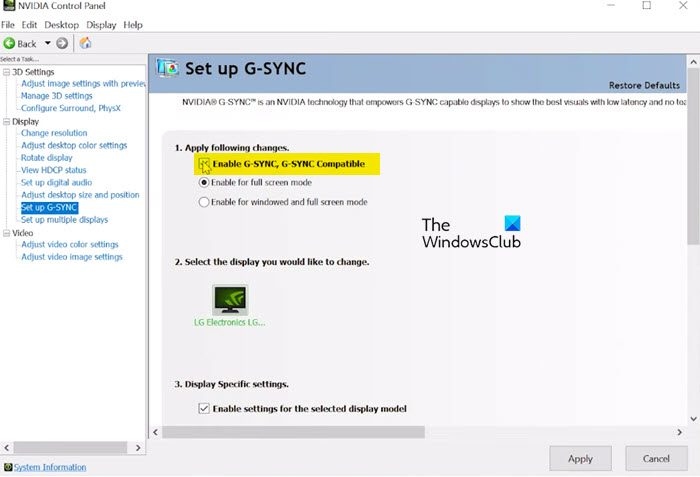
- Open Nvidia Control Panel from the Start Menu, or right-click the Desktop and select Nvidia Control Panel.
- Expand Display and choose Set up G-SYNC.
- Check Enable G-SYNC, G-SYNC Compatible.
- Choose Enable for full screen mode or Enable for windowed or full screen mode to match how you play.
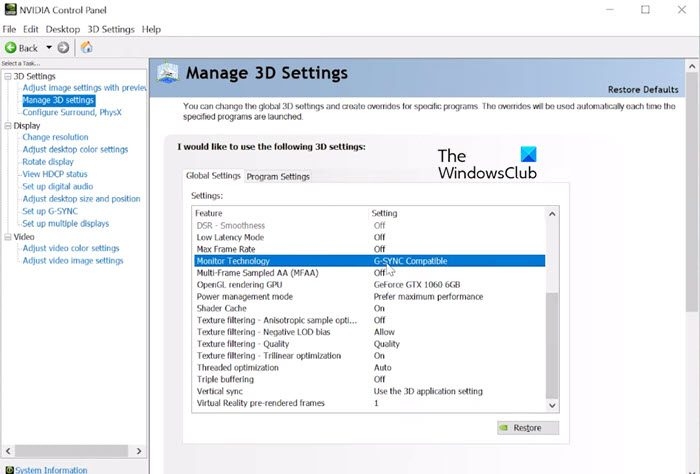
- In the left pane, open 3-D Settings > Manage 3-D Settings.
- Find Monitor Technology and set it to G-SYNC Compatible.
- Scroll down and turn on Vertical sync.
- Click Apply, then close the app.
What to do if G-Sync is not working
Work through these checks in order.
Confirm hardware and driver compatibility
Verify that you have an Nvidia GeForce GTX 10-series or better graphics card and drivers that support G-Sync; not all Nvidia drivers do. Check your monitor against Nvidia’s official compatibility list linked in the requirements above. Also confirm that the display uses a DisplayPort connection rather than HDMI.
Turn on V-sync
Open Nvidia Control Panel and go to Manage 3-D Settings. Find Vertical sync and enable it. If G-Sync still does not work, continue to the next check.
Update the graphics drivers
Keep your graphics drivers updated to address possible compatibility issues. The available methods include:
- Installing Optional Updates to update the GPU driver.
- Downloading the driver from the manufacturer’s website.
- Updating the driver through Device Manager.
- Using free driver update software.
Review the setup
Finally, repeat the G-Sync setup procedure above, checking each step for configuration errors. Correcting a missed or incorrect setting may resolve the problem.

