
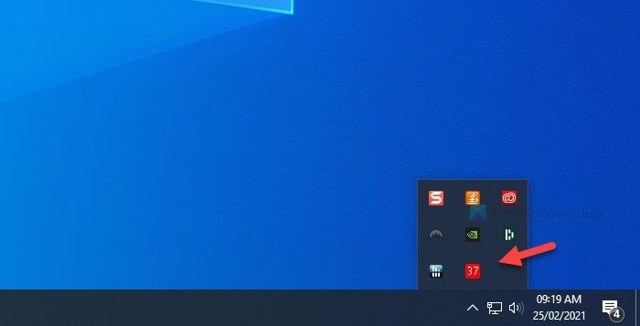
You can monitor CPU and GPU temperatures in the Windows 11 or Windows 10 system tray with HWiNFO, a free system and hardware information utility. The system tray, also called the Notification Area, is where icons for items such as USB devices, Adobe Creative Cloud and Ethernet/Wi-Fi appear.
Overheating can damage a system, cause apps to lag and eventually lead to crashes. Watching CPU and GPU temperatures is particularly useful when readings fluctuate significantly. Unless a bug is involved, Windows 11/10 itself is unlikely to cause a major temperature increase; demanding games on a mid-configured PC or several resource-heavy apps are more typical causes. Monitoring temperatures can help you decide when further action is needed.
Choose a HWiNFO version
HWiNFO is available as an installer or a portable download and works on almost every Windows 10 computer. The portable version is convenient for a one-time temperature check, while the installer is better suited to ongoing monitoring.
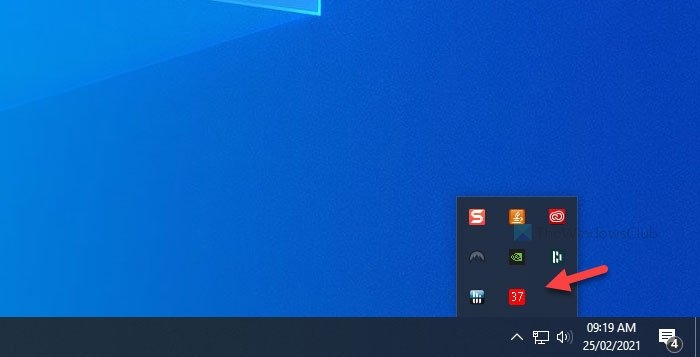
The instructions below use the portable version, but the same steps apply after installing HWiNFO. Before starting, either download and extract the portable files or install the application.
Add CPU and GPU temperatures to the system tray
- In File Explorer, open the folder containing the extracted HWiNFO files.
- Double-click HWiNFO32.exe for 32-bit Windows or HWiNFO64.exe for 64-bit Windows.
- When the UAC prompt appears, click Yes.
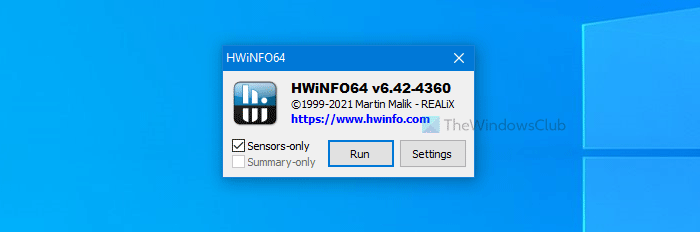
- In the small startup window, select the Sensors-only checkbox, then click Run.
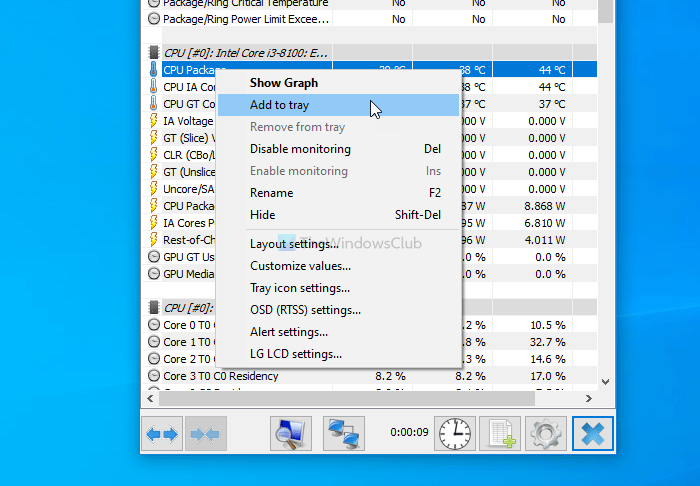
- In the HWiNFO sensor window, locate CPU Package. Right-click it and choose Add to tray.
- Locate GPU Temperature, right-click it and choose Add to tray.
- Check the system tray for the corresponding CPU and GPU temperature readings.
Show other sensor readings
The same right-click menu lets you add other information to the tray, including individual CPU core temperatures, motherboard and drive temperatures, error counts, and read/write speeds. Find the reading you want and use Add to tray as above.

