
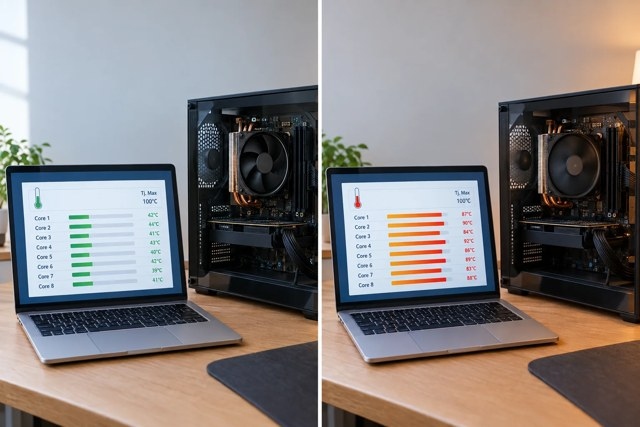
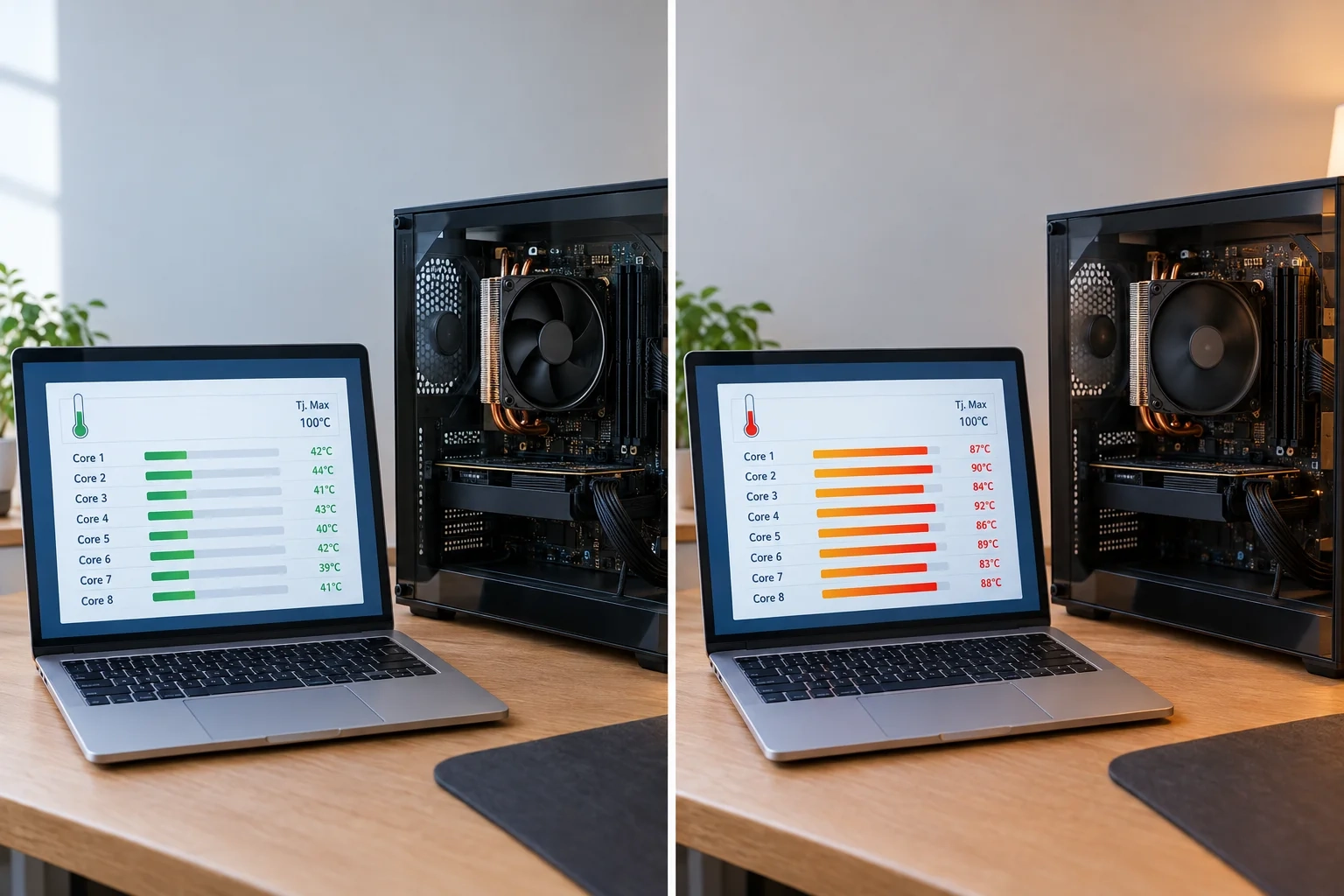
A loud fan or a 90°C reading does not, by itself, prove that a CPU is overheating. What matters is your processor’s temperature limit, how long it stays hot, and whether performance or stability suffers.
Measure temperatures with Core Temp
Windows 11 and 10 Task Manager displays CPU usage and clock speed, but not CPU temperature. The free Core Temp app reads the sensors in individual cores.
- Download Core Temp from alcpu.com.
- Run the installer and follow the setup screens.
- On the final screen, keep Launch Core Temp checked; wording may differ slightly by version.
- Click Finish.
Each core has a row showing its current temperature and Min and Max readings in Celsius. The top of the window identifies the processor and its reported temperature limit, Tj. Max.
Opening a game or video editor can raise temperatures within seconds. Modern processors continually adjust voltage and clock speed, so a brief jump from 35°C to 70°C is normal. Persistent heat matters more than momentary spikes.
Check temperatures under full load
To measure a worst-case workload, keep Core Temp open while running Prime95.
- Get Prime95 from the official GIMPS download page and extract the ZIP file. Avoid third-party download sites.
- Launch the Prime95 EXE file.
- If prompted, click Just Stress Testing.
- Select a torture test such as Blend, then click OK. Available options vary by version.
- Return to Core Temp; temperatures should rise within seconds.
- After 10–15 minutes, select Test > Stop in Prime95. Stop earlier if temperatures near the processor’s limit or rise rapidly, the cooler fan or pump acts abnormally, or the computer freezes or crashes.
Synthetic stress tests generate more heat than games or ordinary work. Treat this result as a worst case rather than expecting gaming temperatures to match it.
Set up temperature protection
- Open Options > Overheat Protection in Core Temp.
- Select Enable overheat protection.
- Choose an action for the critical temperature. Notifications are the default; alternatives include sleep, hibernation, or shutdown.
- Click OK.
Options > Settings also lets you adjust the polling interval, switch to Fahrenheit, and show temperatures in the taskbar or system tray.
Use HWiNFO to investigate intermittent heat
Core Temp suits quick checks, while HWiNFO is more useful for diagnosis because it identifies sensors precisely and retains peak readings.
- Download HWiNFO from its official website. Choose the portable version if you do not want to install it.
- Launch the app and select Sensors-only.
- Open the sensor window; the button wording varies by version.
- Find the CPU section.
- For Intel, locate CPU Package. For AMD, locate CPU (Tctl/Tdie).
- Check that row’s Current, Minimum, Maximum, and Average columns.
If overheating begins only after 20 minutes of gaming, reset the minimum and maximum values using the button at the bottom of the sensor window, play normally, then inspect Maximum. For intermittent problems, use the logging button at the bottom to record readings to a file; a two-second interval is sufficient.
Different apps may report different temperatures because they monitor different sensors. Compare matching readings: CPU Package with CPU Package, or Tctl/Tdie with Tctl/Tdie.
Check supported Ryzen processors with Ryzen Master
AMD Ryzen Master reads supported desktop Ryzen CPUs directly. Compatibility depends on the processor generation, so verify your model on AMD’s Ryzen Master page before installation.
- Download and install AMD Ryzen Master from AMD’s website.
- Find the CPU temperature on its main monitoring panel. Its position varies by version.
- Record the idle temperature.
- Run the workload causing concern and record the temperature again.
The utility also displays clock speeds, power, and voltage. Do not change its overclocking controls if you only need temperature readings.
Read CPU temperature in BIOS or UEFI
Firmware provides a download-free check on any PC, but only at idle—it cannot show gaming temperatures. It may also use a different sensor from Windows monitoring apps.
- Save your work.
- In Windows 11, open Settings > System > Recovery. In Windows 10, open Settings > Update & Security > Recovery.
- Click Restart now beside Advanced startup.
- Choose Troubleshoot > Advanced options > UEFI Firmware Settings > Restart.
- Look for Hardware Monitor, H/W Monitor, PC Health Status, or Monitoring. Some motherboards display the temperature on the opening screen.
- Read CPU Temperature or CPU Temp.
- Exit without saving changes.
If UEFI Firmware Settings is unavailable, restart and press the motherboard’s setup key during startup. Common keys are
Delete,
F2,
F10,
F12, or
Esc.
Compare readings with your CPU’s actual limit
A universal “safe temperature” chart cannot replace your particular CPU’s rated maximum.
- Identify the exact model beside Processor in Settings > System > About, or on Task Manager’s Performance > CPU page.
- Find that model on the manufacturer’s website.
- Intel calls the limit Tjunction. According to Intel’s processor temperature guidance, it commonly falls between 100°C and 110°C.
- AMD uses Max Operating Temperature (Tjmax). Ryzen 7000 and 9000 processors commonly have limits around 95°C; some Ryzen 7000 X3D models are rated around 89°C.
- Compare the highest Core Temp or HWiNFO reading with that limit.
- Watch for a sharp clock-speed reduction while temperature remains at the limit. This is thermal throttling: the processor slows down to reduce heat.
The following ranges are typical for a healthy desktop, not universal limits. Ambient temperature and cooler quality affect them.
| Workload | Typical temperature |
|---|---|
| Light desktop activity | 30–60°C |
| Gaming | 50–85°C |
| Rendering, compiling, or stress testing | 75–100°C |
A Ryzen or Core Ultra processor may operate normally at 90–95°C during a long render: these chips deliberately boost until they encounter a temperature or power limit. By contrast, 80°C at idle with a decent cooler suggests a problem.
Warning signs include:
- Temperatures remaining at or above the rated maximum.
- Repeated clock-speed reductions from throttling.
- Unexpected shutdowns under load.
- High temperatures with little activity.
- Crashes, freezes, or WHEA errors.
Continuous 100% CPU usage is not inherently unsafe; encoding, rendering, and stress testing normally produce it.
Troubleshoot high CPU temperatures
Look for a process overloading individual cores
A process saturating only one or two cores can generate heat even when total CPU usage appears low.
- Press
Ctrl + Shift + Esc
to launch Task Manager. - On Processes, sort by the CPU column.
- Open Performance and select CPU.
- Right-click the graph and choose Change graph to > Logical processors.
Each thread now has a graph. If one or two remain fully loaded, return to Processes and inspect the highest CPU entries. Windows shifts threads between processors, so use the graphs to establish the pattern and Processes to identify the likely application. End that app or update it.
Remove dust and improve airflow
Clogged heatsink fins are a common source of overheating.
- Shut down and unplug the computer.
- Use canned compressed air on the CPU heatsink, case fans, and dust filters. Keep fan blades stationary to prevent overspinning.
- For laptops, clear intake and exhaust vents and use a hard, flat surface rather than a bed or couch.
- Consider room temperature: the same computer runs noticeably hotter in a 30°C room than at 20°C.
On Windows 11 laptops, check Settings > System > Power & battery > Power mode. Best performance or an aggressive manufacturer profile permits hotter CPU operation.
Verify fan and pump operation
- Launch HWiNFO in Sensors-only mode.
- In the motherboard section, locate the CPU fan or pump speed in RPM.
- Check that speed increases under CPU load.
A 0 RPM reading or a visibly stationary fan can indicate a failed fan, failed AIO pump, or loose header cable. Replace the faulty component before running demanding workloads.
Undo overclocking and aggressive firmware settings
Non-default settings do not always require manual overclocking. Motherboards may ship with, or readily enable, AMD Precision Boost Overdrive (PBO), Intel enhanced turbo or unlimited power limits, and “AI overclocking” or “game boost” presets. XMP and EXPO memory profiles can also influence stability.
- Open Settings > System > Recovery and select Restart now beside Advanced startup.
- Choose Troubleshoot > Advanced options > UEFI Firmware Settings > Restart.
- Locate the overclocking or AI tuning section; names differ by motherboard manufacturer.
- Change PBO, enhanced turbo, and automatic overclock presets to Auto or Disabled.
- Save and exit.
If you manually increased voltage on an unlocked processor, such as an Intel K-series or Ryzen, return it to Auto first. Additional voltage is particularly likely to cause heat and stability problems. Undo changes made with RAM, CPU, and GPU overclocking tools as well, then benchmark again to check stability. Also check the motherboard manufacturer’s website for a BIOS update.
Replace thermal paste only after other checks
Fresh paste can help with dried-out material or poor cooler contact, but cannot compensate for a failing or undersized cooler. The procedure below applies to desktops. For a laptop, especially one under warranty, contact its manufacturer or a repair shop instead of opening it.
- Shut down and unplug the PC.
- Remove the CPU cooler according to its manual.
- Clean old paste from the CPU and cooler base using isopropyl alcohol and a lint-free cloth.
- Put a small amount of new thermal paste in the CPU’s center.
- Refit the cooler, tightening screws evenly in a cross pattern.
- Start the computer and compare HWiNFO temperatures with the earlier results.
If readings barely improve and ordinary games still push the CPU to its limit, a larger CPU cooler is needed.
If light loads still drive the processor to its limit after cleaning, verifying the fan or pump, and restoring firmware defaults, suspect hardware. A deteriorating AIO pump or warped cooler mount is common. Persistently overheating laptops usually require the manufacturer to replace the fan or thermal material.
The source author favors HWiNFO for its retained Maximum readings and logging, which can expose overheating late in a gaming session. In the author’s experience, an alarming 90°C reading often proves to be within the processor’s specification. However, if the CPU is hot at idle or the computer shuts itself down, stop testing and inspect the cooling hardware first.

