
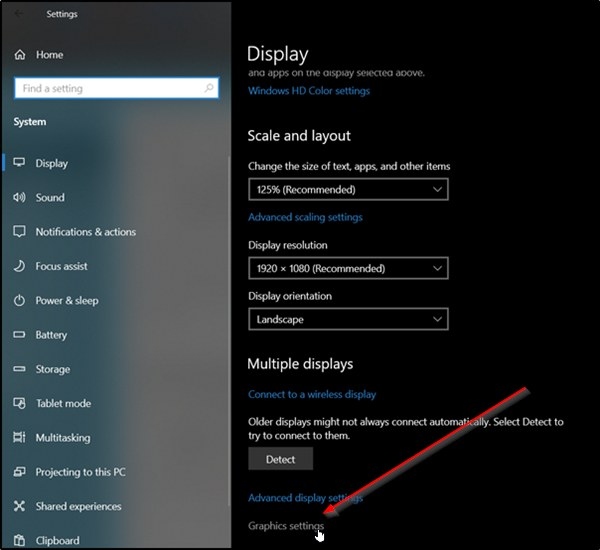
Stuttering and screen tearing can disrupt games and make motion look uneven. Windows 11/10 provides a Variable Refresh Rate option in Graphics Settings to help address these problems on supported displays and graphics cards.
Tearing occurs when a graphics card sends frames out of step with a display’s fixed refresh schedule. The screen then shows parts of two frames at once, creating a split image. Greater variation in a game’s frame rate can make this effect worse.
Adjust the display refresh rate
- Right-click the Windows button on the Taskbar and choose Settings, or press Win+I to open Settings directly.
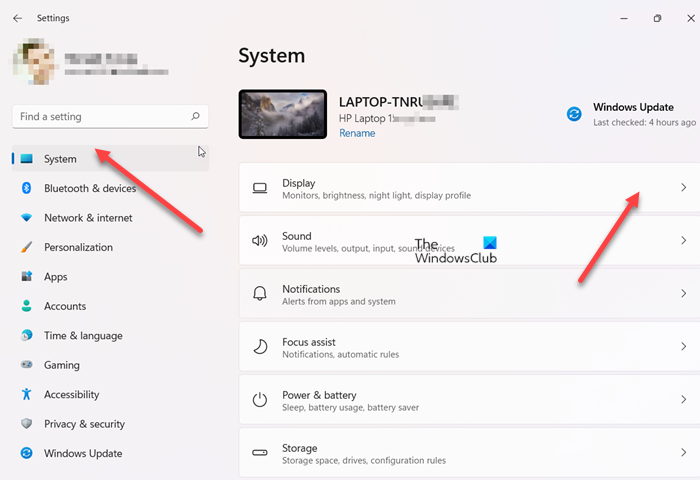
- Choose System in the left sidebar, then select Display.
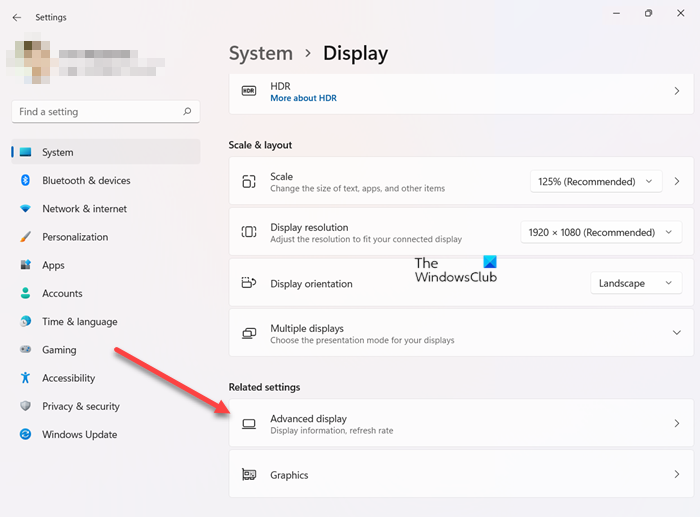
- Scroll to Related Settings and expand Advanced Display.
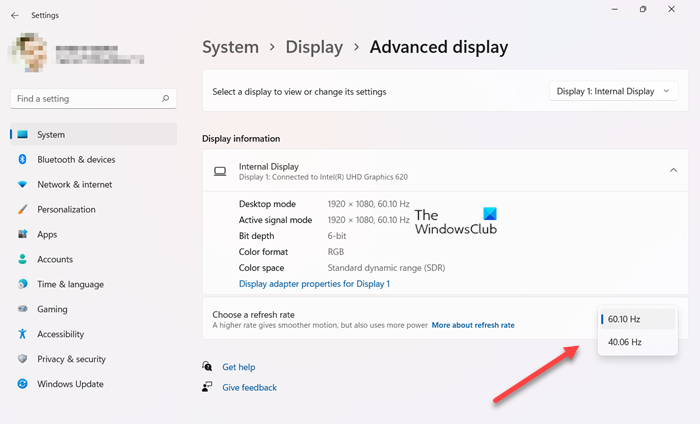
- Open the drop-down beside Choose a refresh rate and select the value you want.
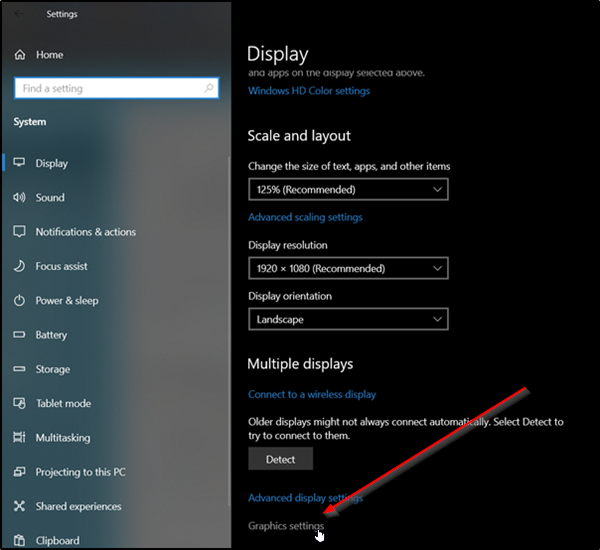
Enable Variable Refresh Rate
Variable refresh rate is off by default. To switch it on:
- Go to Settings > System Settings > Graphics Settings. This section contains two options: Variable refresh rate and Graphics Performance Preference.
- Set the slider beneath Variable refresh rate to On.
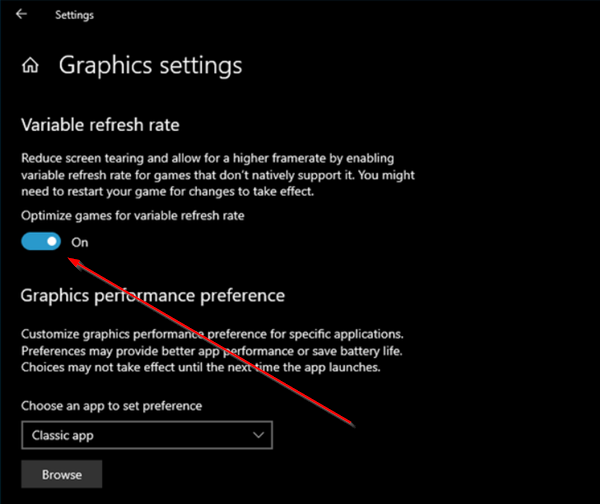
- Restart your computer for the change to take effect.
Enabling this option reduces screen tearing and allows higher frame rates in games that do not support the feature natively. Note that the option will not appear on PCs equipped with NVIDIA GeForce graphics.
What refresh rate means for gaming
Refresh rate is the number of times a display redraws its image each second, measured in Hertz (Hz). At 60Hz, the screen updates 60 times per second. Higher rates produce smoother motion but consume more power.
Refresh rate matters less for everyday digital use than for gaming, where players seek the lowest monitor response time. For gamers, at least 75 Hz is desirable; for people who do not play much, a 60 Hz monitor is sufficient.

