
Alt-Tab lets you switch quickly between open Windows applications, but some players experience a drop in FPS when using it during a game. If this happens on your Windows 11/10 PC, try the fixes below in order.
Enable Borderless windowed mode
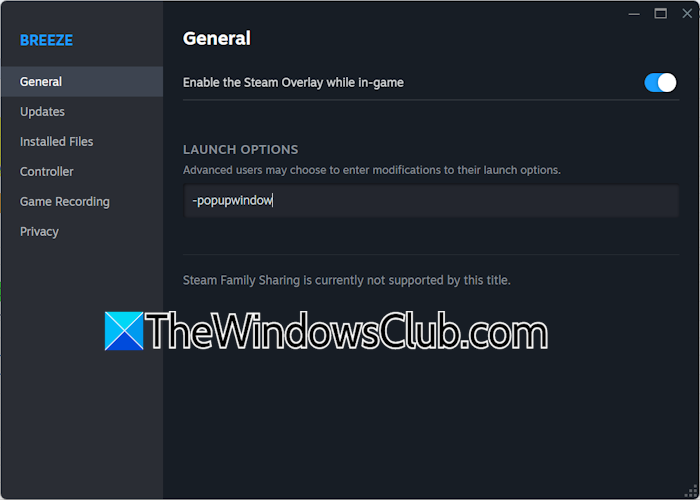
If your game supports Borderless Windowed Mode, enable it in the game settings. For a Steam game, follow these steps:
- Open Steam.
- Go to Library, then right-click your game.
- Select Properties.
- On the GENERAL tab, enter -popupwindow in LAUNCH OPTIONS.
- Open the game's display settings and select Borderless mode, if available.
Turn off Game Mode
Game Mode can sometimes interfere with games. If it is enabled, turn it off and check whether FPS improves. You can find the setting under Windows 11 Settings > Gaming > Game Mode.
Adjust Windows for best performance
Change the Windows performance settings as follows:
- Open Windows 11/10 Settings.
- Navigate to System > About.
- Click Advanced system settings to open System Properties.
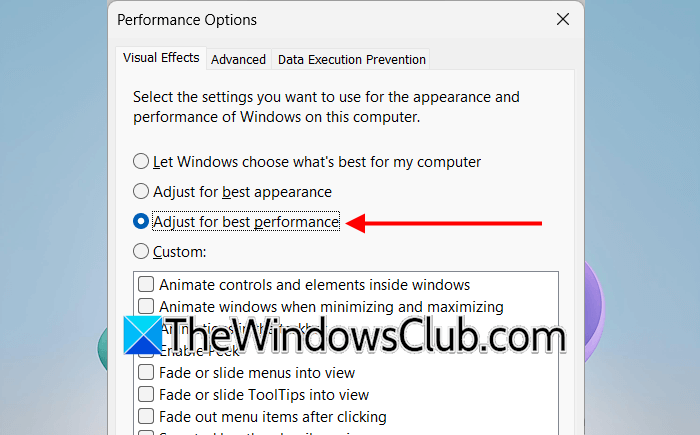
- On the Advanced tab, click Settings in the Performance section.
- Select Adjust for best performance.
- Click Apply, then OK.
Disable startup apps and the Weather widget
Open Task Manager and end unnecessary background applications. Close any unwanted open windows as well to free up system resources.
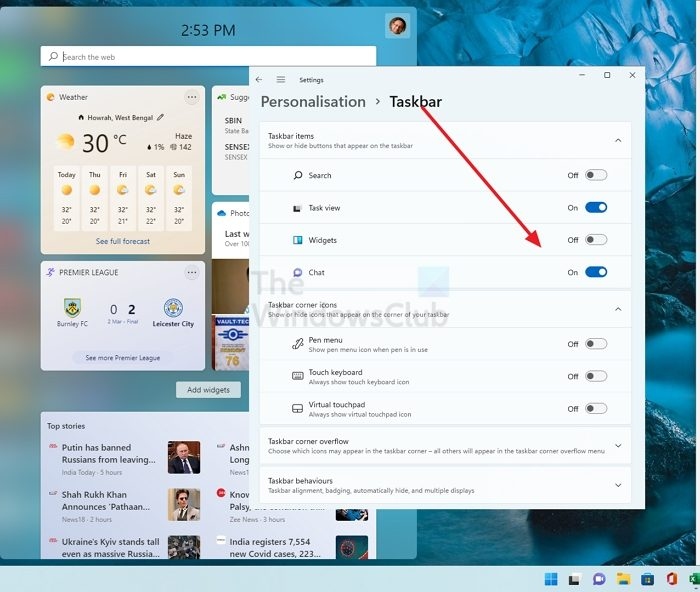
Startup apps launch automatically when Windows starts. Disable unwanted startup apps to prevent them from running automatically on subsequent startups. Also disable the Weather widget; you can enable it again after you finish gaming.
Remove junk files with Disk Cleanup
Junk files may contribute to the problem. Use the built-in Disk Cleanup utility in Windows 11 to remove them.
Test in a Clean Boot state
If disabling startup apps does not help, a third-party background service may be responsible. Start the computer in a Clean Boot state to check.
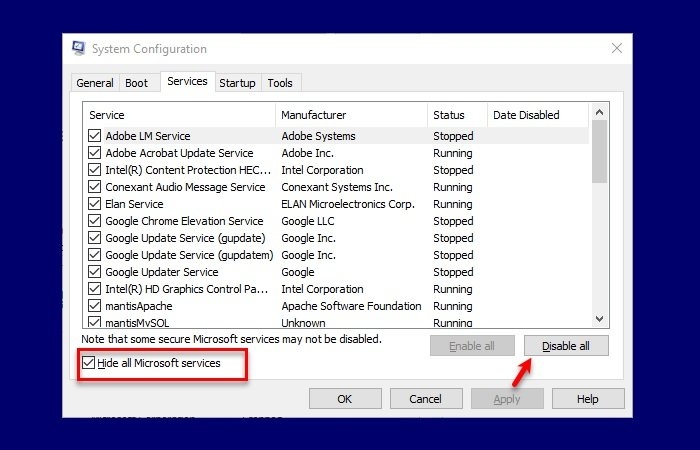
Launch the game and press Alt-Tab. If FPS no longer drops, identify the third-party service causing the problem.
Update or clean-install the graphics driver
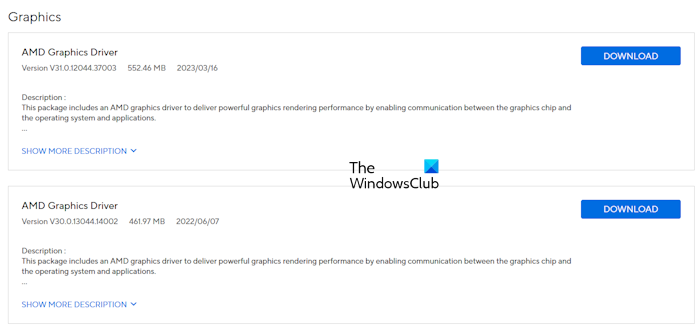
A corrupted graphics card driver can also cause FPS drops. Download the latest GPU driver from your computer manufacturer's official website, then run the installer. If updating the driver does not resolve the issue, try a clean installation.
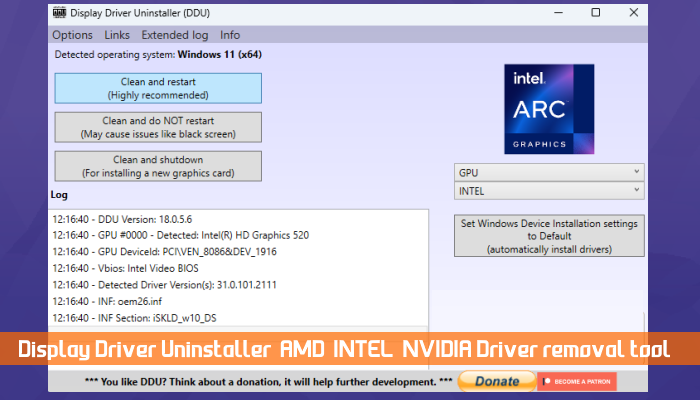
- Download and install the DDU tool.
- Run DDU in Safe Mode to remove the GPU driver completely.
- Run the GPU driver installer downloaded from the official website to install the driver from scratch.
Uninstall a recent Windows Update, if applicable
If the issue began after a Windows Update, uninstalling that update may help.
Reset your PC
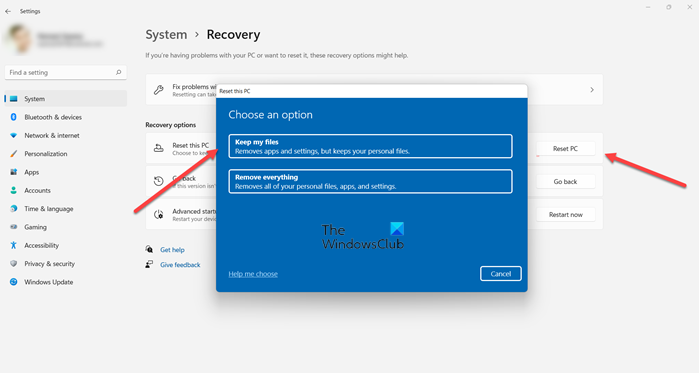
If none of the other fixes work, reset your PC to its factory default settings. Select Keep my files during the reset to retain your files. Although this option does not delete your data, back up important files before proceeding.
Is Alt-Tabbing harmful?
No. Alt-Tab is simply a shortcut for switching between open applications in Windows. You can also switch windows with the mouse, but the shortcut is more convenient.
Why does FPS drop when switching applications?
The most common cause is insufficient available RAM for the open applications. Use Task Manager to monitor RAM and CPU usage while pressing Alt-Tab. Closing unnecessary background applications may resolve the issue.

