
FPS, or Frames Per Second, measures how many frames appear on screen each second. Video consists of successive images called frames, and displaying more of them per second produces smoother playback and gameplay.
A sudden FPS drop can make a game feel choppy or laggy. Possible causes include an outdated graphics card driver, hard drive problems, and GPU overheating. However, low FPS is not the only cause of sluggish gameplay. Displaying a frame-rate counter helps you determine whether the slowdown coincides with an FPS drop.
On Windows 11, you can view game FPS through Xbox Game Bar, NVIDIA GeForce Experience, third-party software, or a game's own settings.
Display FPS with Xbox Game Bar
Windows 11 includes Microsoft's Xbox Game Bar, so you do not need to install a third-party utility to check FPS. The Game Bar in Windows 11/10 lets you view FPS in all video games.
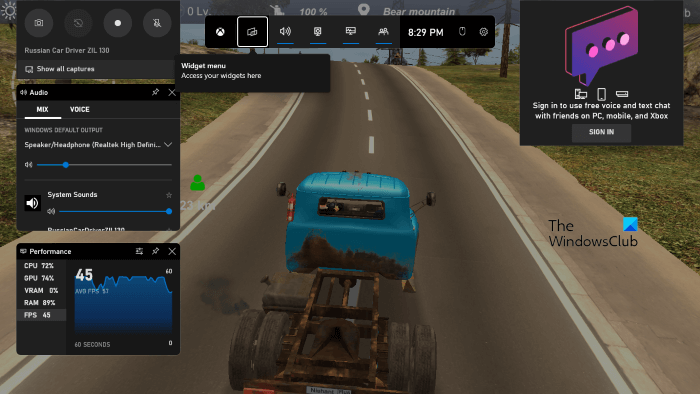
- Start your game.
- Press Win + G to open Xbox Game Bar.
- In the Performance widget, select FPS to see the game's frame rate.
If pressing Win + G does not bring up Xbox Game Bar, make sure the FPS counter is turned on in Windows 11 Settings.
Enable the counter in NVIDIA GeForce Experience
If your hardware supports NVIDIA ShadowPlay, you can enable a game FPS counter through NVIDIA GeForce Experience. ShadowPlay also supports recording, streaming, and sharing gameplay with friends.
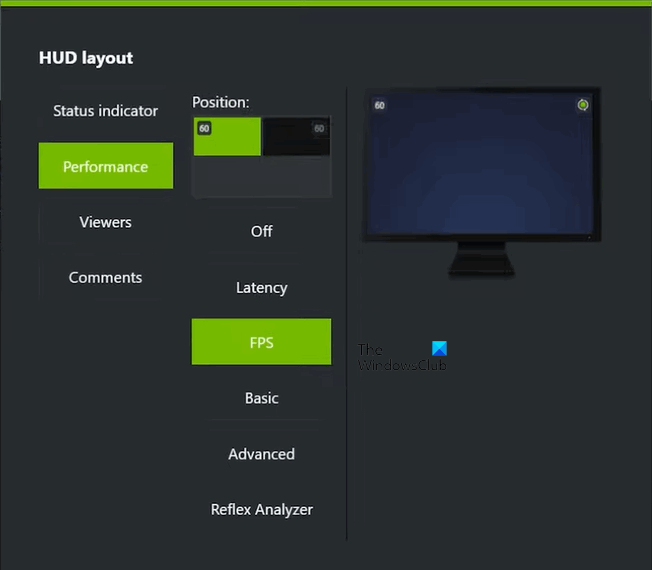
- Open NVIDIA GeForce Experience.
- Select the gear icon at the upper right to open settings.
- Turn on In-game Overlay to access the overlay settings.
- Under IN-GAME OVERLAY, click Settings.
- Navigate to HUD Layout > Performance.
- Choose FPS. You can also adjust where the FPS Counter appears in your games.
Use a third-party FPS utility
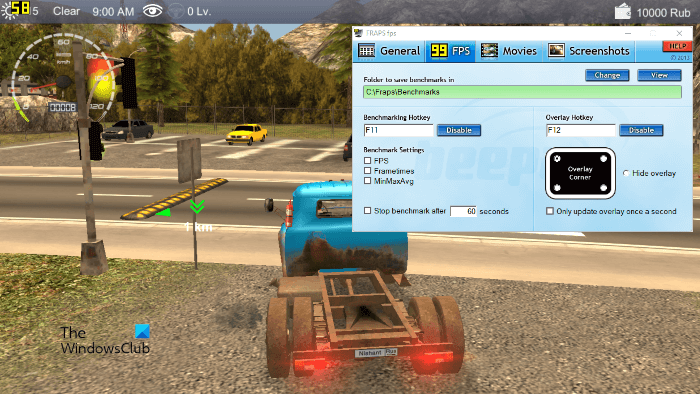
Free FPS counter software offers another way to monitor game frame rates on Windows 11. FRAPS is a popular option that also captures in-game screenshots and records gameplay. Other third-party utilities can display FPS as well; MSI Afterburner can show both FPS and statistics.
Turn on a game's built-in FPS counter
Some games include their own FPS counter, which you can enable in the game settings without installing additional software. Here are the steps for several popular titles.
Apex Legends
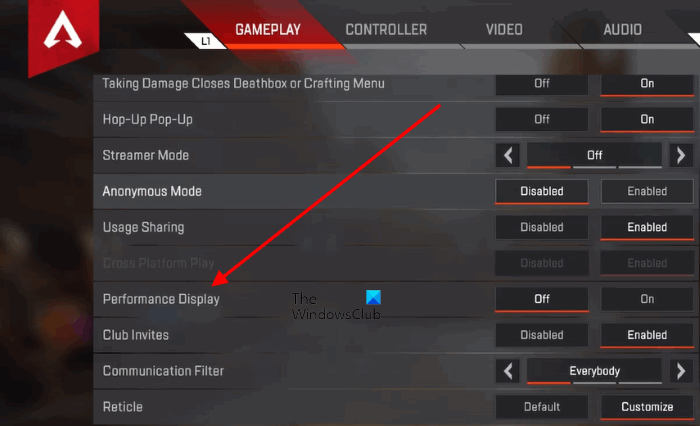
- Start Apex Legends.
- Open the settings.
- Go to the GAMEPLAY tab.
- Scroll down and enable Performance Display.
Call of Duty: Warzone
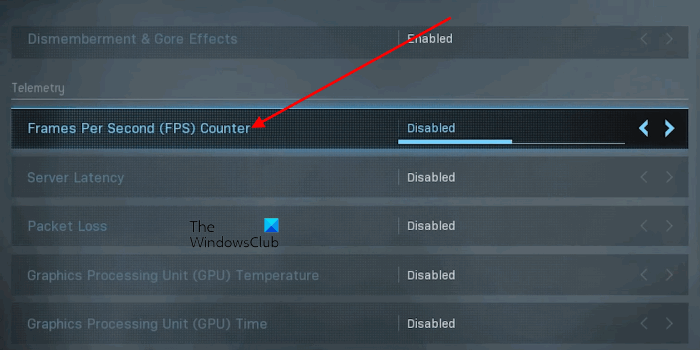
- Start Call of Duty: Warzone.
- Open Options and select the General tab.
- Scroll to the Telemetry section.
- Click the arrow beside Frames Per Second (FPS) Counter to enable it.
Valorant
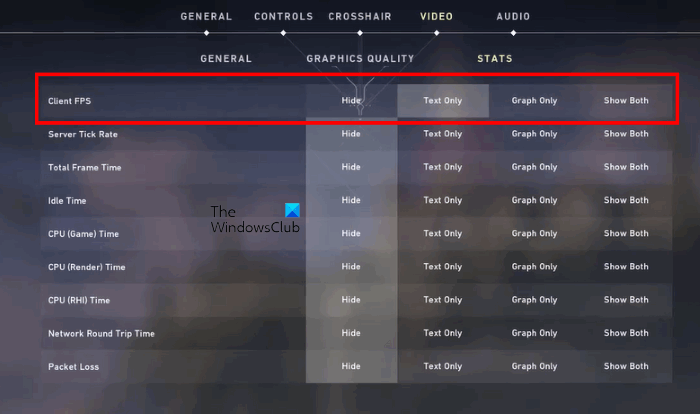
- Start Valorant.
- Open the settings.
- Select the Video tab.
- Switch to the Stats tab.
- Choose the display option you want beside Client FPS.
Text Only displays FPS as text, while Graph Only presents it as a graph. Choose Both to display the text and graph together.
Dota
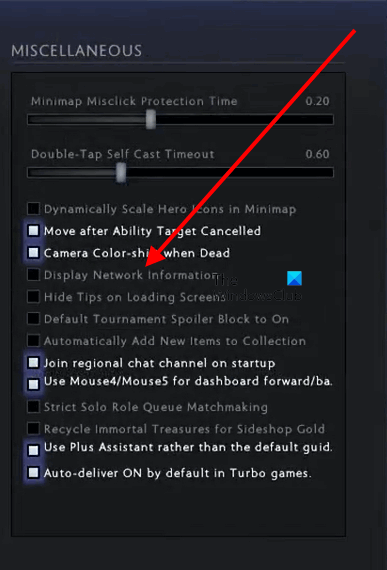
- Start Dota on your Windows 11 PC.
- Open the settings.
- Select the Options tab.
- Scroll down and select Advanced Options.
- In the Miscellaneous section on the right, enable Display Network Information.
Halo Infinite
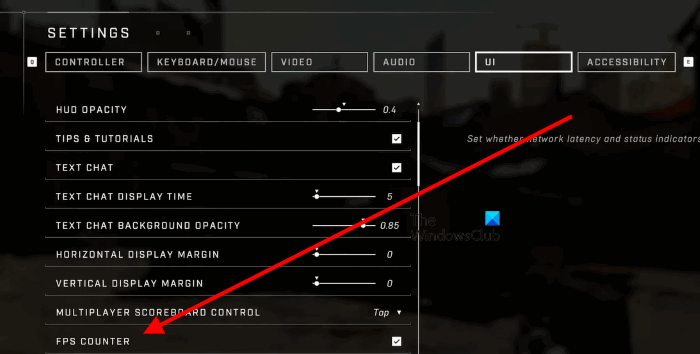
- Start Halo Infinite.
- Open the settings.
- Select the UI tab.
- Scroll down and select the FPS Counter checkbox.

