
A PC bottleneck occurs when one component limits the performance of others, preventing the CPU and GPU from reaching their full potential. In games, this imbalance can cause lag, stuttering, and drops in frames per second (FPS).
Installing a powerful component in a weaker system may improve performance, but the remaining hardware will still restrict what it can achieve. Bottlenecks are not necessarily a manufacturer's fault: they can occur in any computer and are particularly important to consider when choosing parts for a custom build. Components should have comparable capabilities so they can work together without unnecessarily limiting one another.
How bottlenecks affect gaming FPS
Bottlenecks primarily affect frame-rate consistency. Higher FPS generally makes gameplay smoother; 60 FPS is considered respectable, while 30 FPS is a bare minimum.
Frames are drawn and rendered through the render pipeline. Demanding games need a capable GPU to render images quickly, but a strong graphics processor cannot compensate fully for a weak CPU.
Think of a car-building team: even an excellent painter must wait for a slow mechanic to finish before painting can begin. Similarly, a powerful GPU must wait for the CPU to complete its work. If the GPU can deliver 60 FPS but the CPU cannot keep up, frame drops can follow. Lowering the maximum FPS may then provide a more consistent experience, which is why a balanced system matters.
Ways to manage a gaming bottleneck
When planning a custom PC, aim for balanced CPU and GPU performance. That does not improve the computer you already own, but it can help you avoid a similar mismatch in your next build.
For an existing system, try these adjustments:
- Place more load on the stronger component. For example, if your CPU is the more powerful part, giving it additional work may leave the GPU more breathing room.
- Set an FPS limit in your game's settings. This does not guarantee a constant frame rate, but it gives the hardware a target to meet and can prevent throttling.
Tools for identifying a PC bottleneck
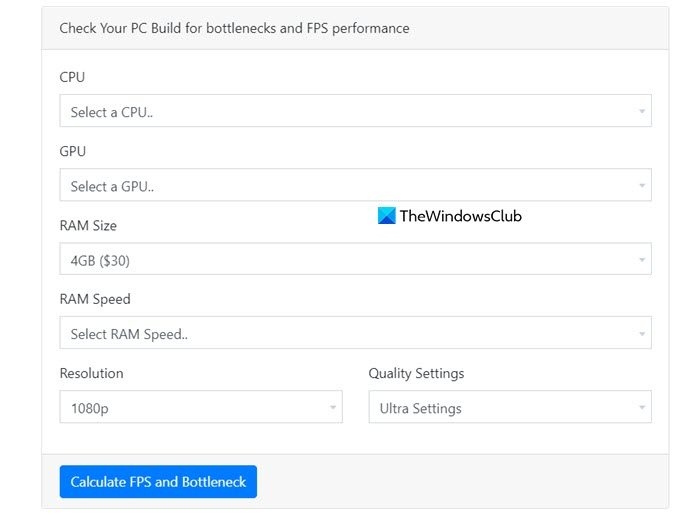
Bottleneck calculators can help identify performance imbalances. CPU Agent’s FPS and Bottleneck Calculator asks for your PC's details and returns a result. If you are unsure what to enter, first check your hardware specifications.
PC Builds Bottleneck Calculator offers a similar approach: supply the required system information, then review the results. Either tool can help you check for bottlenecks.
Can bottlenecking damage your hardware?
A bottleneck itself does not damage the CPU, GPU, or other components; it limits their performance. However, increasing CPU or GPU voltage in an attempt to overcome that limitation can cause damage. Try adjusting game settings instead, and do not raise voltage to a level that makes components overheat.
Checking for a RAM bandwidth bottleneck
Start by monitoring memory usage and throughput in Task Manager during demanding workloads. A CPU that remains idle while memory usage spikes or latency rises is a warning sign.
For a more detailed investigation, Windows Performance Recorder (WPR) and Windows Performance Analyzer (WPA) can capture traces of memory activity. Free utilities such as CPU-Z or HWInfo can also verify RAM speed, timings, and whether memory is operating in single- or dual-channel mode. Together, these checks help determine whether insufficient memory bandwidth is behind sluggish performance.

