The Ultimate Performance power plan in Windows 11/10 is designed for workstations where performance matters more than balanced energy use. The source author also considers it useful for gaming and other demanding tasks, such as video editing that requires substantial CPU/GPU power.
By default, this plan is available only on high-end workstations running directly on mains power, not battery-powered systems. The command below provides a workaround for enabling it on other PCs, including desktops and laptops, although some systems may not support it.
The source author advises against using this mode on laptops because it drains the battery quickly. If you choose to use it on a laptop, keep the device connected to the mains.
What Ultimate Performance changes
Microsoft designed this mode to extract maximum hardware performance by removing power-saving compromises. On servers and workstations, businesses may accept higher electricity consumption to finish time-sensitive work.
Windows 11/10 normally offers Balanced, Power Saver, and High Performance plans. Ultimate Performance goes further, making applications run faster with these settings:
- The hard disk never goes to sleep.
- Javascript timer frequency is set to its maximum.
- Hibernation and Sleep are disabled.
- Processor State, Colling Policy, and maximum processor rate are set to their maximum values.
Enable Ultimate Performance
- Open Settings > System > Power & sleep > Addtional Power Settings.
- Under Choose to customize a power plan, expand “Unhide Additional plans.”
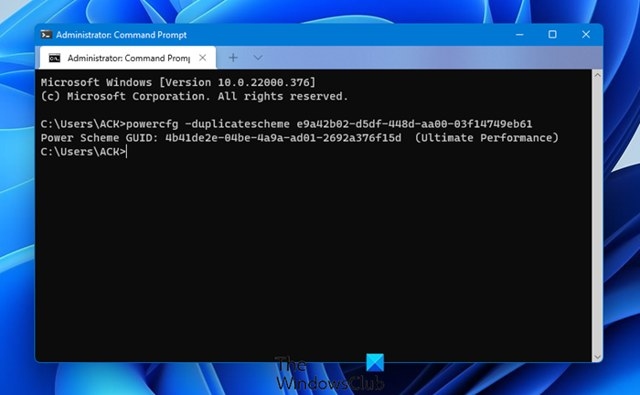
- If Ultimate Performance Mode is missing, open Command Prompt as administrator.
- Copy the following command into Command Prompt and press Enter:
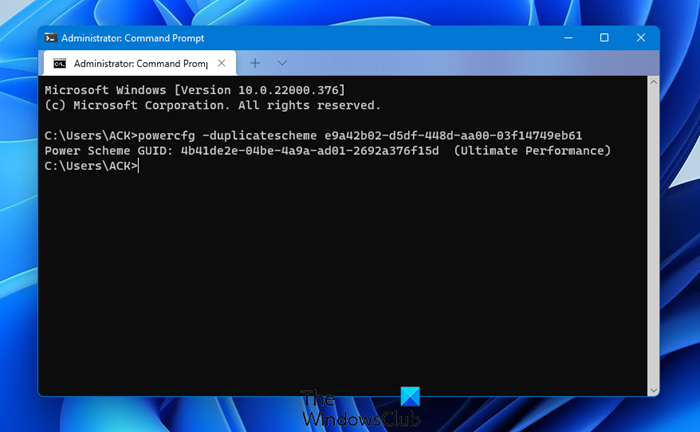
powercfg -duplicatescheme e9a42b02-d5df-448d-aa00-03f14749eb61
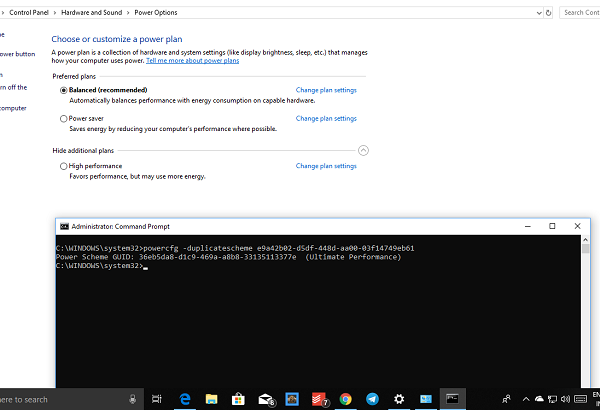
- Minimize Command Prompt and return to Settings > System > Power & sleep > Addtional Power Settings.
- Select Ultimate Performance Power Plan. You can customize the plan further if needed.
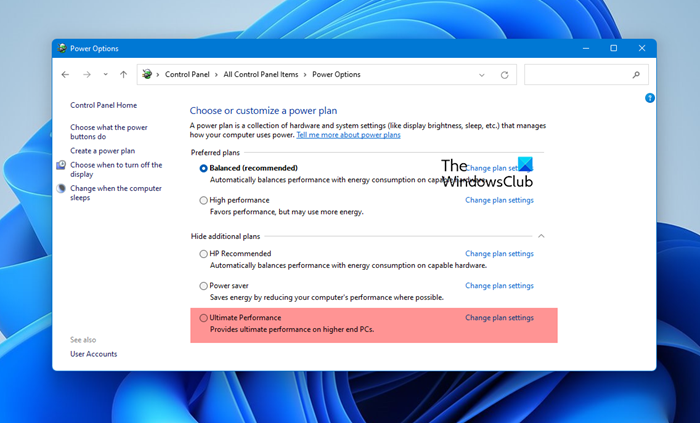
If the plan still does not appear on your laptop after running the command, your system may not support it.
Use PowerShell instead
Open PowerShell as an administrator and run
powercfg -duplicatescheme e9a42b02-d5df-448d-aa00-03f14749eb61. This enables the Ultimate Performance plan, optimizing resource management for improved PC performance. Then open Control Panel > Power Options and select the plan.
Remove the plan
- Return to Advanced Power Settings.
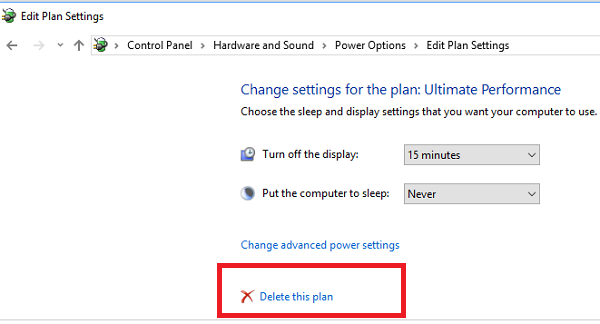
- Click Change Plan Settings beside Ultimate Performance Mode.
- Choose the option to delete it in the next window.