
Windows 11/10 includes Game Mode for gaming, along with Game Bar controls for recording, broadcasting, taking screenshots, and switching Game Mode on or off. Notifications prompt you to press Win+G to open Game Bar or tell you that Game Mode is active.
Turn Off Game Bar Tips and Notifications
These messages appear when you launch a game, explaining Game Bar features and prompting you to enable Game Mode. Disabling the notifications does not stop Game Mode from working. The mode is designed to improve the gaming experience by directing power and priority to the game.
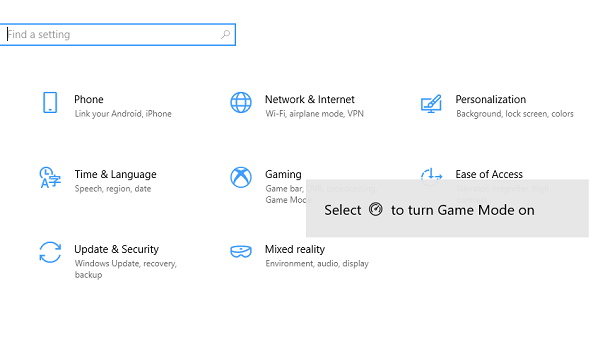
Windows 10 previously offered a “Get Game Mode” notifications checkbox under Settings > Gaming > Game Mode. It was available only while Game Mode was enabled.
That checkbox and the Game Mode toggle were later removed from this section, which now only indicates whether This PC supports Game Mode. The control moved to Game Bar, where a large speedometer-style Game Mode icon lets you enable it manually for a game.
Disable Game Mode Notifications Through the Registry
Although the Settings option is gone, the notifications can still appear. To disable them through the Registry, you need administrator privileges.
- Type regedit in the Run prompt and press Enter.
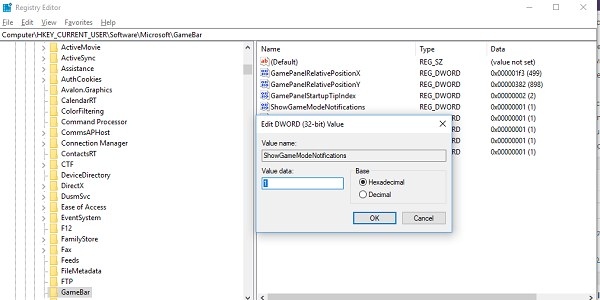
- In Registry Editor, navigate to:
HKEY_CURRENT_USER\Software\Microsoft\GameBar
- Find the DWORD named ShowGameModeNotifications in this key. If it is missing, create it.
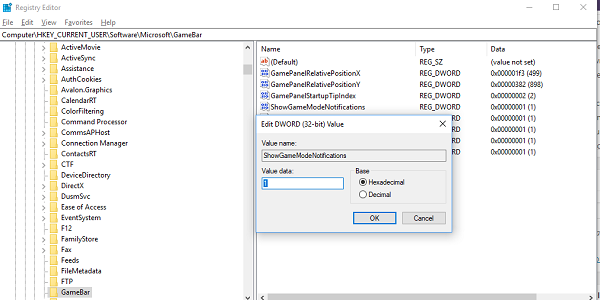
- Set its value to 0 to disable notifications. To enable them again, set the value to 1.

